Référence produit: RUCM-AFAC
Catégorie: Câbles et adaptateurs , Adaptateurs USB , Tous les produits
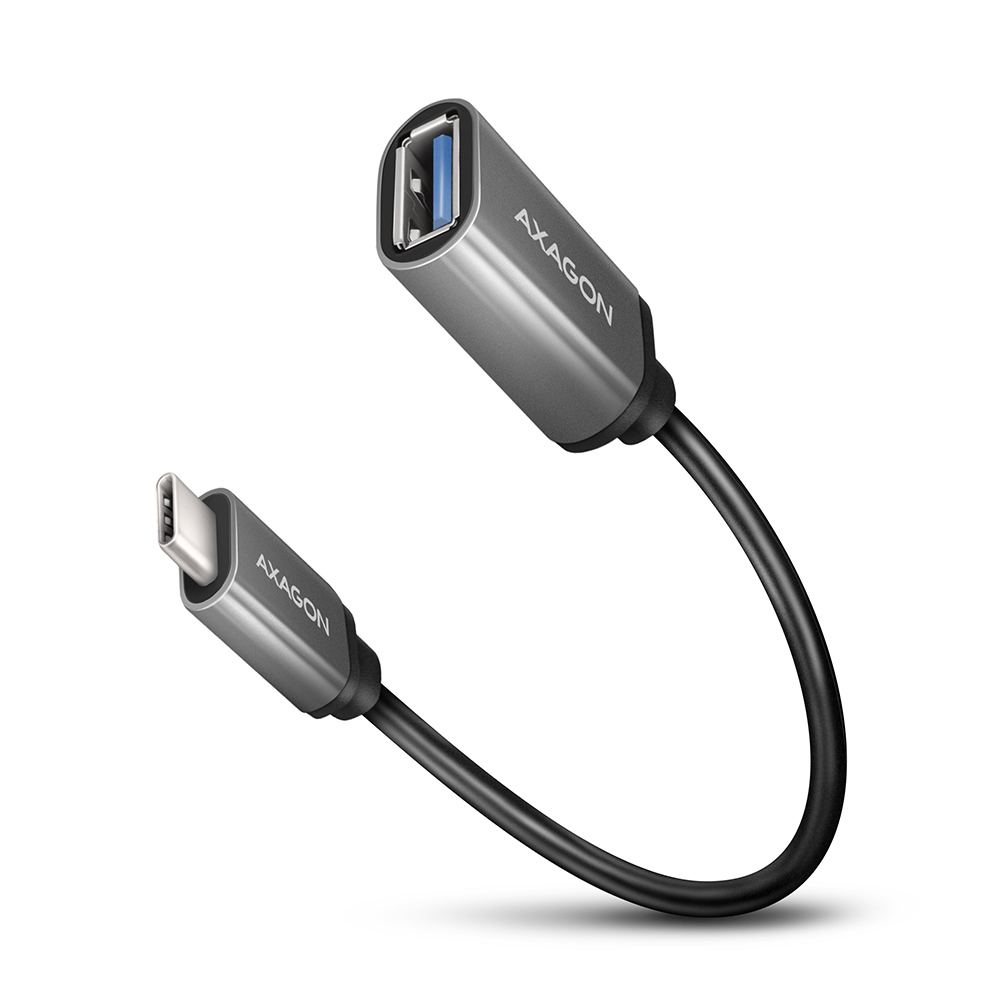
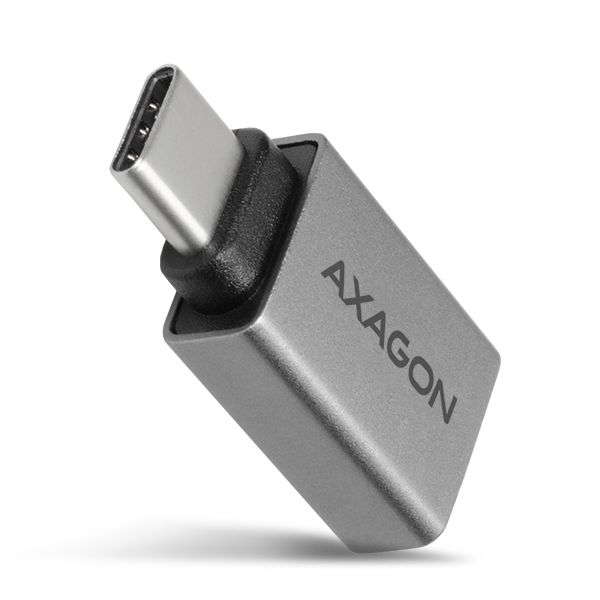
L’adaptateur avec câble USB-C <-> USB-A AXAGON RUCM-AFAC permet de connecter un appareil existant doté d’un connecteur USB-A à un nouvel appareil équipé d’une interface USB-C moderne.
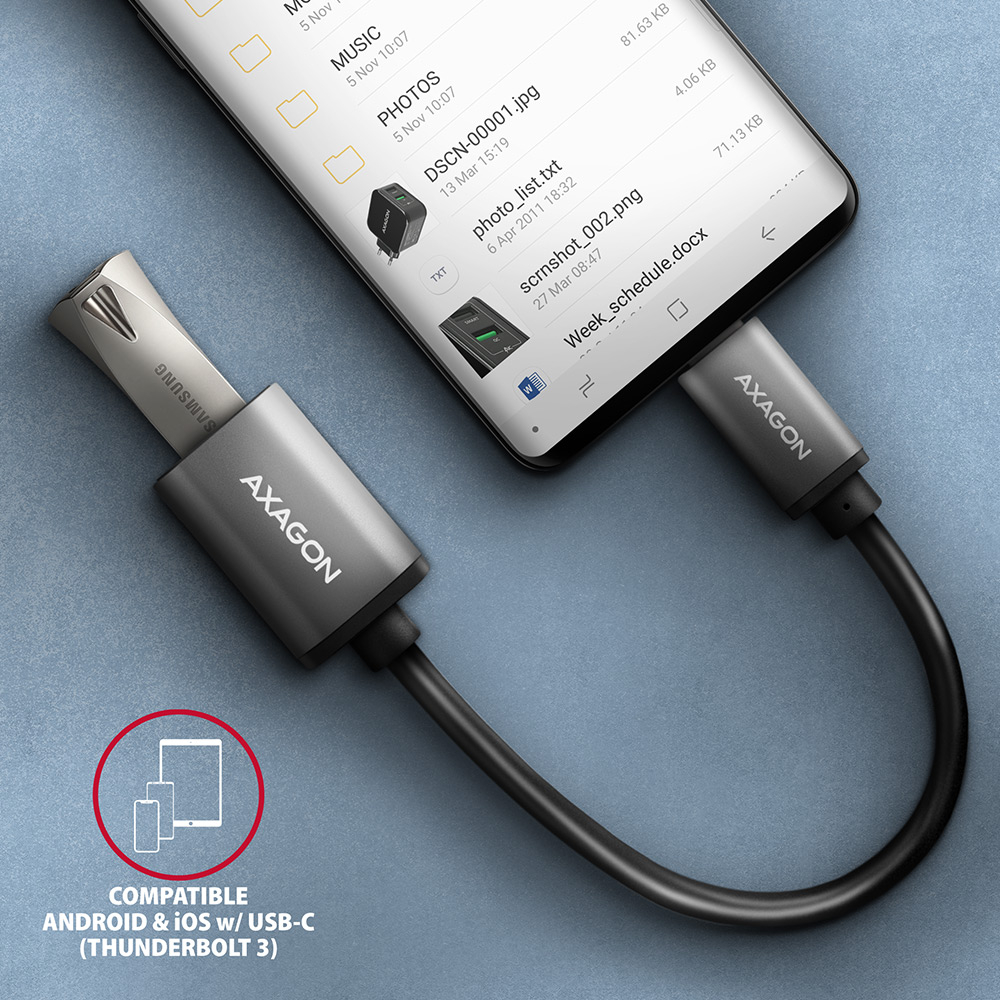
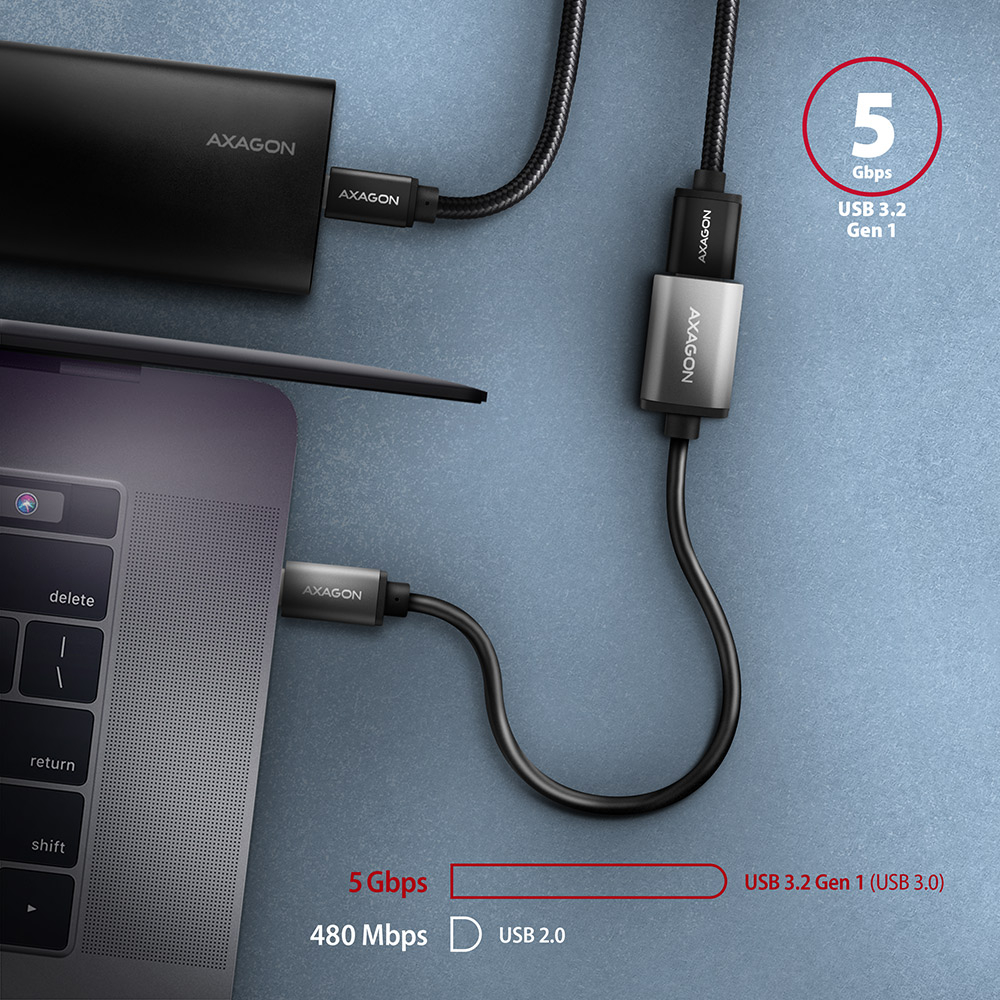
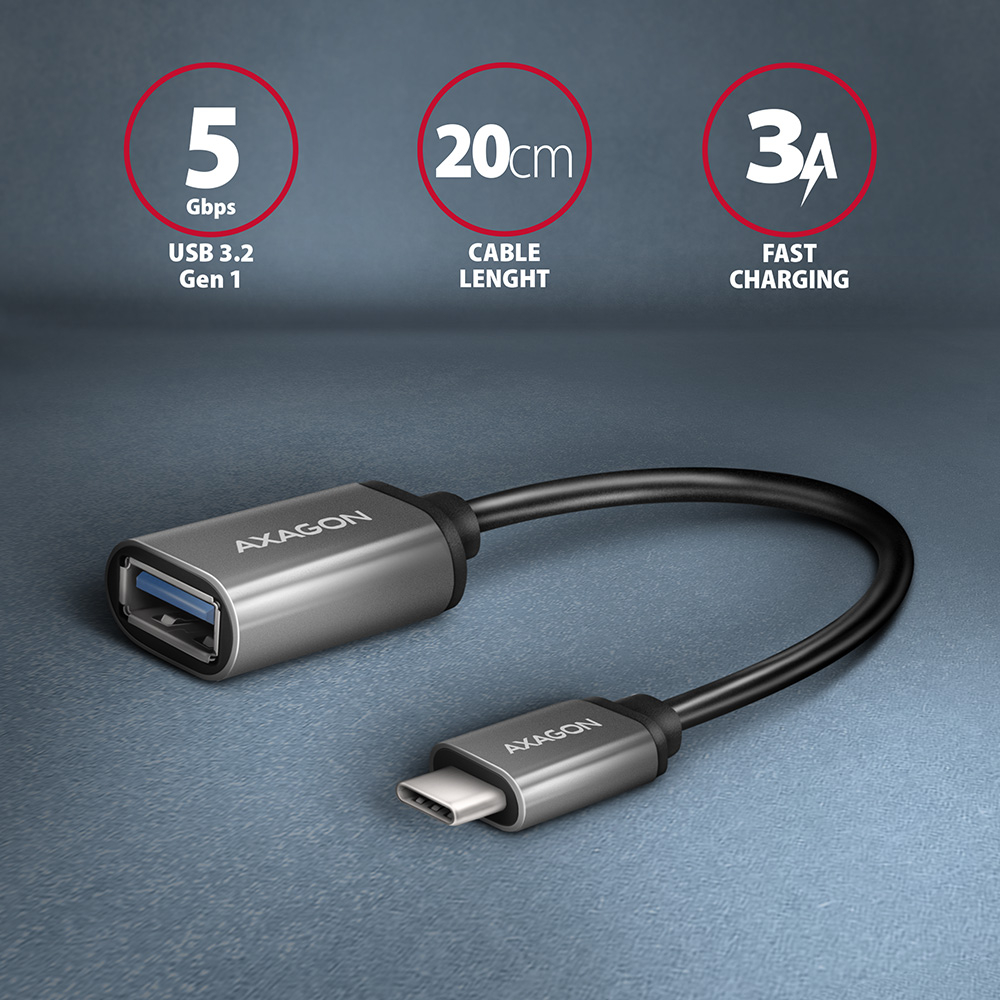
L'adaptateur est conçu pour connecter rapidement un hub USB ou un disque externe aux ordinateurs portables équipés uniquement de connecteurs USB-C. Il est également parfait pour connecter une clé USB à un téléphone mobile avec connecteur USB-C. Il prend en charge un transfert de données jusqu’à 5 Gbit/s et une alimentation jusqu’à 3 A.
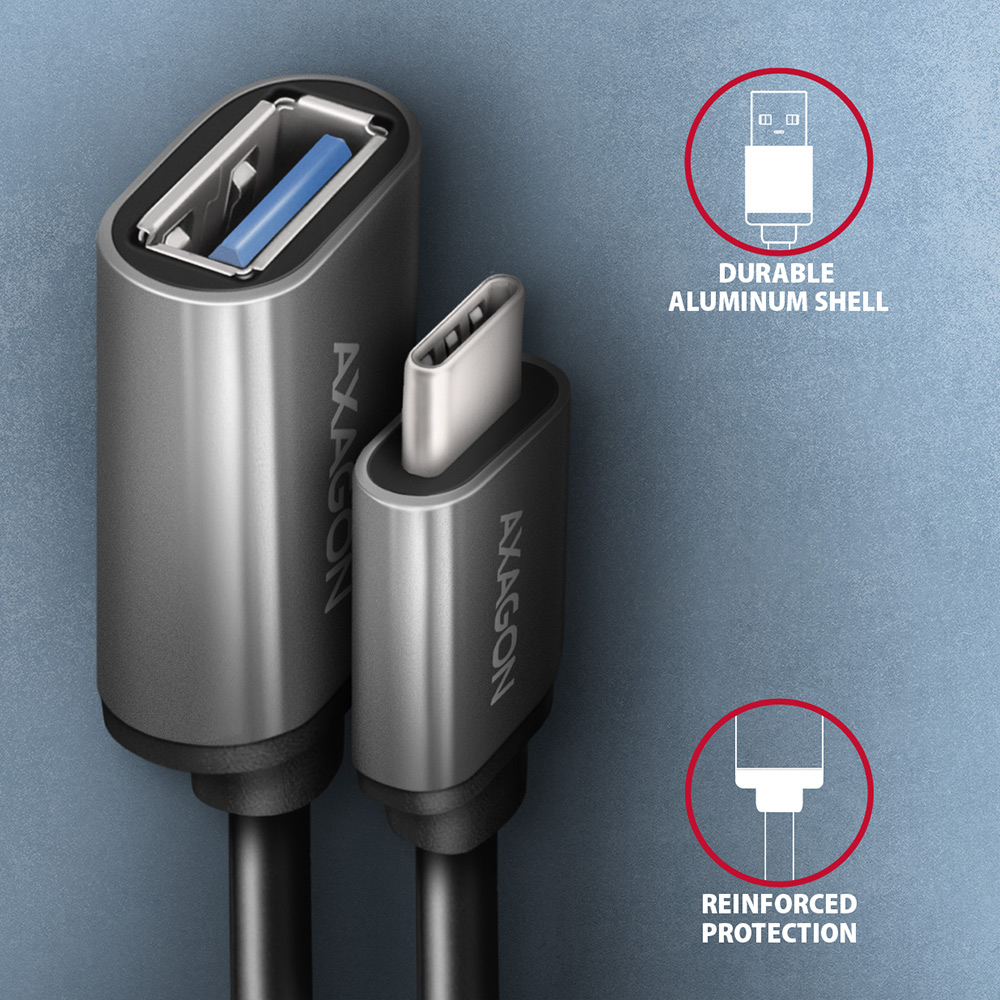
L'adaptateur est équipé d’extrémités métalliques, de connecteurs avec surface nickelée et contacts plaqués or. Les conducteurs du câble sont en cuivre désoxygéné étamé. L’isolation de haute qualité du câble, réalisée en TPE flexible, garantit une résistance maximale tout en conservant une flexibilité suffisante. Le triple blindage protège les signaux transmis contre les interférences indésirables.
Connecteurs :
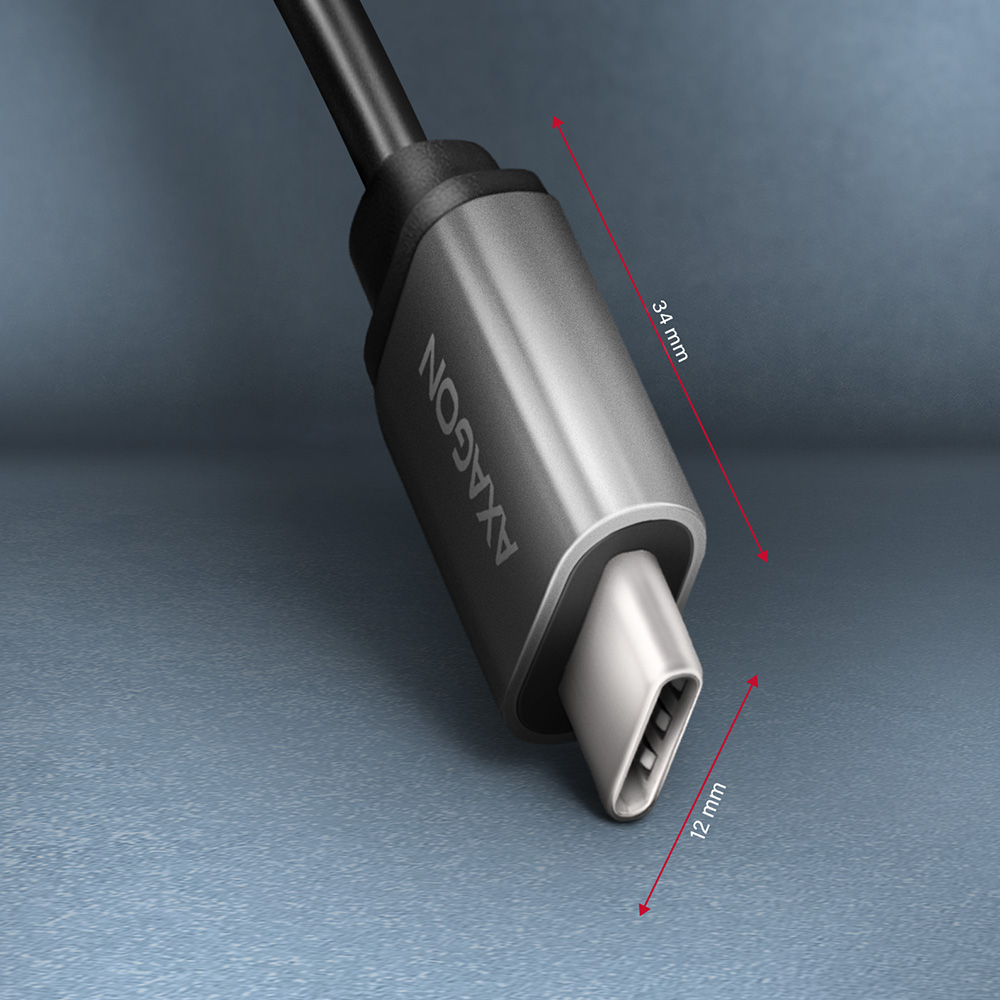
• entrée USB-C (M) male / mâle.
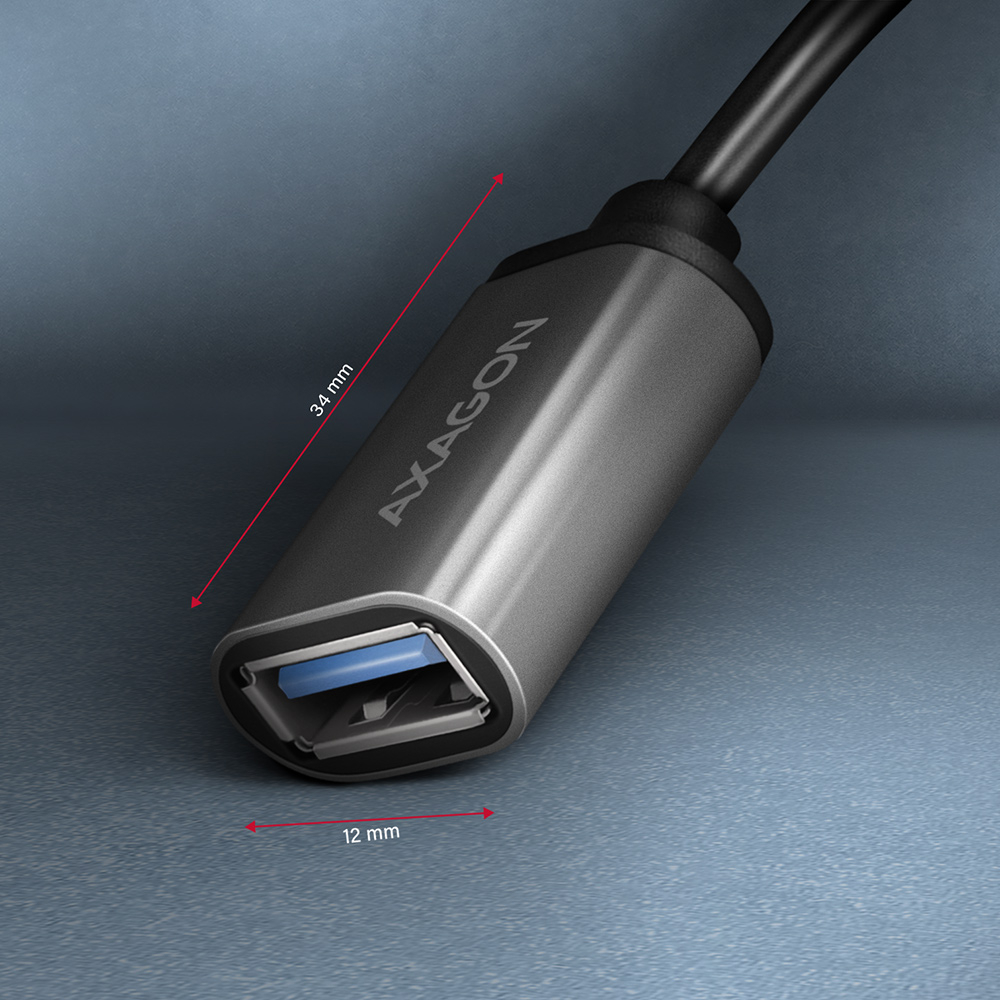
• sortie USB-A (F) female / femelle.
Autres caractéristiques :
• DATA SYNC & FAST CHARGING - transfert de données simultané et recharge de la batterie de l’appareil mobile.
• SuperSpeed USB - USB 3.2 Gen 1 (anciennement USB 3.1 Gen 1 / USB 3.0).
• Compatible également avec USB 3.2 Gen 2, rétrocompatible avec USB 2.0.
• Prise en charge des vitesses de transfert 5 000 / 480 / 12 / 1,5 Mbit/s (SuperSpeed / High / Full / Low speed).
• Prise en charge de la charge rapide jusqu’à 3 A.
• Le câble comprend des conducteurs d’alimentation 22AWG, conducteurs de données 30AWG.
• Conducteurs en cuivre désoxygéné étamé pour limiter l’oxydation, augmenter la conductivité et assurer un signal propre sans distorsion.
• Double blindage avec feuille métallisée et tressage en cuivre étamé minimise les interférences et empêche la perte de signal.
• Connecteurs nickelés et contacts plaqués or empêchent l’oxydation et assurent une connexion fiable.
• Résistance « pull down » de 5 kΩ.
• Convient aux ordinateurs portables, téléphones mobiles et smartphones, powerbanks, tablettes et autres appareils mobiles avec connecteur USB-C.
Autres données :
• longueur du câble 0,2 m,
• diamètre extérieur du câble 4,2 mm.
Contenu de l’emballage :
• Câble adaptateur USB-C M <-> USB-A F,
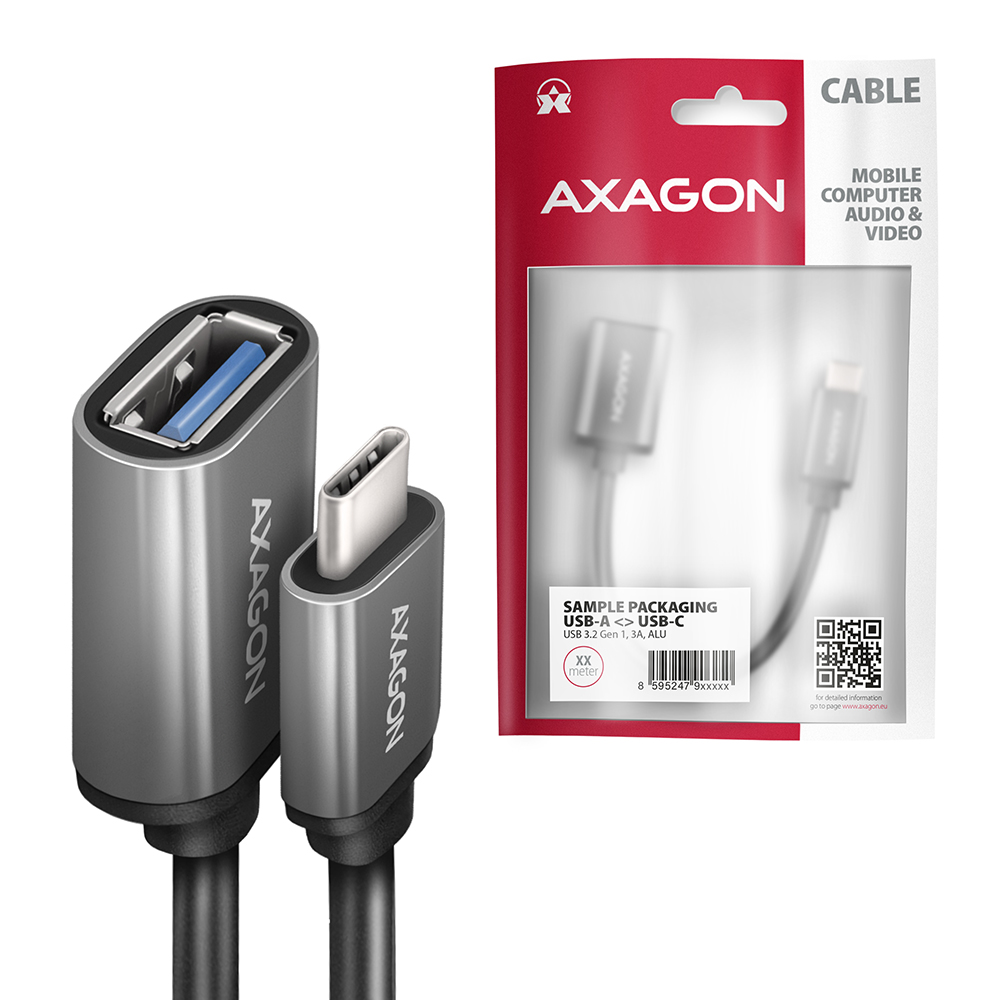
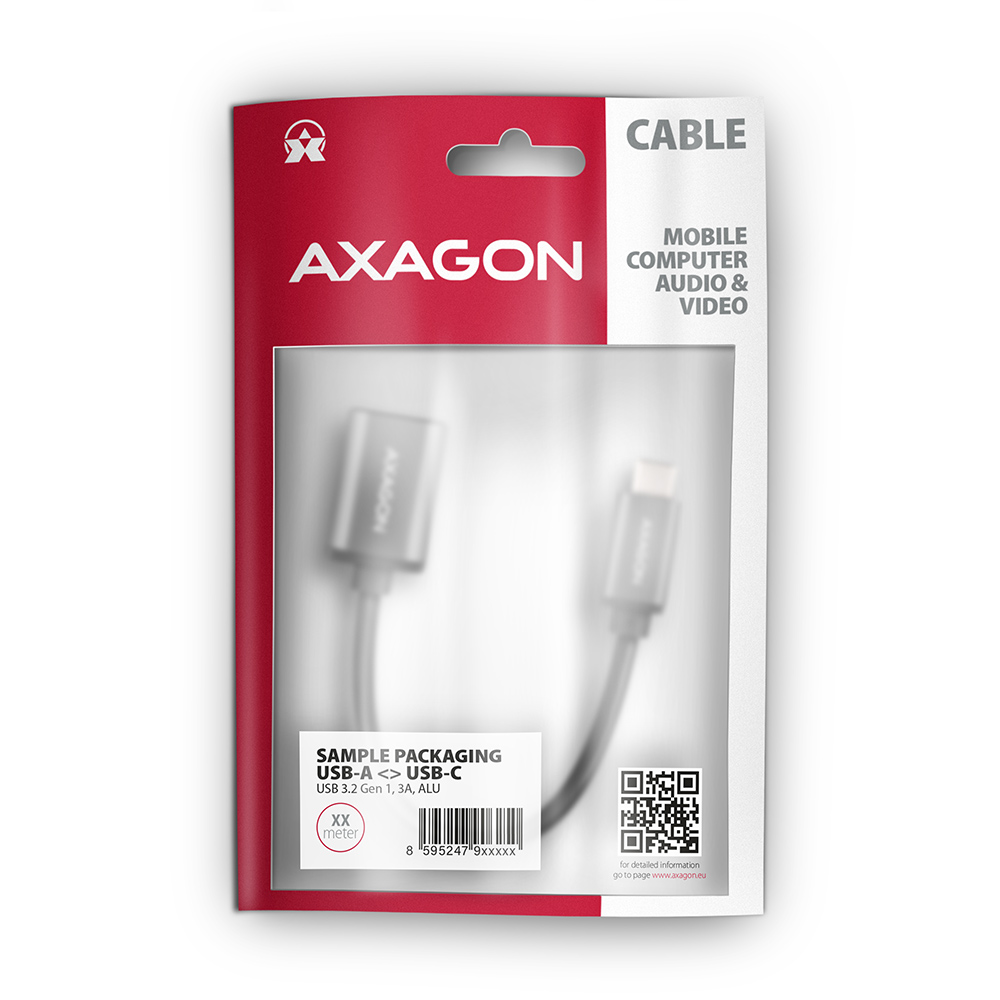
• emballé dans un sachet hermétique imprimé et avec un trou pour suspendre.

- USB-C M <-> USB-A F câble adaptateur
- emballage en film scellé
- dimensions de l’emballage 20.5 x 13 x 1.1 cm
- poids d'un emballage 22 g
- EAN 8595247905994
- nombre d’unités par carton : 400
- poids total du carton : 8.6 kg G.W.
- dimensions du carton : 46 x 30 x 30 cm
A): Check that all connectors on the adapter, source device, and display device are properly connected and seated.
B): Check the connecting cables and replace them if necessary.
C): When using long cables (over 10 m), we recommend using high-quality or active cables, or signal amplifiers.
D): Connect a microUSB charger to the external power input.
A): Verify that the given resolution or refresh rate is supported by the display device (monitor, TV, projector), graphics card, drivers, or operating system.
A): Check the settings according to the chapter “SETTING UP AUDIO OUTPUT TO MONITOR, TV, OR PROJECTOR.”
A): Check all connections.
B): Verify in Device Manager that you are not using the “Microsoft Basic Display Adapter.” If you are, install the latest graphics card driver.
A): The use of other cables with ADR cables is not recommended because there is a greater voltage drop on them and there may be communication failures.
B): Only when it is absolutely necessary (such as when connecting a printer), where there is another type of USB-B connector and in the shortest possible length - the use of a transient reduction is ideal.
A) The VGA connector does not transmit the sound, so the RVH-VGA audio stereo output is to a 3.5 jack to which headphones or active speakers can be connected.
B) To use the audio output, set the HDMI output as the default sound playback device (or install audio drivers for the graphics card of your computer).
A) Some devices may need auxiliary power via the microUSB connector on the adapter body. When connecting to a desktop PC or laptop, additional power is not needed.
B) The power supply is not included, but any mobile phone charger with a microUSB output can be used.
A): Check that all connectors on the adapter, source device, and display device are properly connected and seated.
B): The adapter is one-way; check that it is not connected in the wrong direction.
C): Check that the correct input source is selected on the display device.
D): Check that the display output settings on the source device (PC, notebook) are correct. See the chapter “DISPLAY MODE SETTINGS.”
E): Check all connecting cables.
F): Restart the PC (notebook) with the adapter and display device connected.
G): If none of the above works, test the adapter with another device.
A): If a device without own power supply and higher current consumption is connected to an active power cord , the device may not work or works unreliably. If you want to use a self-powered device such as a printer at the end of the cable, no auxiliary power is needed.
B): The auxiliary power supply should be used at a higher demand than 100 mA, or when several cables are connected in series (behind each other). For details, refer to the User Manual (downloadable on the product page).
A): If the adapter is not displayed in "Device Manager" (in USB Bus Controllers - USB Print Support), there may be a USB port malfunction.
B): Try plugging the adapter into another USB port. The adapter should be detected and the drivers loaded automatically. If the problem persists, plug the adapter into the USB port of another computer to verify its functionality.
A): If this happens, it means that the operating system failed to get the necessary information to install the drivers.
B): The cause may be a defective USB cable or damaged device. If the problem persists, plug the adapter into the USB port of another computer to verify its functionality.
A): After installing the drivers the adapter will log in Device Manager in the section Ports (COM and LPT) as USB to serial Comm Port, so it can.
B): However, it still depends on the SW device, some very old programs need a specific interrupt (IRQ) that does not work correctly with the USB / COM converter.
A): You will need a female-female reduction because the ADS-xx has a male end.
B): Be careful that this reduction is not cross-linked (so called Null Modem), so you need a standard non-cross-linked reduction to connect.
A): Yes, using multiple ADS-xx units on one PC (NTB) is possible.
B): Each adapter gets its own COM port number assigned by the system, which can be changed in the settings as needed by the user.