Référence produit: EEM2-SB2
Catégorie: Boîtiers M.2 , Accessoires pour disques , Tous les produits
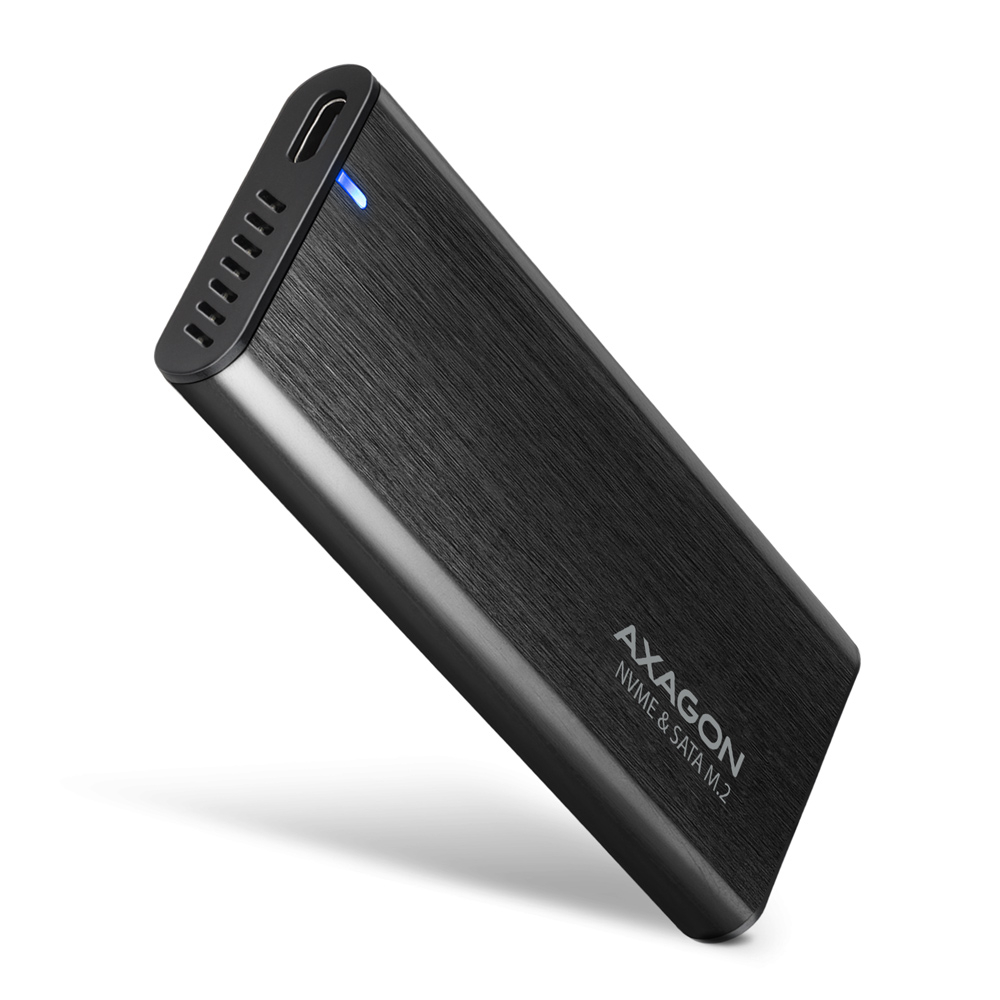
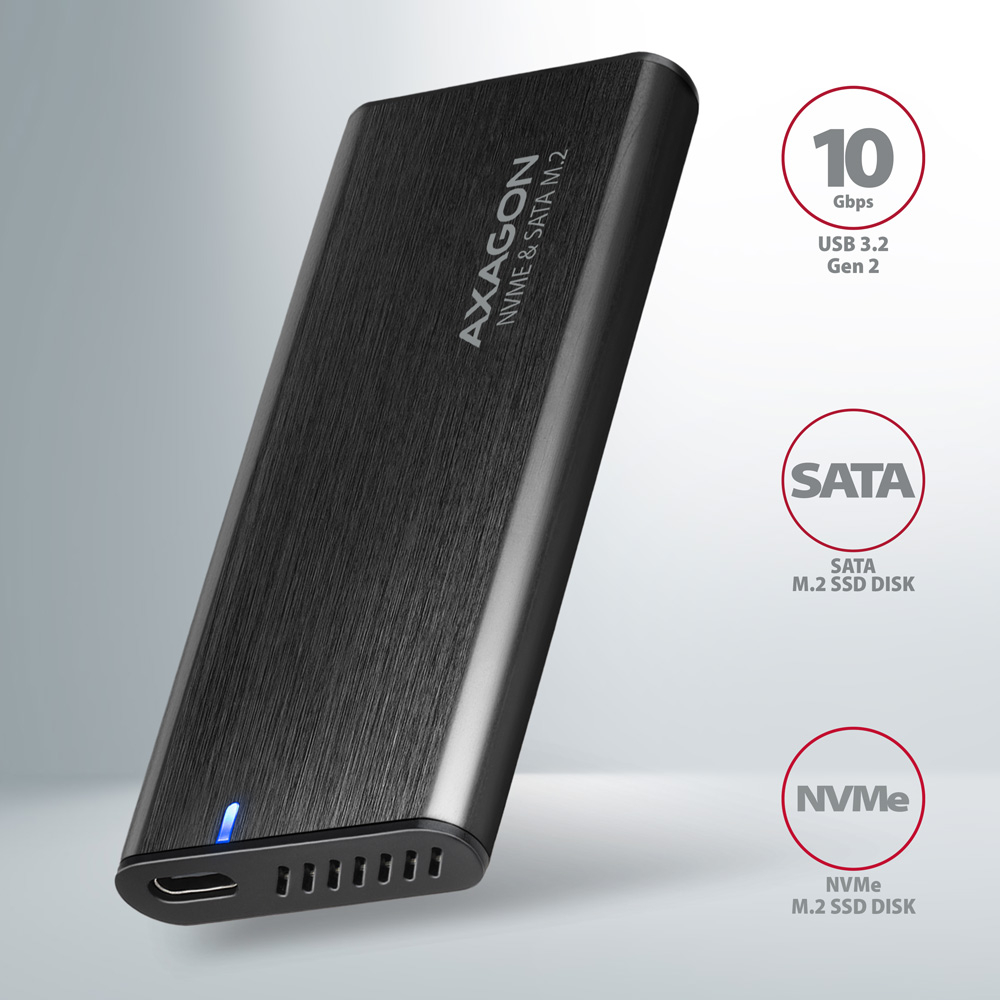
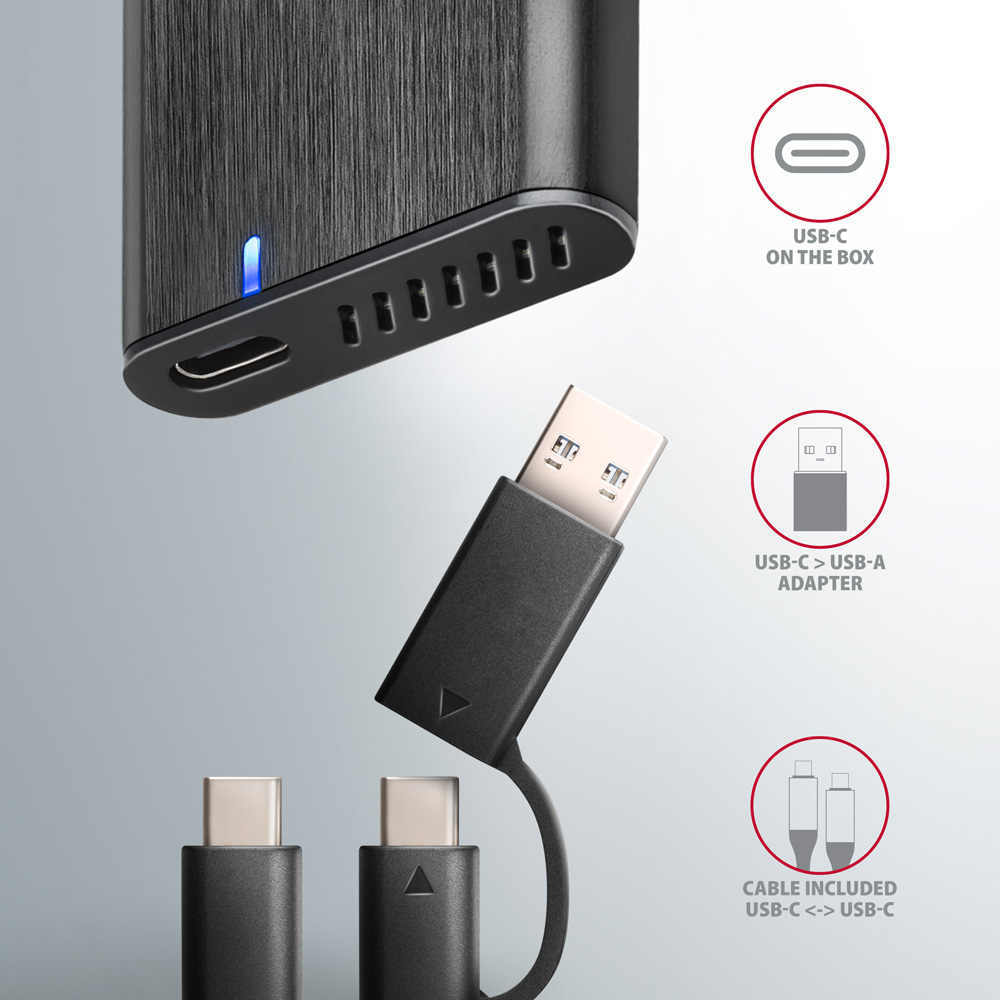
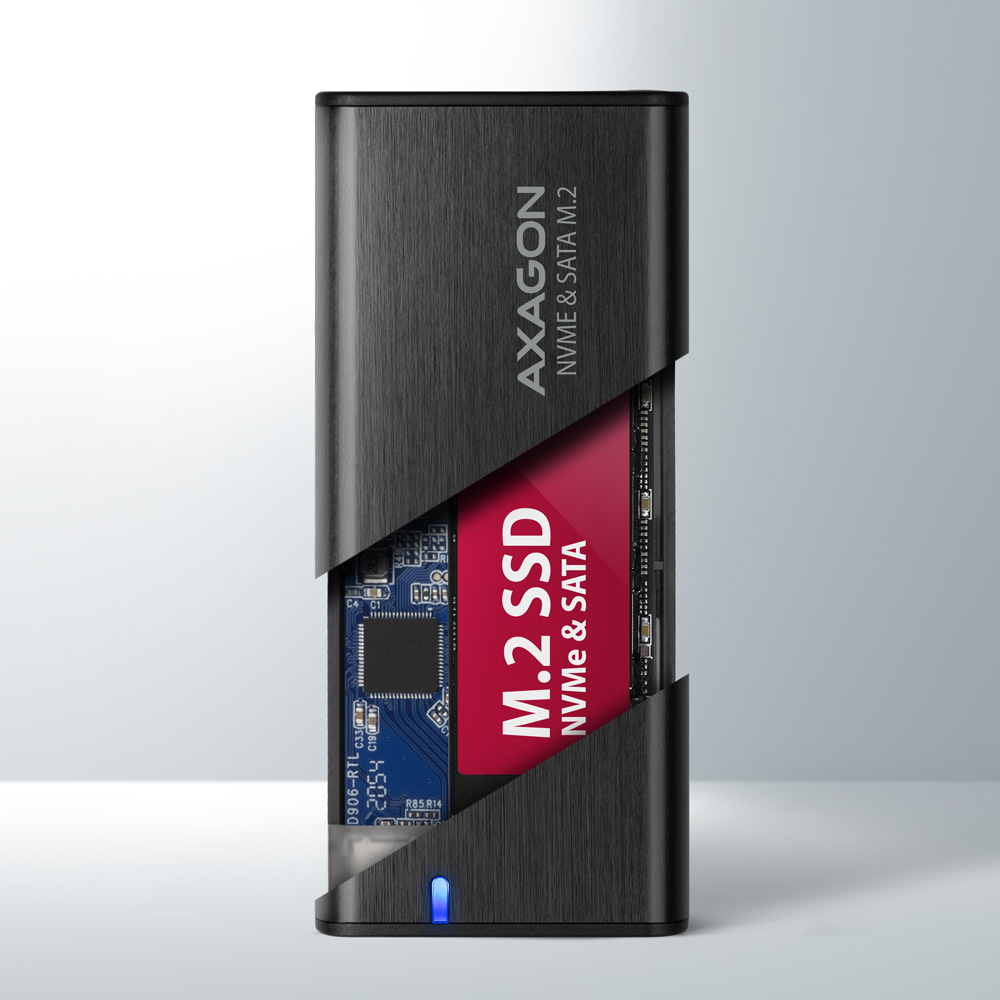
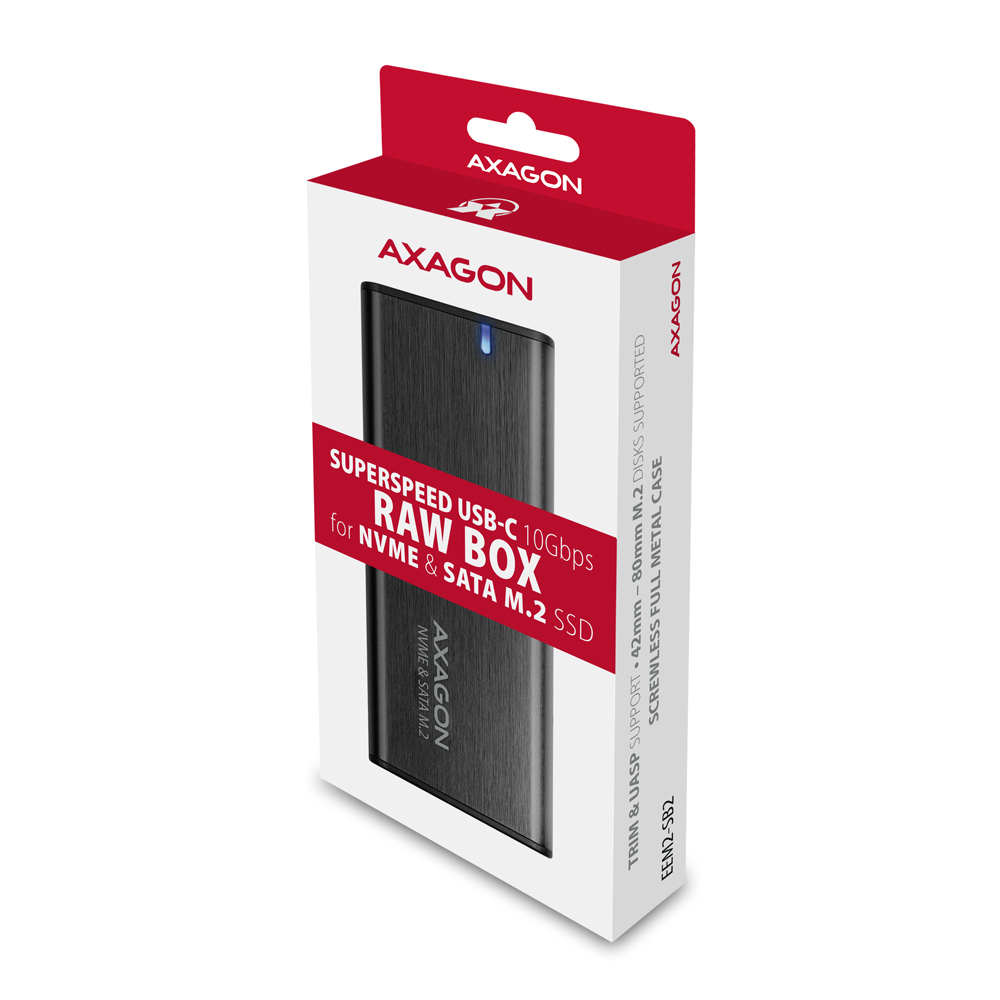
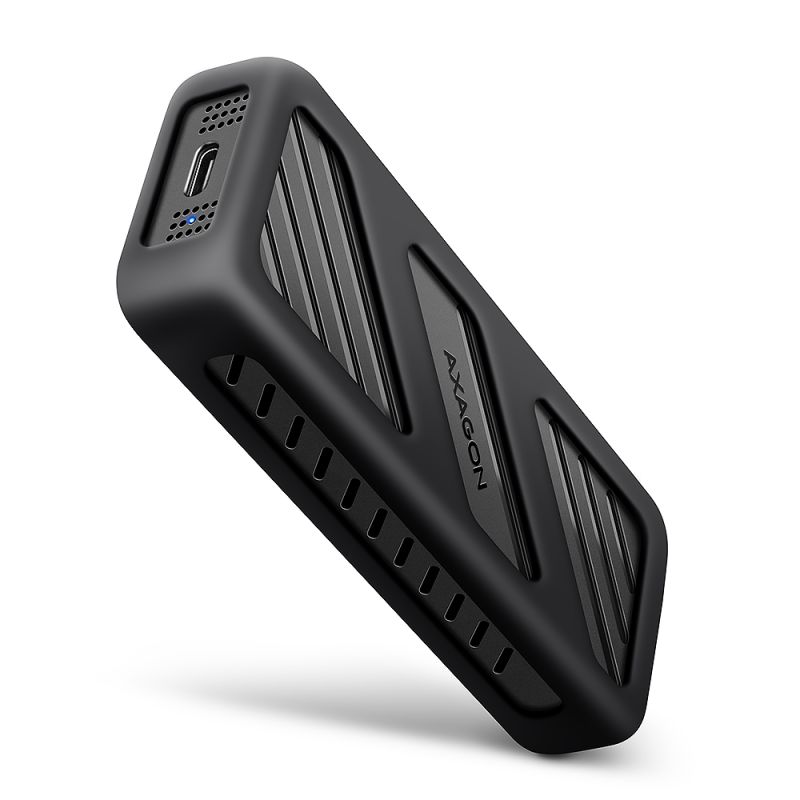
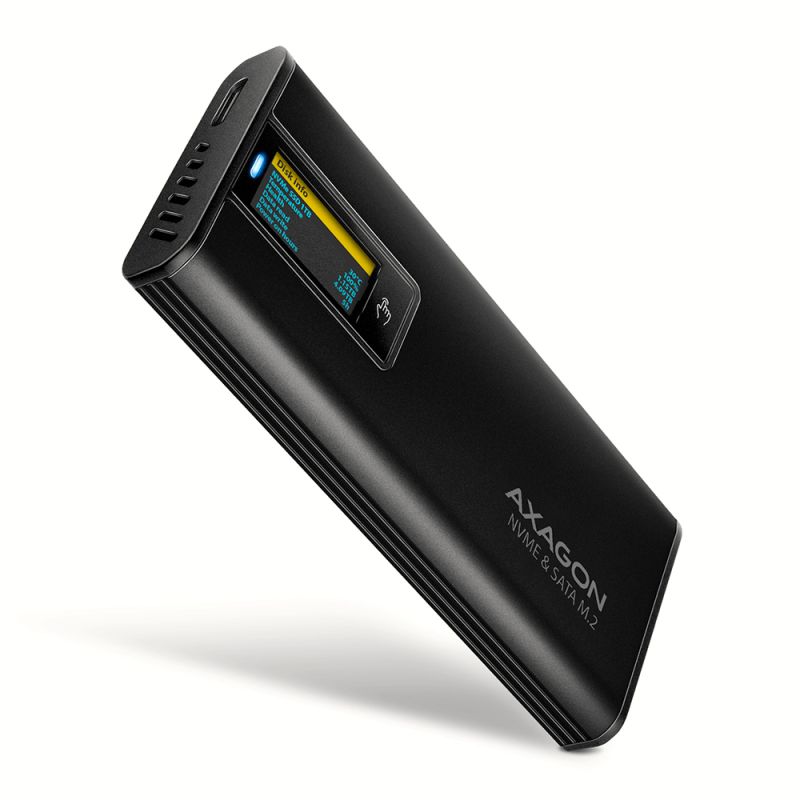
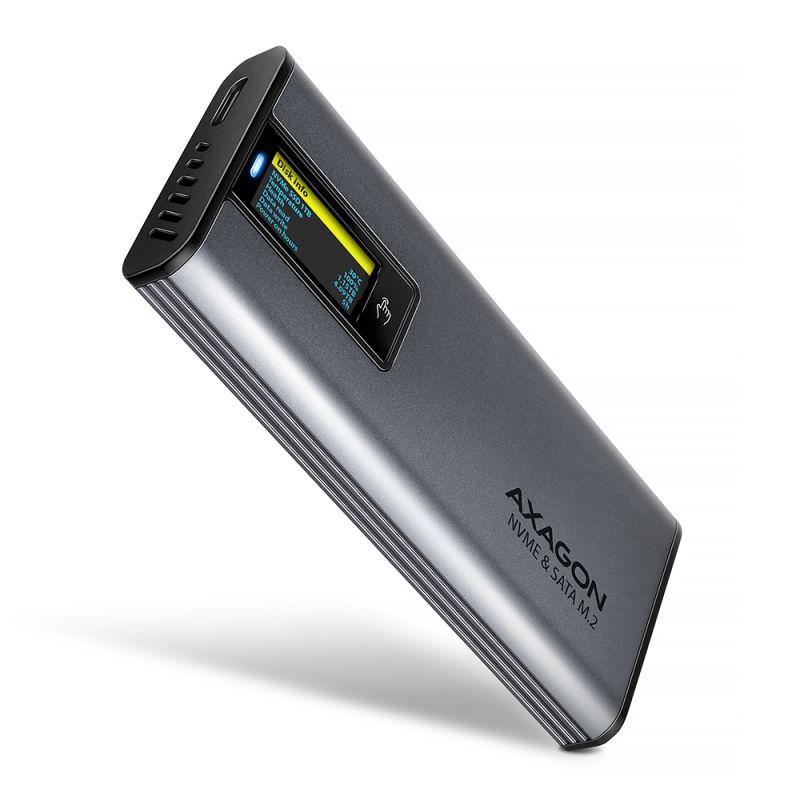
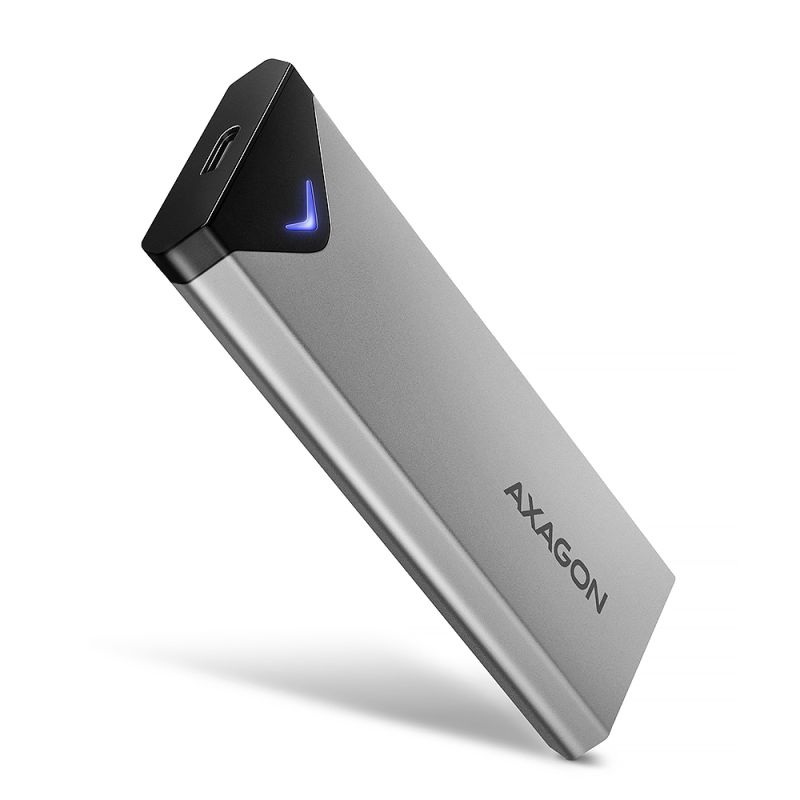
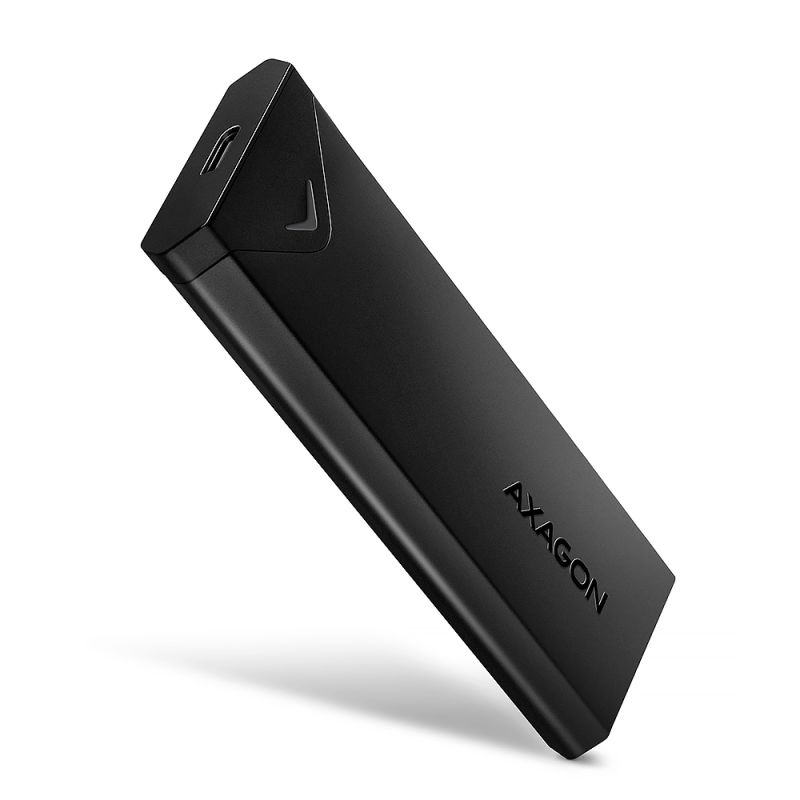
AXAGON EEM2-SB2 RAW boîtier universel externe avec interface USB 3.2 Gen 2 destiné aux disques SSD M.2 NVMe ou SATA. Une connexion fiable est assurée par un connecteur USB-C réversible sur le boîtier. Le paquet contient non seulement un câble USB-C -> USB-C pour connecter le boîtier à l’ordinateur, mais aussi un adaptateur USB-C -> USB-A. Vous pouvez ainsi connecter le boîtier à n’importe quel port USB libre de votre ordinateur portable.
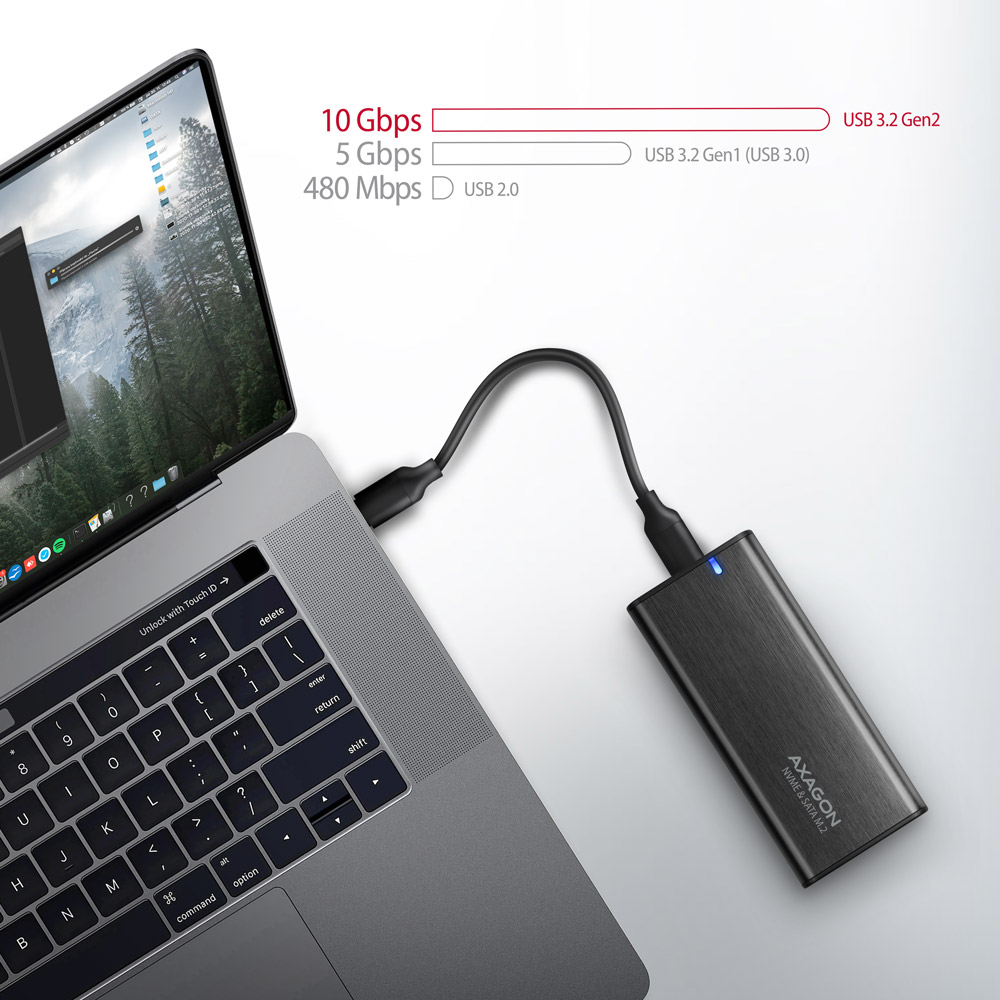
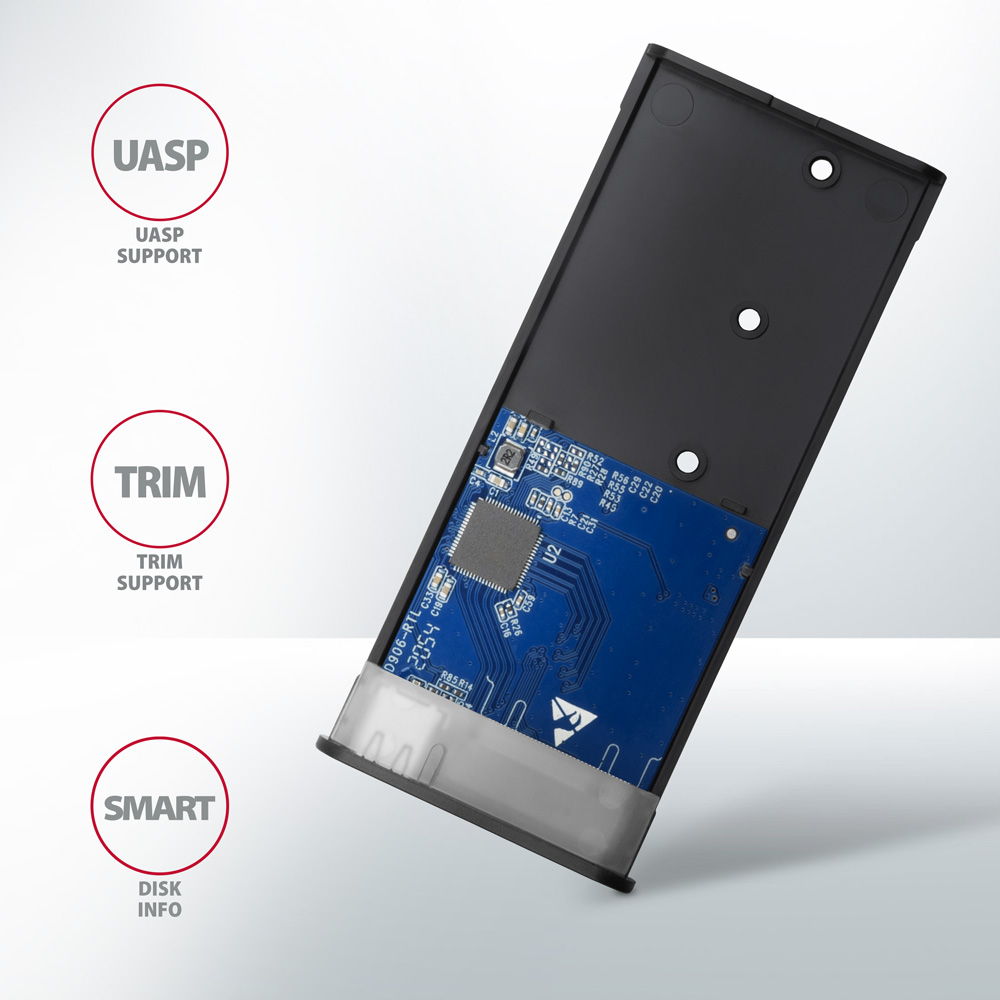
La deuxième génération de l’interface USB rapide vous permet de profiter de la vitesse des disques SSD M.2 modernes. Grâce à l’interface USB 3.2 Gen 2, la vitesse de transfert atteint jusqu’à 10 Gbit/s. Le boîtier externe M.2 prend en charge d’autres fonctions modernes comme UASP, TRIM et permet la lecture des informations S.M.A.R.T. pour surveiller l’état du disque. Prise en charge du mode économie d’énergie en cas d’inactivité.
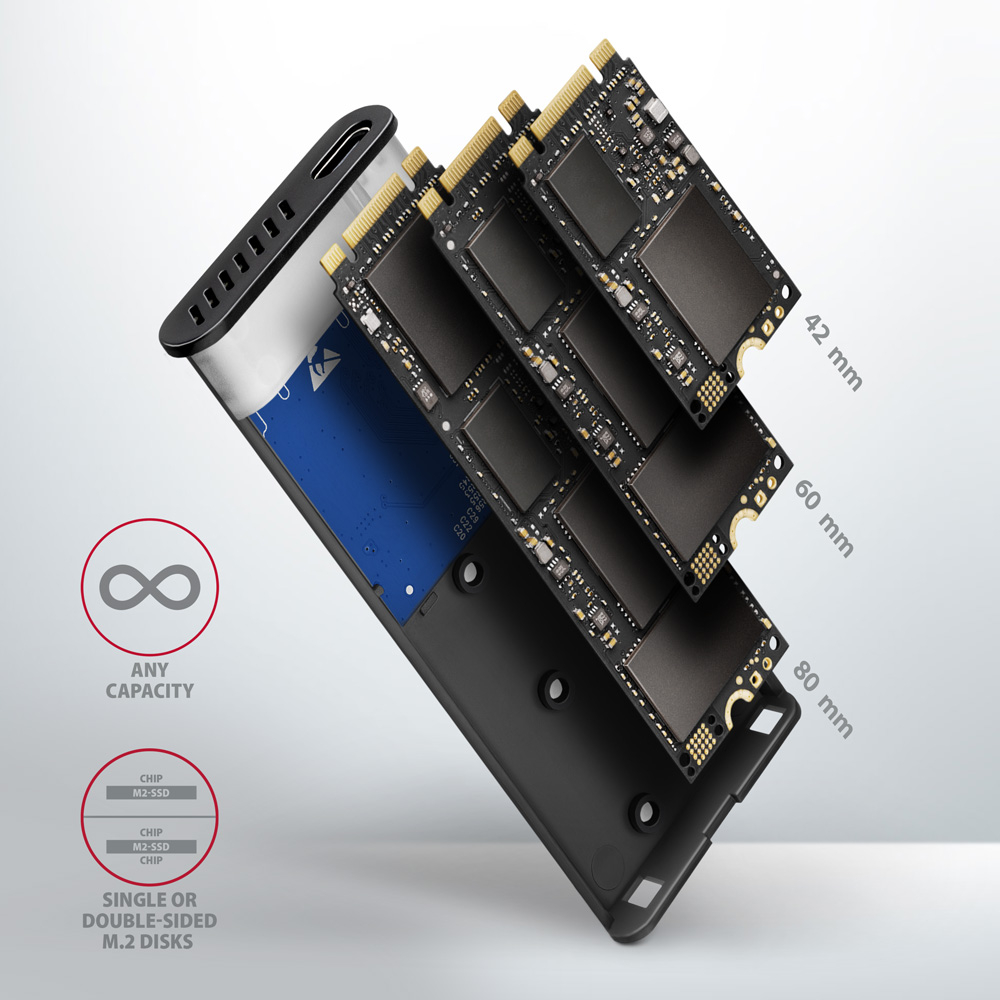
Une caractéristique unique grâce au nouveau chipset est la possibilité d’utiliser aussi bien des disques M.2 NVMe que SATA. Vous n’avez pas à vous soucier du type de disque M.2 que vous insérez dans le boîtier. Un avantage est l’adaptation à trois longueurs différentes de cartes SSD – 42, 60 et 80 mm. Les cartes M.2 peuvent être simple face ou double face. Le boîtier n’a aucune limite concernant la capacité du disque SSD inséré.
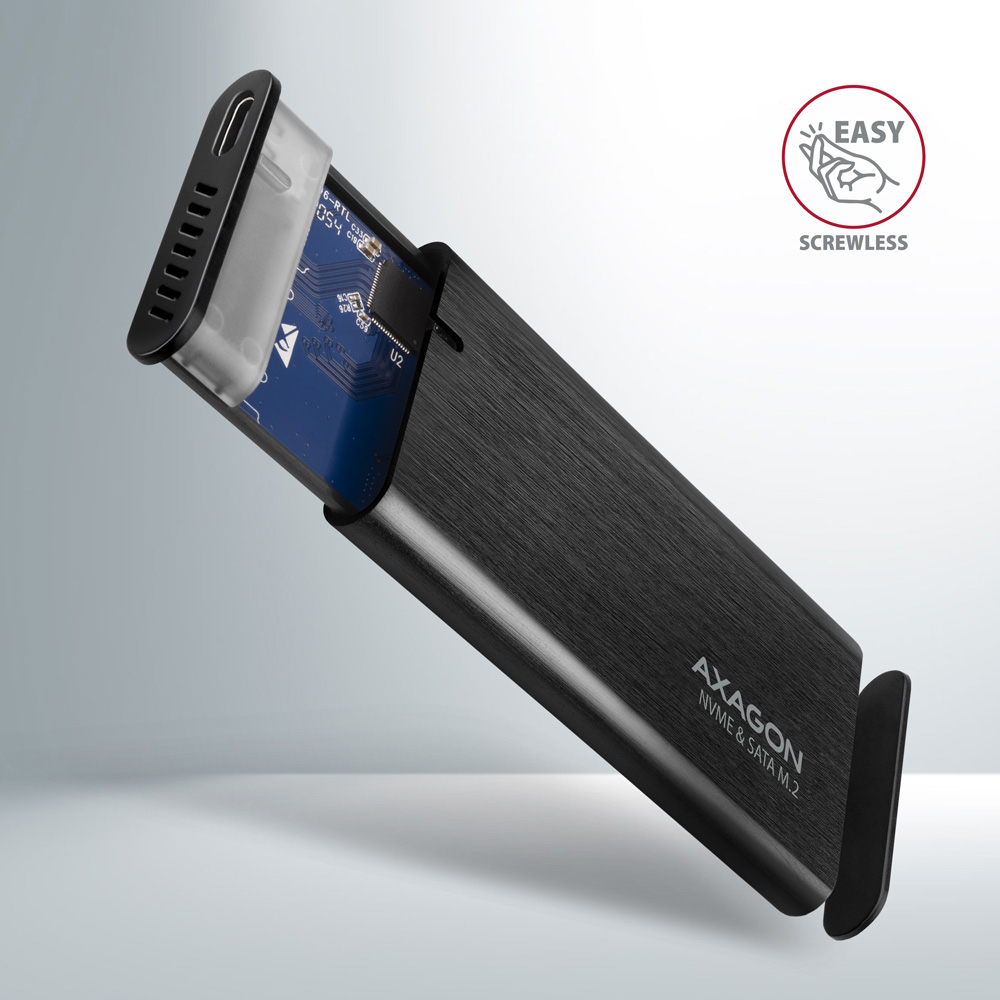
Une ouverture sans vis facilite le montage et le démontage du disque SSD M.2. Le remplacement des disques est rapide et facile et élargit ainsi les possibilités d’utilisation du boîtier, par exemple pour la migration des données, les tests, etc.
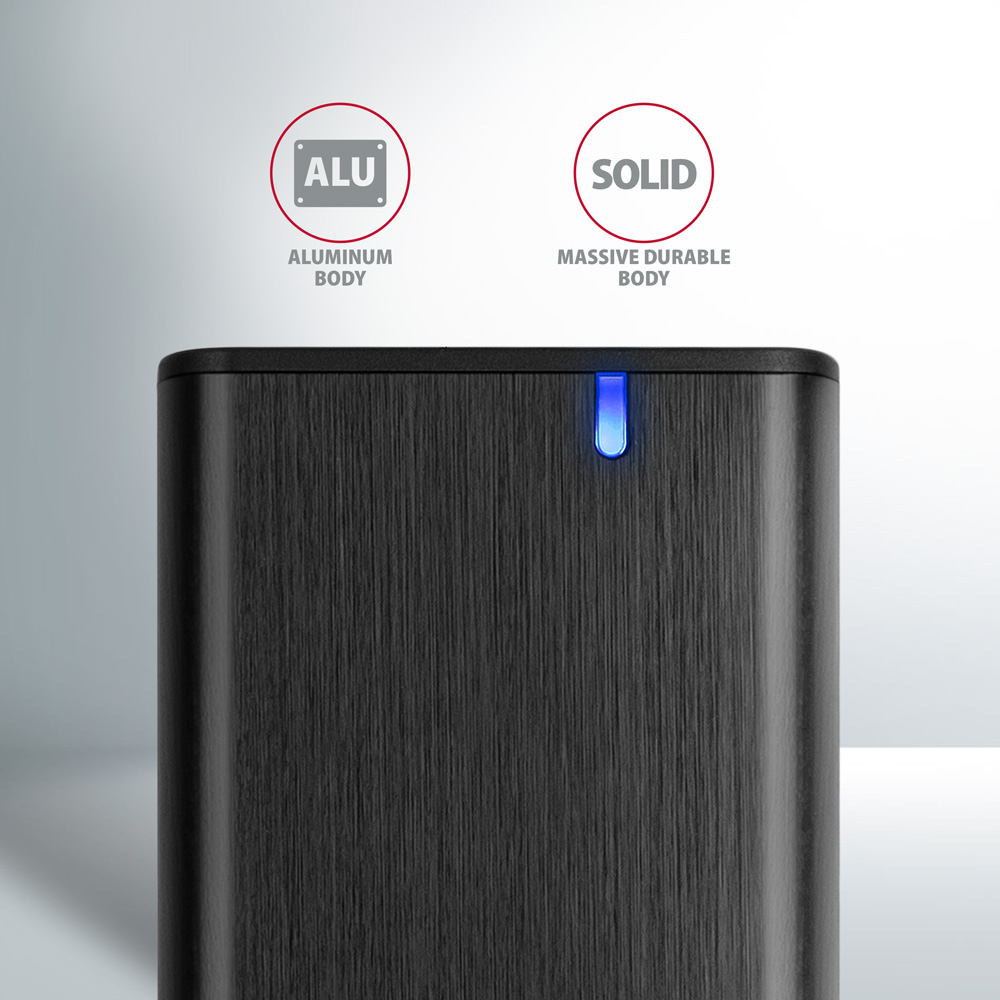
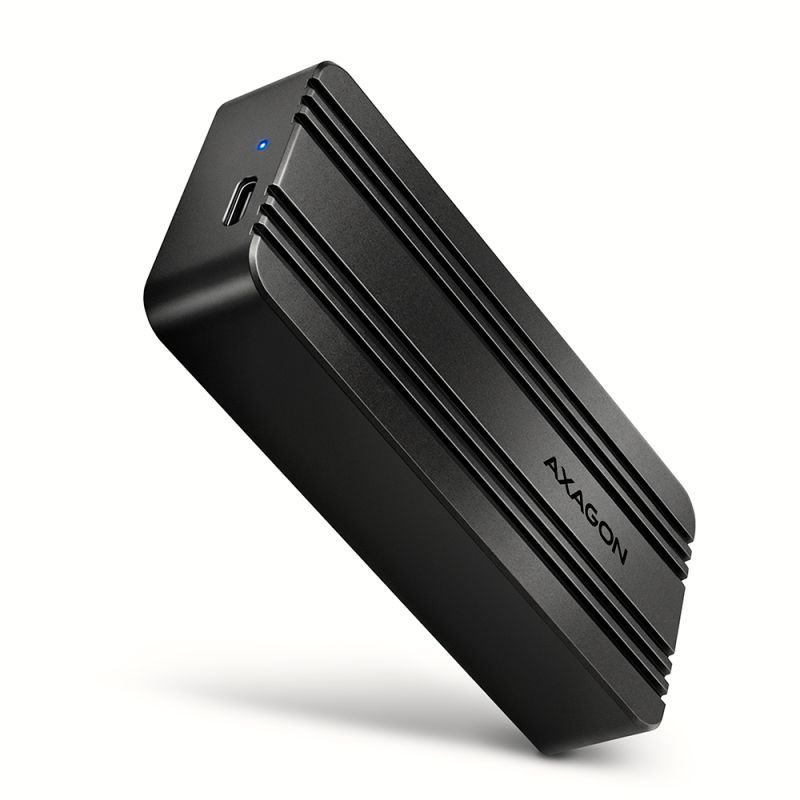
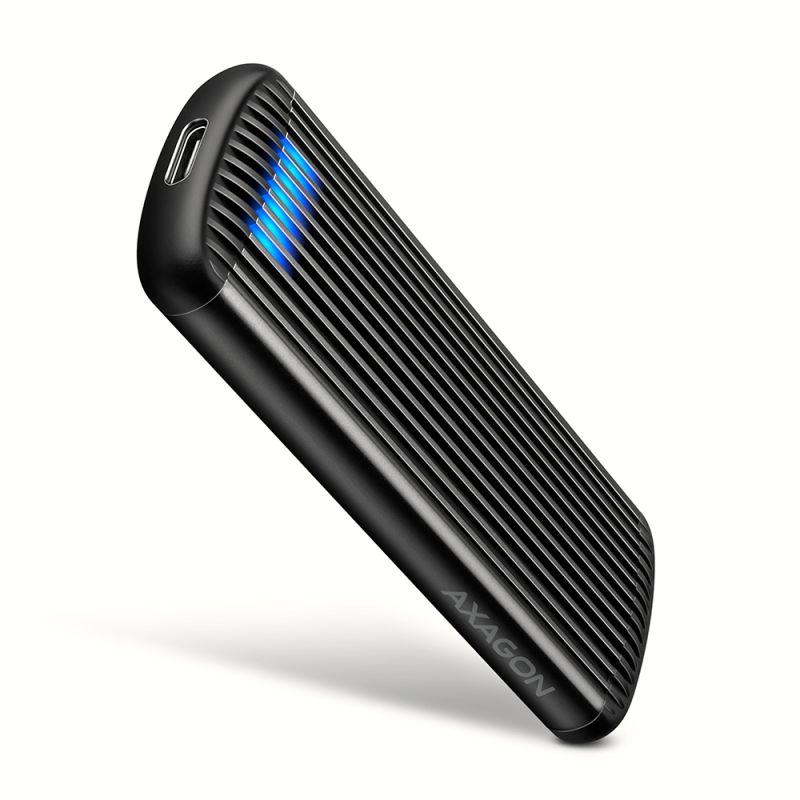
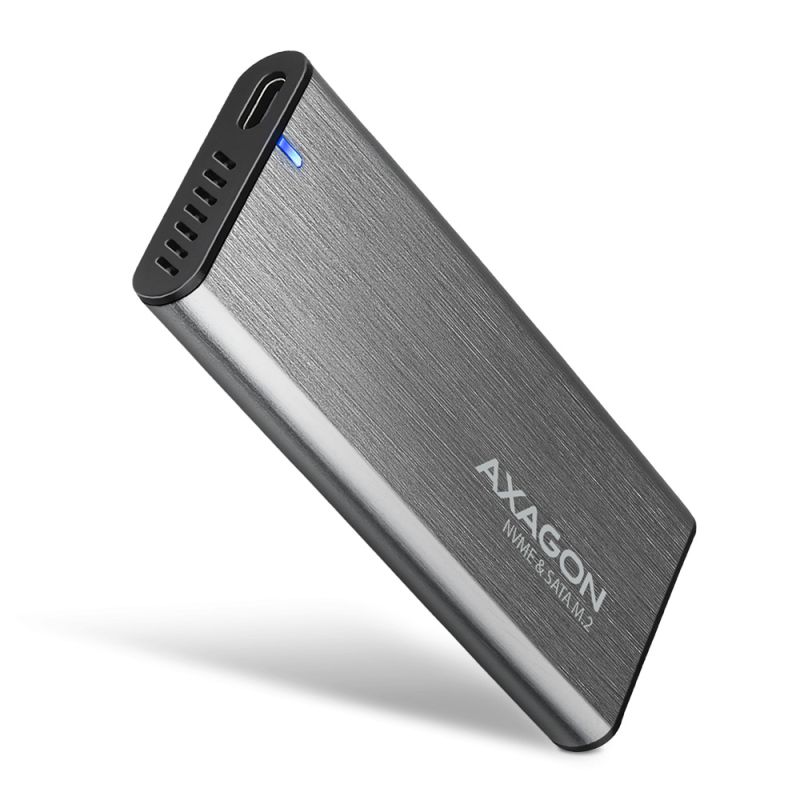
Le boîtier extérieur en métal est réalisé en couleur noire avec une surface brossée élégante qui empêche les traces de doigts indésirables. Le design arrondi du boîtier promet une utilisation agréable.
Le corps en aluminium du boîtier, les ouvertures de ventilation et le coussin thermique assurent un très bon refroidissement du disque SSD M.2 inséré. Cela prolonge sa durée de vie et évite aussi le ralentissement de la vitesse du disque appelé « Thermal Throttling ».
En insérant un disque SSD M.2 dans ce boîtier, vous créez facilement un disque externe rapide, compact et universel. Le boîtier peut être utilisé avec des ordinateurs et des ordinateurs portables ainsi qu’avec des téléphones mobiles et des tablettes.
Entrée :
• USB 3.2 Gen 2 (USB 3.1 Gen 2) SuperSpeed USB 10 Gbit/s.
• Vitesse jusqu’à 10 Gbit/s.
• Connexion via connecteur USB type C femelle réversible.
Prise en charge des appareils :
• Disques SSD NVMe M.2,
• Disques SSD SATA M.2,
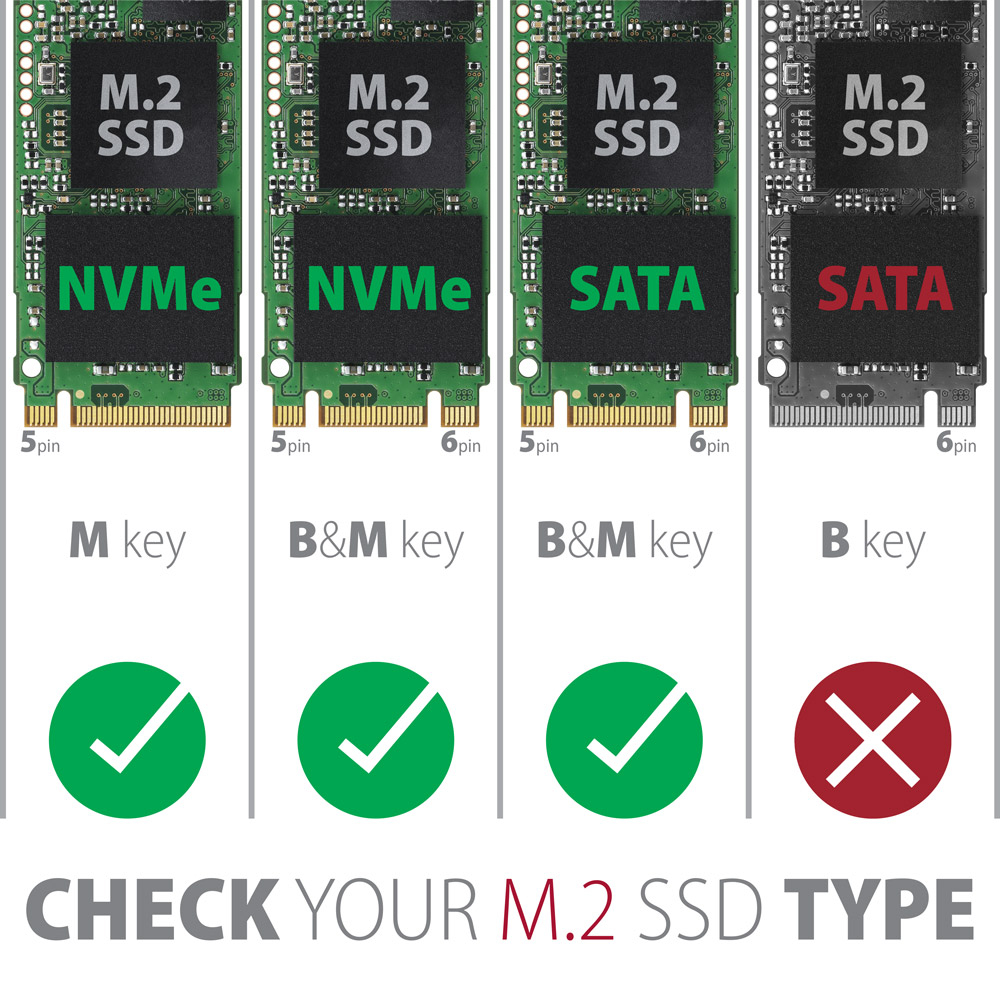
• prévu pour les cartes de format M key ou B+M key,
• slot NGFF 75 broches M key pour disques M.2.
Autres caractéristiques :
• Compatible avec USB 3.2 Gen 2, rétrocompatible avec USB 3.2 Gen 1 (USB 3.1 Gen 1 / USB 3.0), USB 2.0.
• Prise en charge des vitesses de transfert 10 000 / 5000 / 480 Mbit/s (SuperSpeed+ / SuperSpeed / HighSpeed).
• Prise en charge des disques M.2 M key ou B+M key NVMe (PCI-Express) et SATA (AHCI) sans limite de capacité maximale.
• Prise en charge des disques M.2 de dimensions - 2242, 2260, 2280 mm.
• Prise en charge des disques SSD M.2 simple face et double face.
• Conforme à la spécification PCI Express Base Specification Revision 3.1a.
• Conforme à la spécification NVM Express 1.3.
• Conforme à la spécification Serial ATA 3.2 (SATA/600), vitesses de transfert jusqu’à 6 Gbit/s (600 Mo/s).
• Conforme à la spécification USB Mass Storage Class.
• La bande passante / vitesse de transfert totale du boîtier est déterminée par l’interface USB 3.2 Gen 2 utilisée (théoriquement jusqu’à 10 Gbit/s).
• La bande passante / vitesse de transfert réelle du boîtier d’environ 1000 Mo/s (1 Go/s) est limitée par l’interface USB 3.2 Gen 2.
• Prise en charge de BOT (Bulk-Only Transport).
• Prise en charge de UASP (USB Attached SCSI) pour un transfert de données plus rapide sous Windows 8 et versions ultérieures.
• Prise en charge de la fonction TRIM pour limiter la dégradation progressive des performances du SSD dans le temps.
• Prise en charge de S.M.A.R.T. (Self-Monitoring, Analysis, and Reporting Technology) système de surveillance de l’état du disque.
• Prise en charge du démarrage (boot) à partir du SSD dans le boîtier externe.
• Possibilité de connexion à chaud grâce à la prise en charge du Hot Plug.
• Pleine prise en charge du Plug and Play.
• Prise en charge du mode économie d’énergie - mise en veille du disque après 5 minutes d’inactivité.
• Alimentation par bus USB jusqu’à 900 mA depuis un port USB, suffisante dans tous les cas.
• DEL bleue discrète indiquant la connexion au port USB de l’ordinateur (allumage fixe) et le transfert des données (clignotement).
• Boîtier robuste en aluminium, ouvertures de ventilation et coussin thermique contribuent à un meilleur refroidissement du disque SSD M.2.
• Une température de surface plus élevée du boîtier n’est pas un défaut - grâce au corps en aluminium, la chaleur générée par le fonctionnement du disque est mieux dissipée et transmise à l’environnement.
• Connexion via connecteur USB 3.2 Gen 2 type C femelle.
• Câble USB type C mâle / USB type C mâle de 20 cm et adaptateur USB type C femelle / USB type A mâle inclus dans le paquet.
Autres données :
• Dimensions du boîtier 94 x 41 x 10 mm.
• Poids du boîtier 35 g (sans câble ni disque M.2).
Systèmes d’exploitation pris en charge :
• MS Windows 7 / 8 / 8.1 / 10 / 11 et versions ultérieures, Windows Server 2008 / 2012 / 2016 / 2019 / 2022 et versions ultérieures (toutes les versions 32 et 64 bits des OS Windows sont prises en charge), Mac OS X 10.x et supérieur, Linux avec noyau 2.6.x et supérieur, Android (nécessite une prise en charge par le système d’exploitation et l’appareil).
• Note : Lors de l’utilisation avec Windows 7, il est nécessaire de vérifier auprès du fabricant du disque SSD M.2 la prise en charge de ce système d’exploitation et la disponibilité du pilote.
Le paquet comprend :
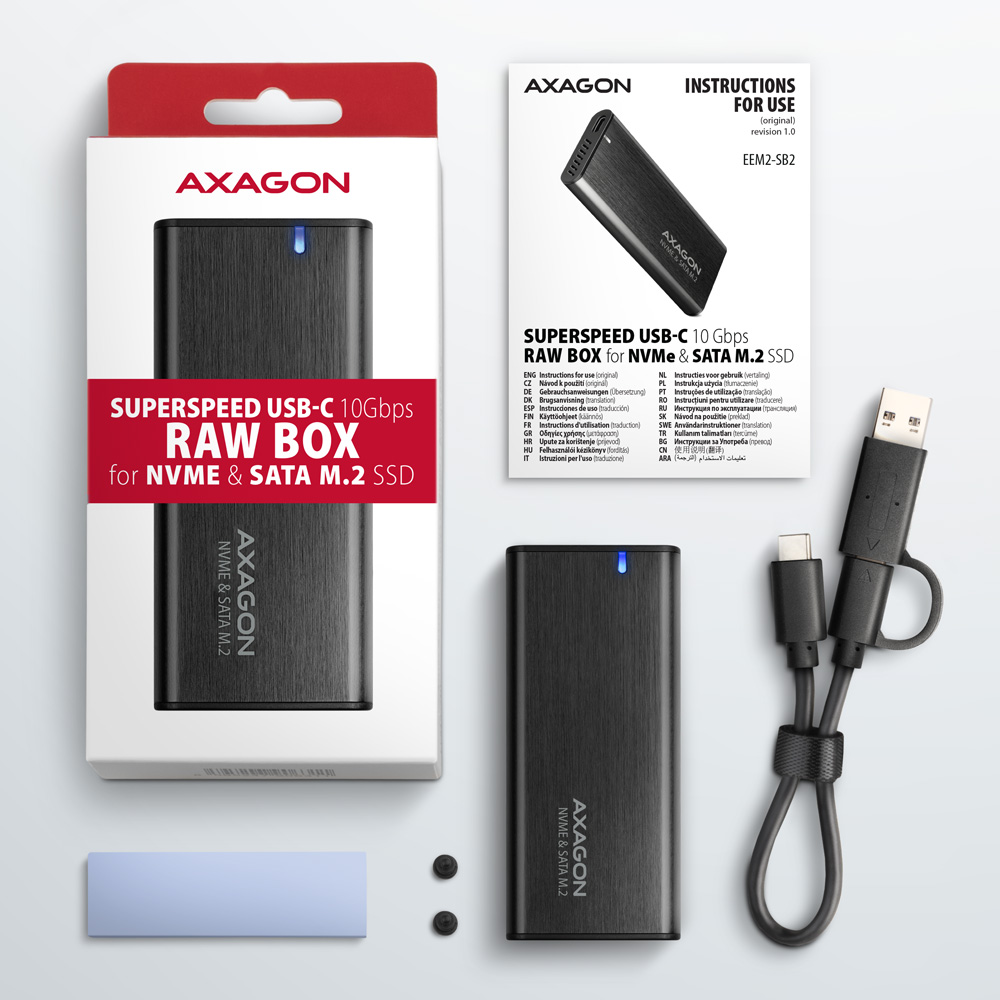
• boîtier AXAGON EEM2-SB2 RAW externe USB-C 3.2 Gen 2 combiné pour SSD M.2,
• câble USB-C - USB-C de 20 cm avec adaptateur USB-C - USB-A,
• 1 coussin thermique,
• matériel de montage,
• manuel multilingue CZ / DE / DK / ENG / ESP / FIN / FR / GR / HR / HU / IT / NL / PL / PT / RO / RU / SK / SWE / TR / BG / CN / ARA,
• emballé dans une boîte en carton avec trou pour suspension.

- boîtier externe combiné USB-C 3.2 Gen 2 pour SSD M.2
- câble USB-C - USB-A de 20 cm
- réducteur USB-A - USB-C
- pad thermoconducteur
- matériel de montage
- manuel d'installation
- manuel d'installation imprimé CZ / DE / DK / ENG / ESP / FIN / FR / GR / HR / HU / IT / NL / PL / PT / RO / RU / SK / SWE / BG / CN / TR / ARA
- boîte en carton
- dimensions de l’emballage 175 x 84 x 26 mm
- poids d'un emballage 91 g
- EAN 8595247907097
- nombre d’unités par carton : 50
- poids total du carton : 5 kg G.W.
- dimensions du carton : 37 x 32 x 19 cm
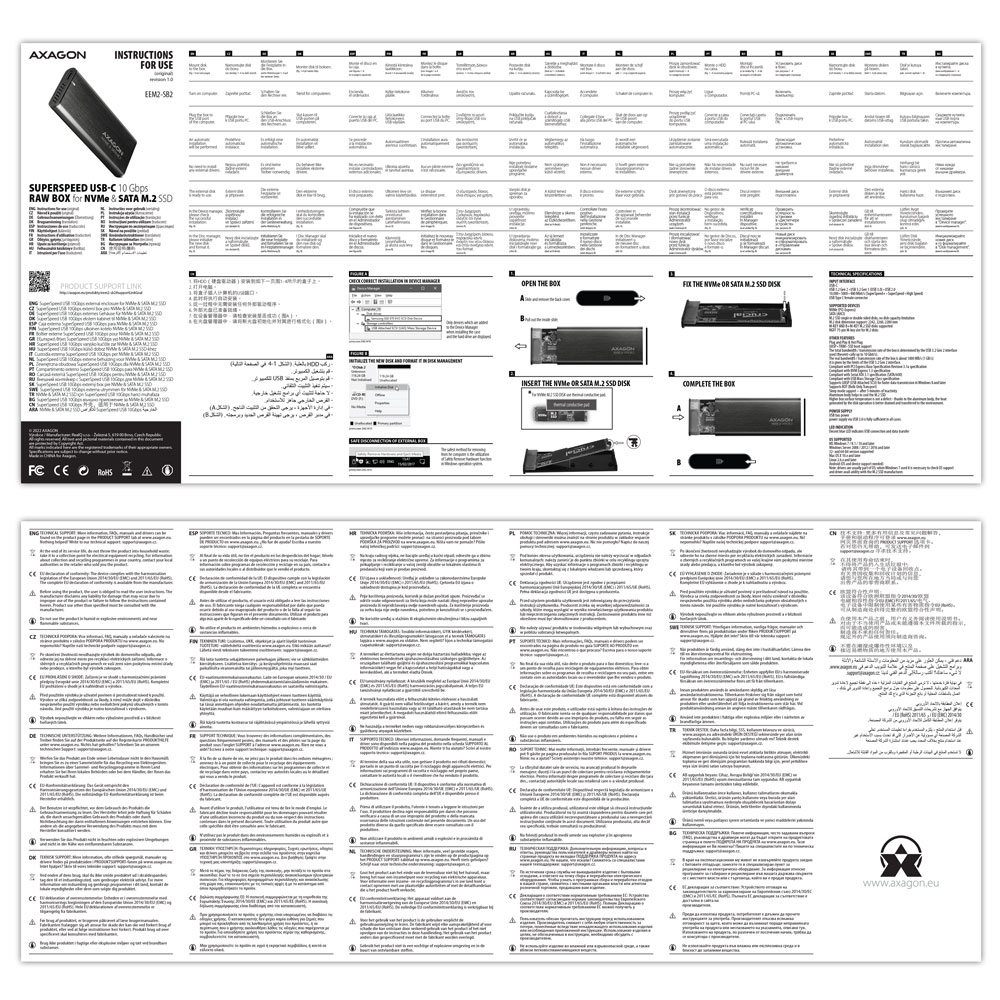
EEM2-SB2- manuel pour installation CZ / DE / DK / ENG / ESP / FIN / FR / GR / HR / HU / IT / NL / PL / PT / RO / RU / SK / SWE / BG / CN / TR / ARA
A): Drivers are included with operating systems and are installed completely automatically. The external box (adapter / docking station) is detected as a standard storage device, such as a USB flash disk, no additional drivers are needed.
B): No other drivers need to be installed and are not even available. If you continue to have problems with your external box (adapter / docking station), check out more tips that can help you troubleshoot problems.
A): If the external box (adapter / docking station) is not displayed in "Device Manager", there may be a USB port malfunction. It is also possible that your computer has a poor power supply to USB ports and the power is not sufficient to operate an external box (you can detect by listening that HDD is not spinning). This is a problem especially for older computers, where the source part already works at the limit of its parameters. In this case, it would help to use a USB hub, with an auxiliary power supply, by which the external box (adapter / docking station) would be connected to the computer.
B): Try plugging the external box (adapter / docking station) into another USB port, preferably on the back of your PC. The external box (adapter / docking station) should be detected and the drivers loaded automatically. If the problem persists, plug the external box (adapter / docking station) into the USB port of another computer to verify its functionality.
A): If this happens, it means that the operating system failed to get the necessary information to install the drivers.
B): The cause may be a defective USB cable or damaged device. If the problem persists, plug the external box (adapter / docking station) into the USB port of another computer to verify its functionality.
A): If this happens, it means that the Windows operating system did not assign a drive letter to the new storage device.
B): If the drive letter is not assigned, open "Disk Management", right-click on the desired drive and manually assign the drive letter. If the drive letter can not be assigned to the disk, it is possible that the disk is formatted as "dynamic". If you want to keep disk data, connect it to the original device and make a backup of the disk. Then convert it to a normal disk, initialize it to MBR (or GPT, see other points), and then perform Low Level Format (e.g. using the Low Level Format Tool)
A): The newly purchased disk must be initialized before first use.
B): If the new disk is not initialized automatically, open "Disk Management", right-click on the desired disk and initialize it.
A): By initializing the disk, you can set the mode in which the hard disk will work.
B): You can use the partition with the master boot record (MBR) or the GUID partition table (GPT). For disk up to 2TB, use the MBR option, we recommend selecting GPT on a larger disk than 2TB. Subsequently, the initialized disk should be formatted.
A): The external AXAGON boxes (adapters / docking stations) support the USB Mass Storage protocol making it easy to connect to TV.
B): When using a disk larger than 2TB, some TVs do not support GPT format. In such case, MBR format must be used when initializing a disk.
A): Drivers are included with operating systems and are installed completely automatically. The external box is detected as a standard storage device, such as a USB flash disk, no other drivers are needed.
B): No other drivers need to be installed and are not even available. If you continue to have problems with your external box, check out more tips that can help you troubleshoot problems.
A): If the external box is not displayed in "Device Manager", there may be a USB port malfunction.
B): Try plugging the external box into another USB port. The external box should be detected and the drivers loaded automatically. If the problem persists, plug the external box into the USB port of another computer to verify its functionality.
A): By initializing the disk, you can set the mode in which the hard disk will work
B): You can use the partition with the master boot record (MBR) or the GUID partition table (GPT). For disk up to 2TB, use the MBR option, we recommend selecting GPT on a larger disk than 2TB. Subsequently, the initialized disk should be formatted.
A): If this happens, it means that the operating system failed to get the necessary information to install the drivers.
B): The cause may be a defective USB cable or damaged device. If the problem persists, plug the external box into the USB port of another computer to verify its functionality.
A): The newly purchased disk must be initialized before first use.
B): If the new disk is not initialized automatically, open "Disk Management", right-click on the desired disk and initialize it.
A): If the external box (adapter / docking station) with a 3.5“ HDD is not displayed in "Device Manager ", the inserted disk may not be powered.
B): Make sure you have the power supply plugged in and the external box (adapter / docking station) turned on with the power switch. If the disk is properly powered, it should spin (can be detected by listening).
A): The AXAGON external boxes (adapters / docking stations) are always equipped with the latest firmware to support disks of all capacities.
B): The 2TB limit is given as the maximum partition size when initializing a disk with the master boot record (MBR). If you want to create a larger partition on the HDD stored in the external box (e.g. 3TB or more), you must select the GUID partition table (GPT) when initializing the disk. Subsequently, the initialized disk should be formatted.
A): For proper spin-down setting, this feature must be supported by all components that are in the path between the operating system and the HDD, i.e. the USB controller, box electronics, and the disk itself. The spinning down of idle disks is set up by the operating system, but it is very complicated.
B): We recommend setting up using one of the freeware programs, where the procedure is mostly simplified. E.g. by HDDScan (http://hddscan.com/). The program has the ability to verify whether the disk and all components in the path support the feature. Select "Spindown" to test an immediate spin down of the disk. Set up the spindown time using a slider in the "Power Management" section.
A): Check if the M.2 disk type is NVMe (neither SATA M.2 drives nor mSATA drives are covered by this box)
B): Update the firmware of your NVMe M.2 drive using the manufacturer's utility
C): Update the firmware of the external box - download link
In the ACTIVE profile, set the hard drive sleep time for battery and mains power to 0 minutes / Never.
A) Path in Windows 10: Settings > System > Power & Sleep > Additional power settings > in the ACTIVE profile Change Schema Settings> Change advanced power settings > Hard drive > Turn off hard disk after
B) Path in Windows 11: Search for: Control Panel > Hardware and Sound > Power Options > in the ACTIVE profile Change Schema Settings> Change advanced power settings > Hard disk > Turn off hard disk after.
AXAGON M.2 SSD disk adapter is let say only HW connector change from M.2 into PCI-Express or SATA. Adapter itself do not have controller electronics and need no drivers. It is necessary to check M.2 disk driver availability for older OS like Windows 7.
Proper M.2 adapter function requires:
- computer mainboard support M.2 disks – SATA disks are more often supported than NVMe disks,
- computer mainboard support booting from PCI-Express bus – in case of OS installation to M.2 NVMe disk,
- driver availability for M.2 SSD disk – apply especially for NVMe disks on Windows 7 OS.
Please contact the motherboard manufacturer's technical support to determine support for motherboard M.2 drives. In some cases updating the BIOS/UEFI is sufficient.
Check the M.2 SSD driver availability on the manufacturer's website or contact the disk manufacturer's technical support.
The disks connected to the SATA motherboard controller are usually displayed In BIOS/UEFI. The NVMe disk is usually displayed in the "Disk Boot Order" menu.
This applies when the requirements of "Prerequisites for proper M.2 function" are met.
A): If the PC does not run with the card or the card is mistakenly detected in “Device Manager”, or if there is a yellow exclamation mark on the driver, or if “Device Manager” reports an error code “Code 10 - The device cannot start”, the card is in conflict with another device in your computer.
B): In most cases, this conflict can be solved by moving the card to another PCI (PCIe) slot, with the BIOS assigning other free resources to the card. If the move does not help, try the card separately, with no additional cards inserted. If the card cannot be moved to another slot, you can reset the BIOS of the computer (by jumper on the board or pulling out the backup battery, we recommend that you note all the original settings and reset everything to the required values). This will cause the IRQ, DMA, and I/O resources to be redistributed.
A): If the network card is not displayed in "Device Manager", a USB port (or a PCIe slot in the event of an internal network card) may be malfunctioning.
B): Try plugging the network card into another USB port (or another PCIe slot on the PC motherboard in the event of an internal network card, or temporarily disconnect all other PCIe cards). The network card should be detected and you should be prompted to install the drivers. If the problem persists, plug the network card into the USB port (PCIe slot) of another computer to verify its functionality.
A): The newly purchased disk must be initialized before first use.
B): If the new disk is not initialized automatically, open "Disk Management", right-click on the desired disk and initialize it.
A): First, try moving the card to another PCI-e slot in case there is a device conflict. The issue could also be caused by a poor-quality or damaged SATA cable.
B): Check whether your SSD partition is properly aligned (using a program that displays this information, e.g., ASS SSD Benchmark). More information about this issue can be found here: http://pctuning.tyden.cz/software/ladeni-windows/17030-optimalizace-windows-7-pro-ssd-co-funguje-a-co-ne?start=2
A): By initializing the disk, you can set the mode in which the hard disk will work.
B): You can use the partition with the master boot record (MBR) or the GUID partition table (GPT). For disk up to 2TB, use the MBR option, we recommend selecting GPT on a larger disk than 2TB. Subsequently, the initialized disk should be formatted.
Test
A): The lead time is naturally longer by the time it takes to detect the controller and connected disks. The start time can be shortened in the MB BIOS by enabling the "Quick Boot" feature. For newer boards, this feature is labeled "Fast boot". The lead time depends, of course, also on the disk used for the SSD/HDD operating system and the number of peripherals connected to the computer.
B): In the case of newer motherboards, it is more practical to use the spin down (instead of turn off) feature.
A): The ADSA-ST clones disks bit by bit, regardless of their content. This creates an identical copy of the disk. A requirement for cloning is that the source disk must not contain any bad sectors (otherwise, the cloning process will stop). If the target HDD is smaller than the source HDD, cloning will not start.
B): For cloning, the target HDD must be the same size or larger than the source HDD. If the target HDD is larger than the source HDD, a partition equal to the size of the source HDD will be created on the target disk, and the remaining space will stay unallocated. After cloning, you can extend the partition to include the unallocated space or create a new partition using Windows Disk Management.
A): The connectors are compatible, but inside the USB 3.0 connector has five more contacts. The USB 3.2 Gen 1 (USB 3.0) connector is usually identified by the use of blue (exceptionally black) plastic.
B): The main difference is the speed of data transmission. USB 2.0 reaches a maximum speed of about 30 MB/s, while USB 3.2 Gen 1 (USB 3.0) is able to achieve a theoretical speed of up to 600 MB/s. If you place a disk in the external box that has a read speed of 120 MB/s, you can only get a quarter speed, that is about 30 MB/s, in the box with USB 2.0.