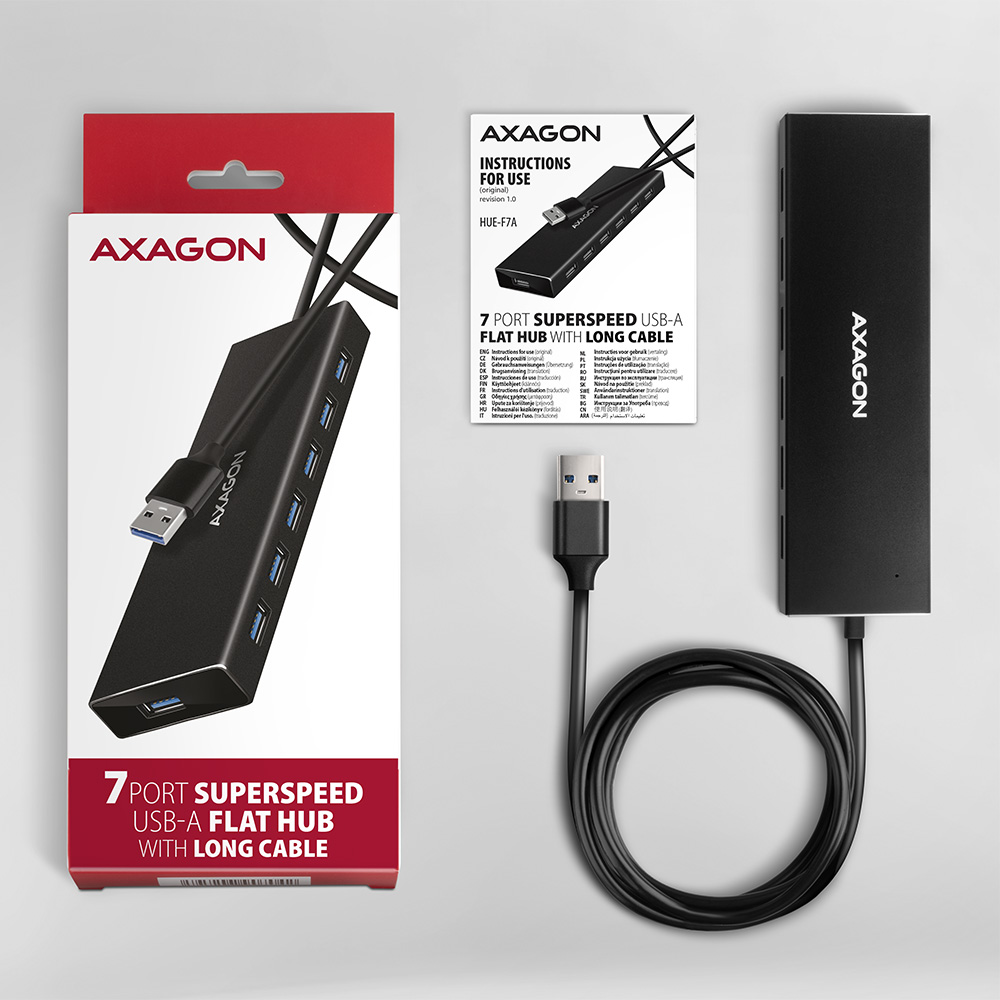
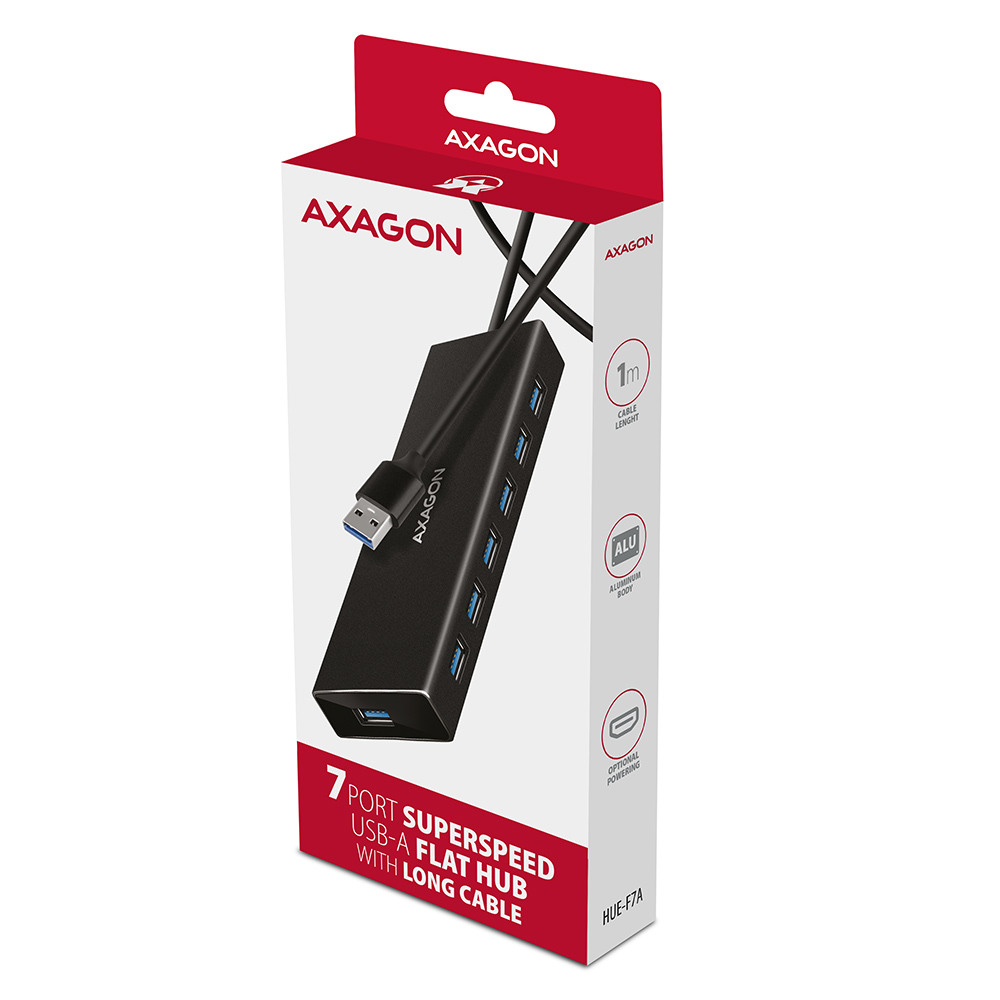
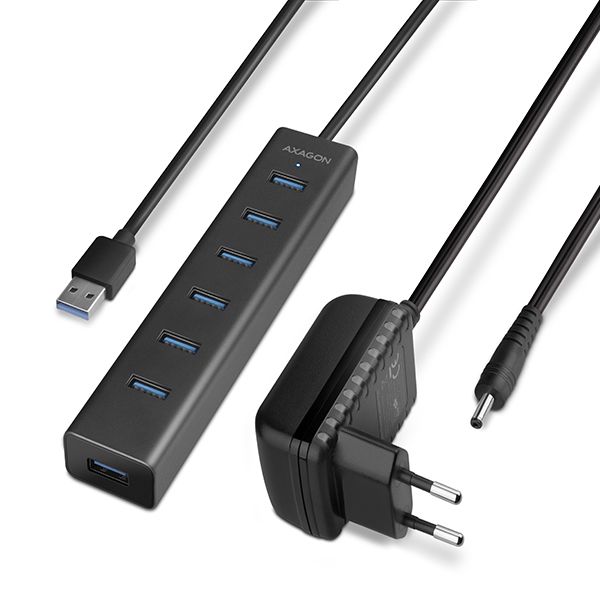
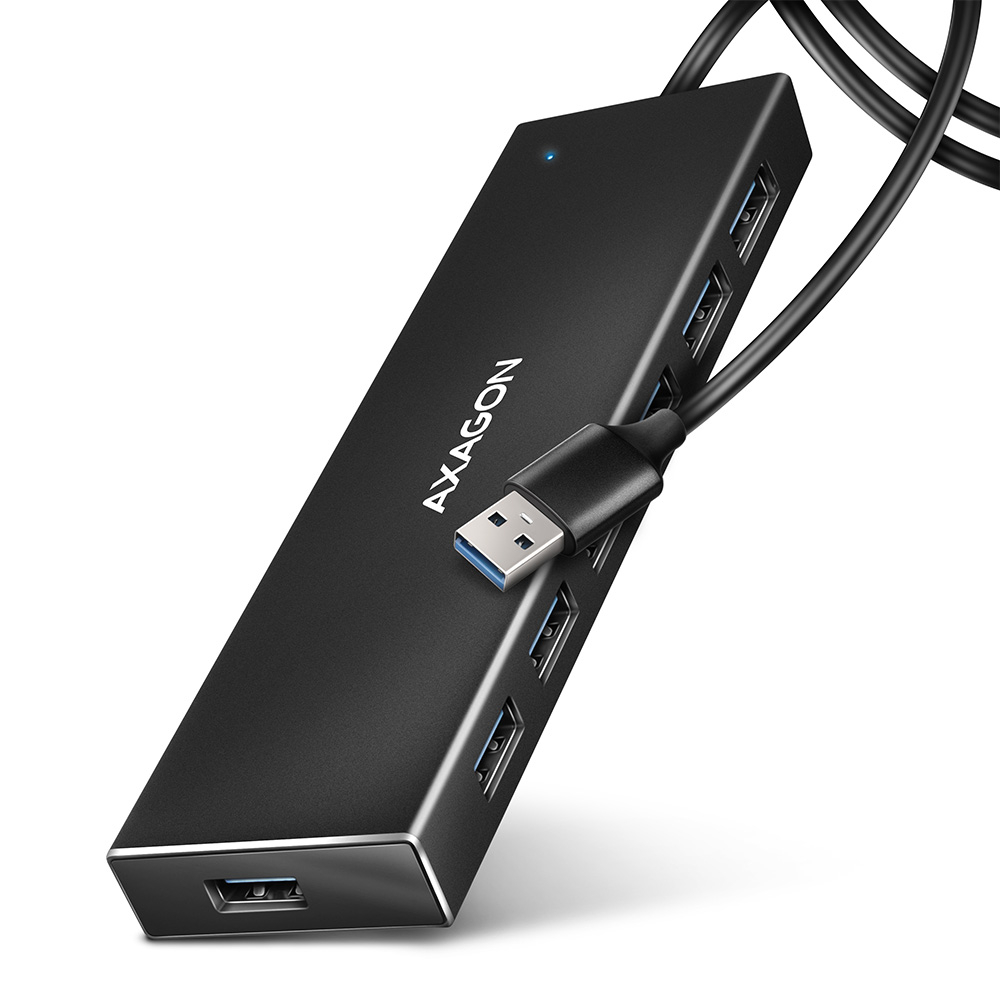
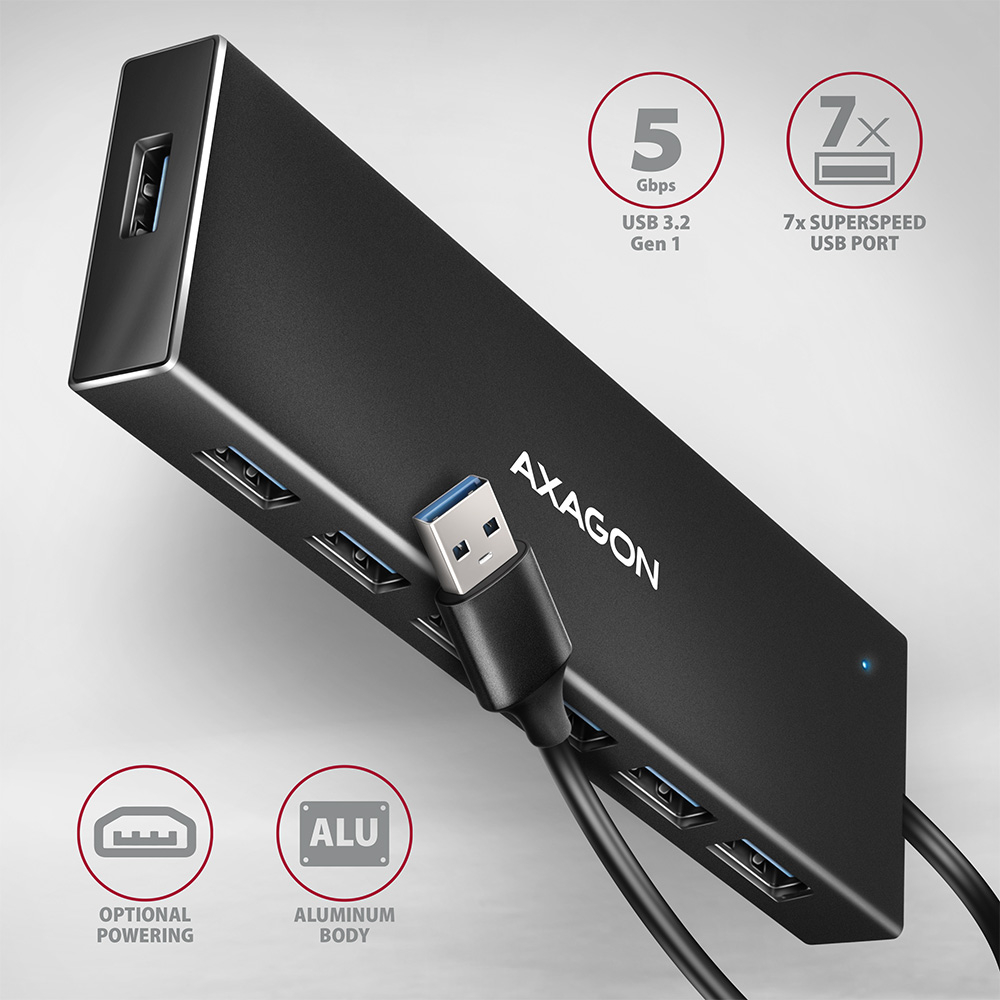
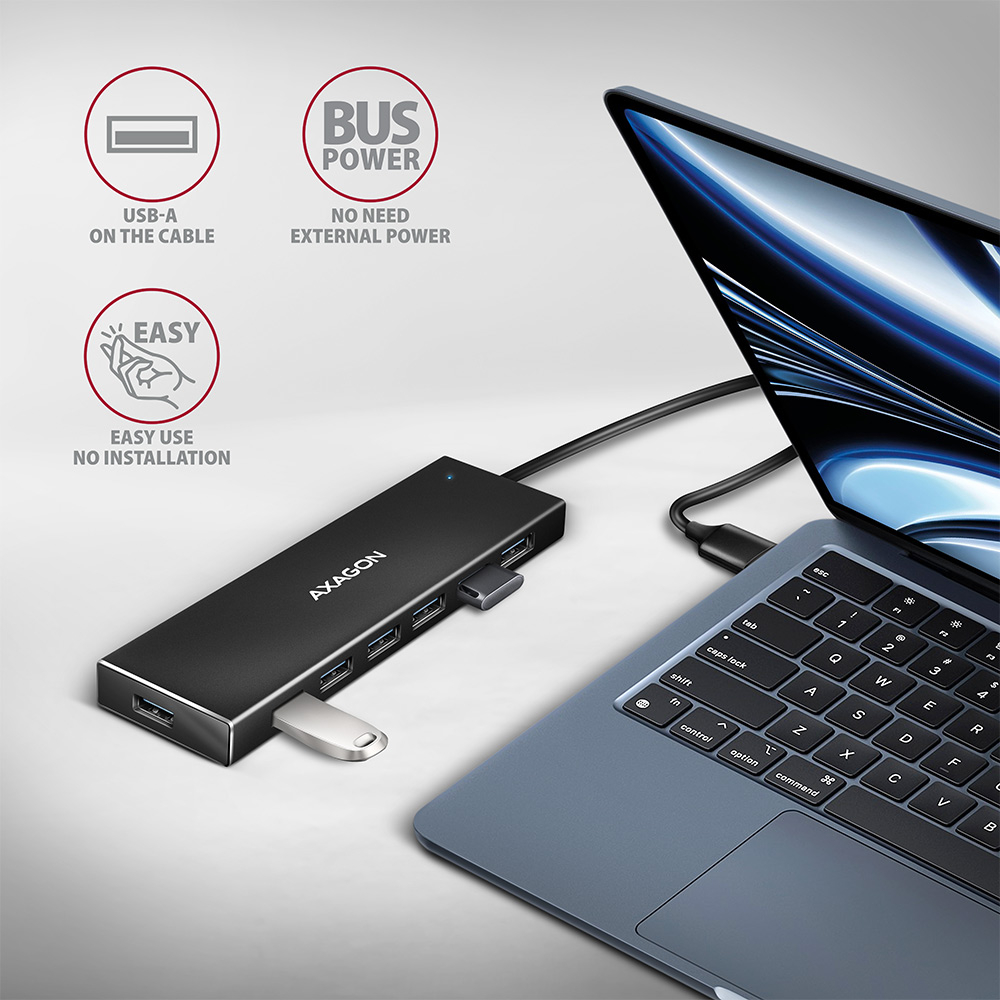
AXAGON HUE-F7A hub USB 3.2 Gen 1 (USB 3.0) fin avec câble USB de 1 m permet de connecter facilement et rapidement jusqu’à sept périphériques USB à un ordinateur en même temps. Le standard USB 3.2 Gen 1 offre une vitesse de transfert jusqu’à 5 Gbit/s.
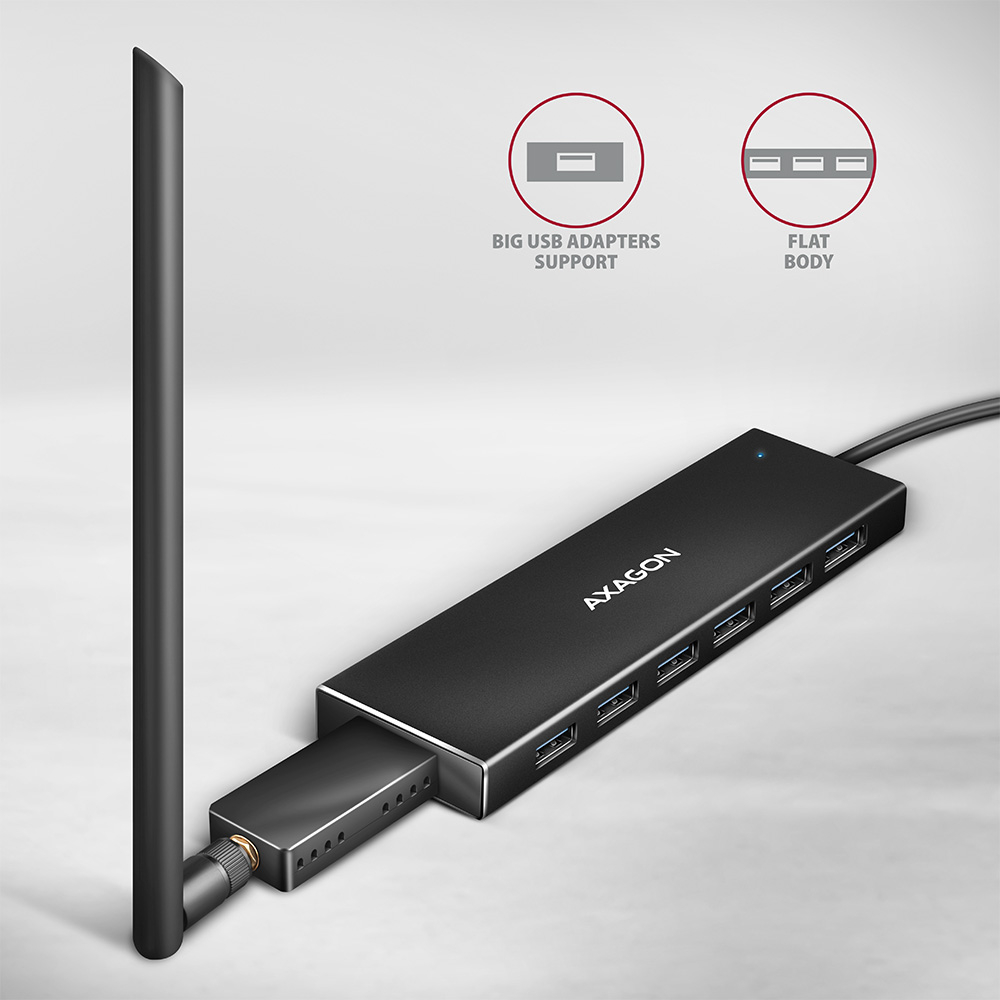
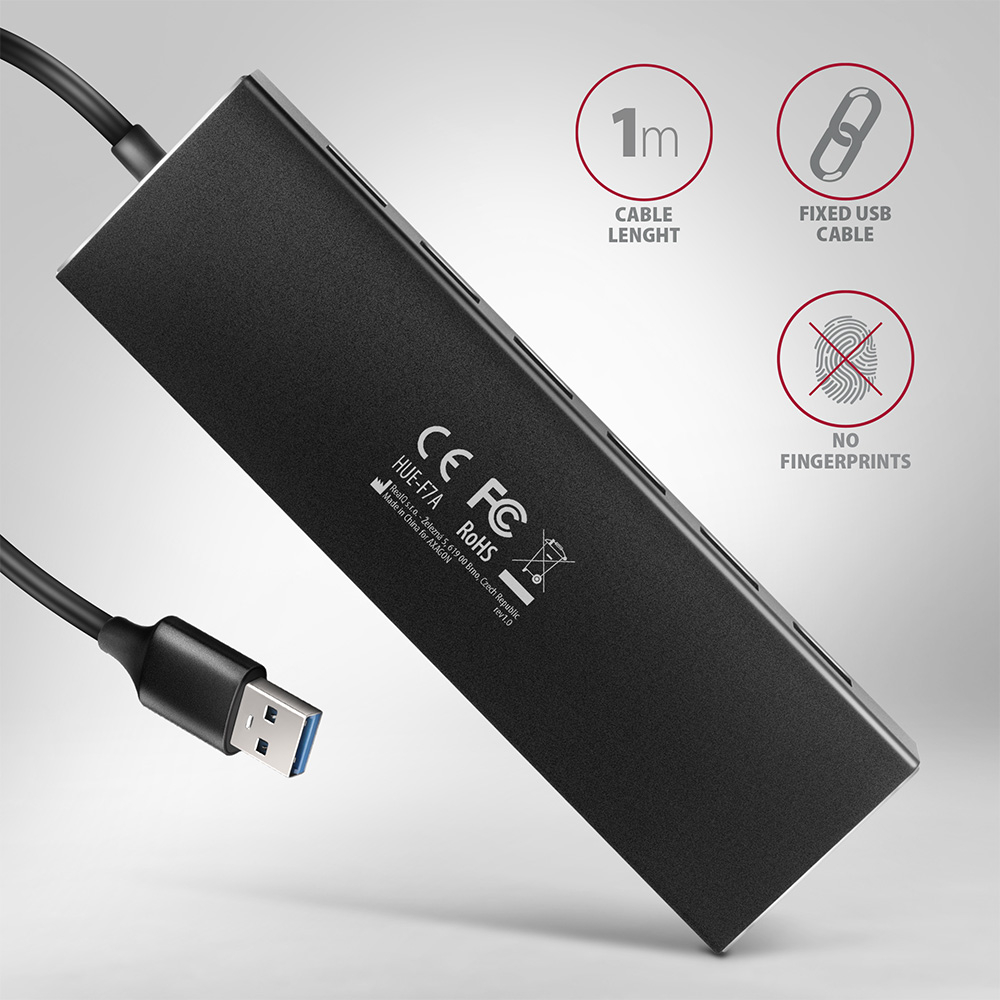
Le corps métallique du hub est fabriqué en aluminium et assure ainsi une parfaite protection mécanique. Sa surface élégante et légèrement structurée prévient les traces de doigts indésirables. Le câble USB-A fixé en permanence de 100 cm est adapté pour une utilisation avec un ordinateur de bureau. Un avantage est le port USB-A female indépendant à l’avant, idéal pour connecter des clés USB volumineuses, des lecteurs et d’autres périphériques USB.
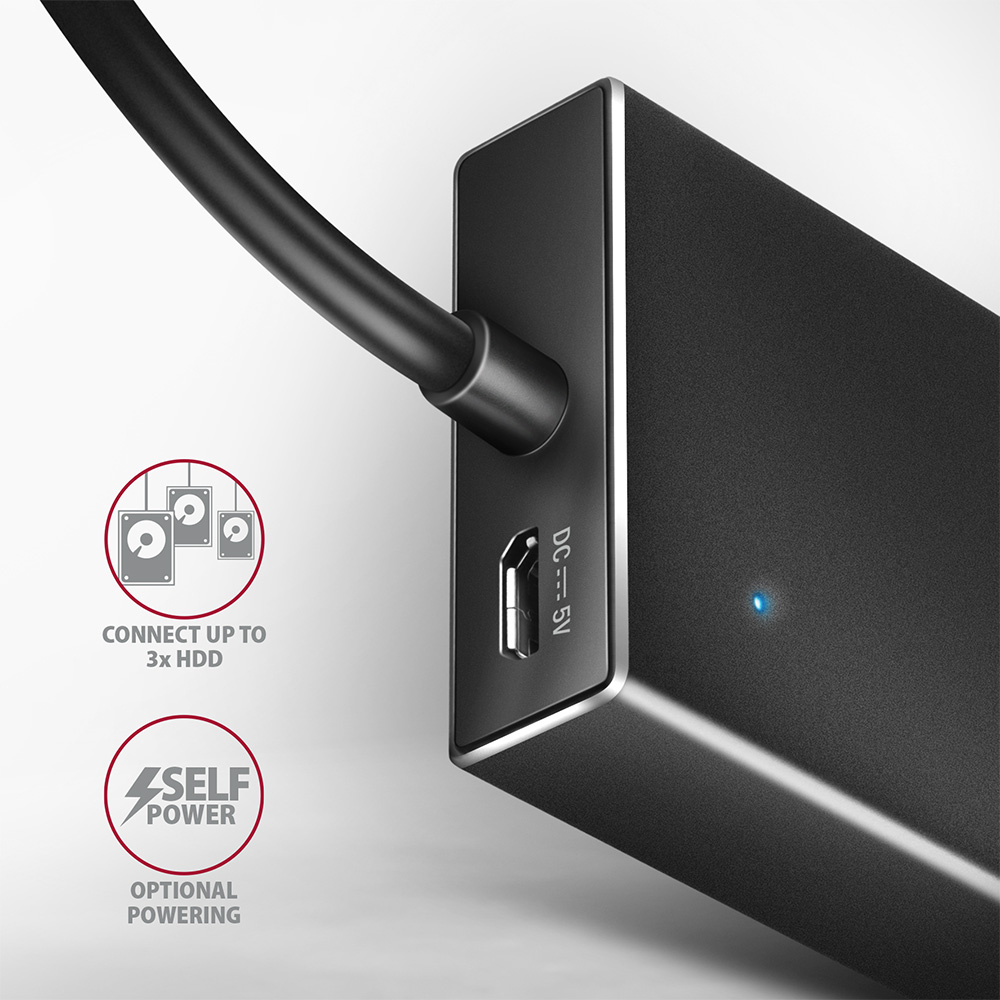
La polyvalence de ce hub USB est renforcée par un connecteur micro USB intégré pour une alimentation supplémentaire via des chargeurs USB standard fournis avec les téléphones mobiles. Grâce à cette alimentation additionnelle, il est possible de connecter encore plus de disques externes à l’ordinateur ou d’augmenter le nombre de téléphones mobiles en charge. Il peut gérer la connexion permanente de plusieurs disques externes même sans alimentation externe du hub. Une fois l’alimentation externe connectée, il est possible d’utiliser jusqu’à cinq disques externes simultanément.
Grâce à la fonction Charging hub, les appareils mobiles peuvent être chargés même sans connexion à l’ordinateur. Un chargeur inutilisé transforme gratuitement ce hub USB en hub de charge. Le hub permet la charge des téléphones et tablettes avec un courant jusqu’à 1,5A/5V, ce qui permet de recharger facilement par exemple un smartphone Android, un Apple iPhone, un Apple iPad, etc.
Entrée :
• 1x port USB 3.2 Gen 1 / SuperSpeed USB, connecteur USB-A male.
• Rétrocompatibilité avec USB 3.1 Gen 1 / USB 3.0 / USB 2.0 et USB 1.1.
• Connecteur USB de type A male fixé en permanence sur un câble de 100 cm.
Sorties :
• 7x ports SuperSpeed USB, connecteurs USB-A female.
• Prise en charge des vitesses de transfert 5 000 / 480 / 12 / 1,5 Mbit/s (SuperSpeed / High / Full / Low speed).
• Le débit total / vitesse de transfert est déterminé par l’interface USB 3.2 Gen 1 utilisée (théoriquement 5 Gbit/s).
Caractéristiques :
• Possibilité de connecter des périphériques à chaud grâce à la prise en charge du Hot Plug.
• Pleine prise en charge Plug and Play.
• Prise en charge du mode économie d’énergie.
• Câble blindé de haute qualité garantissant une communication rapide et des interférences minimales.
• LED bleue indiquant la connexion du hub à l’ordinateur.
• Dimensions : 145 x 42 x 15 mm.
• Poids : 110 g (y compris câble).
• Longueur du câble USB : 100 cm.
Mode d’alimentation du hub via câble USB (bus power) :
• L’alimentation via le bus USB est suffisante pour connecter des périphériques USB à faible consommation (souris, clavier, lecteur de cartes, clé USB, etc.) ou autoalimentés (imprimante, scanner, disque externe 3,5") sur les quatre ports.
• Le hub USB en mode alimentation bus peut également prendre en charge jusqu’à 3 disques durs magnétiques 2,5" simultanément.
• Charge des appareils mobiles (y compris iPad) avec un courant jusqu’à 1,5 A sur chacun des ports du hub. Le courant total de charge (réparti sur les ports) atteint jusqu’à 3 A sous 5 V (dépend des capacités du port USB de l’ordinateur).
Mode d’alimentation via USB + alimentation externe du hub depuis un chargeur USB (self power) :
• Connecteur micro USB intégré dans le boîtier du hub pour alimentation supplémentaire.
• Il est possible d’utiliser n’importe quel chargeur d’appareils mobiles (non inclus) avec connecteur micro USB (courant de sortie recommandé du chargeur min. 2 A).
• Le hub USB en mode alimentation self power peut gérer jusqu’à 5 disques magnétiques externes de 2,5". Pour un fonctionnement fiable à long terme, il est toutefois recommandé de connecter au maximum 3 disques magnétiques externes 2,5" simultanément.
• Charge des appareils mobiles (y compris iPad) avec un courant jusqu’à 1,5 A sur chacun des ports du hub. Le courant total de charge (réparti sur les ports) atteint jusqu’à 5 A sous 5 V (dépend des capacités de l’adaptateur d’alimentation externe).
Mode hub de charge autonome sans connexion à un ordinateur (charging hub) :
• Une fois l’ordinateur connecté éteint ou sans connexion à un ordinateur, le hub fonctionne avec alimentation via un chargeur USB comme un hub USB de charge autonome, il suffit de brancher un chargeur standard avec connecteur micro USB dans le hub (entrée micro USB).
• Charge des appareils mobiles (y compris iPad) avec un courant jusqu’à 1,5 A sur chacun des ports du hub, le courant total de charge (réparti sur les ports) atteint jusqu’à 3 A sous 5 V (dépend des capacités de l’adaptateur d’alimentation externe).
Systèmes d’exploitation pris en charge :
• MS Windows XP / Vista / 7 / 8 / 8.1 / 10 / 11 et versions plus récentes, Windows Server 2003 / 2008 / 2012 / 2016 / 2019 / 2022 et versions plus récentes (prend en charge toutes les versions 32 et 64 bits de Windows), Mac OS X 10.4.x et supérieur, Linux noyau 2.6.x et supérieur, Android la plupart des versions.
• Note : Les pilotes sont inclus dans les systèmes d’exploitation pris en charge et s’installent automatiquement. Aucune autre installation de pilotes n’est nécessaire ni disponible.
Contenu de l’emballage :
• Hub USB SuperSpeed avec câble de 100 cm fixé,
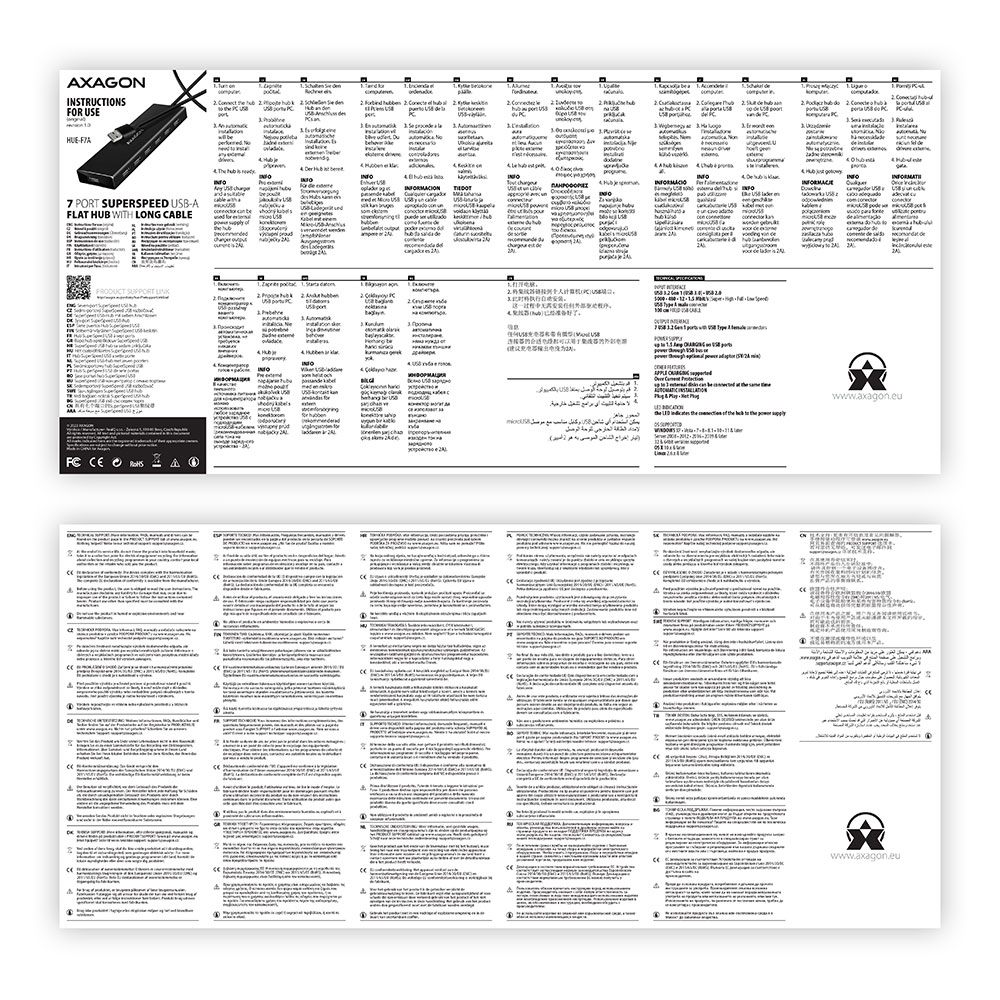
• manuel multilingue CZ / DE / DK / ENG / ESP / FIN / FR / GR / HR / HU / IT / NL / PL / PT / RO / RU / SK / SWE / TR / BG / CN / ARA,
• emballé dans une boîte en carton avec un trou pour suspension.



 Français
 Čeština
 Slovenčina
 English
 Deutsch
 Magyar
 Polski

 + 1 autres photos