Référence produit: PCEE-10GR
Catégorie: PCIe , Cartes d'extension et contrôleurs , Cartes et contrôleurs réseau , Cartes réseau , Tous les produits
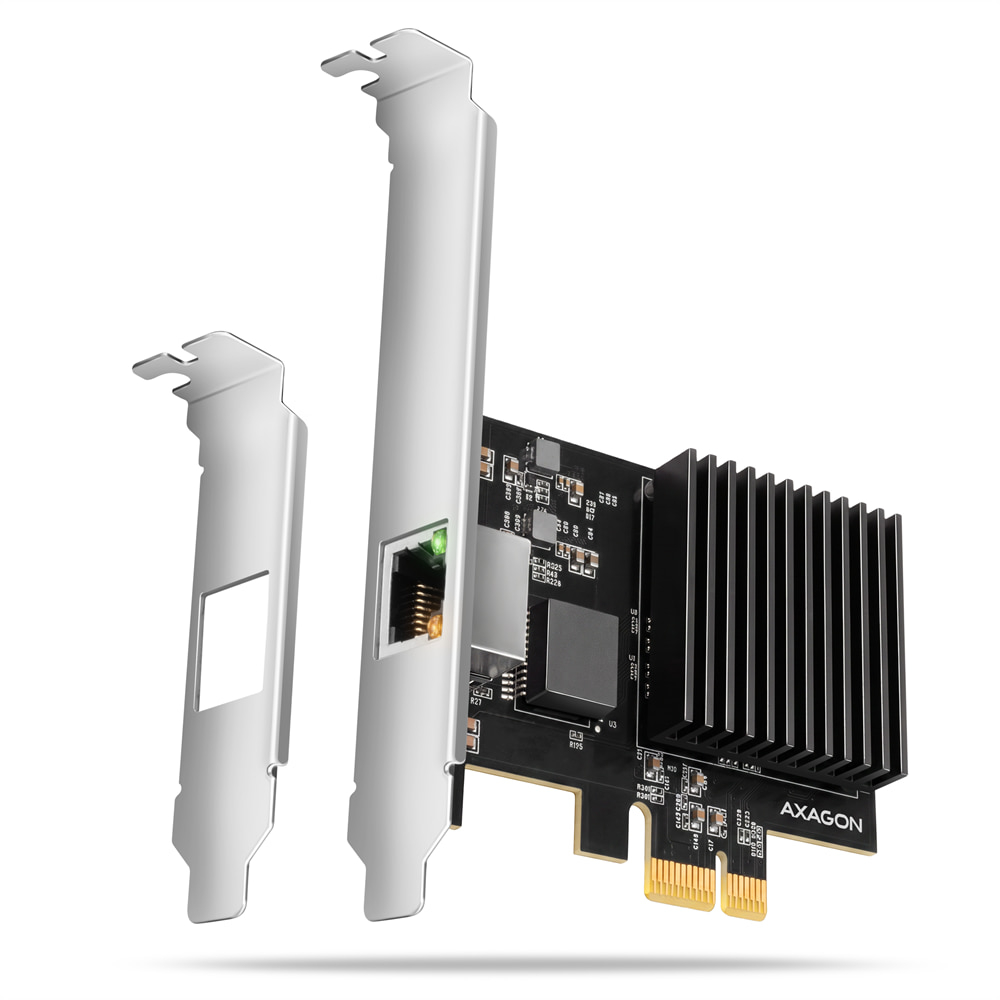
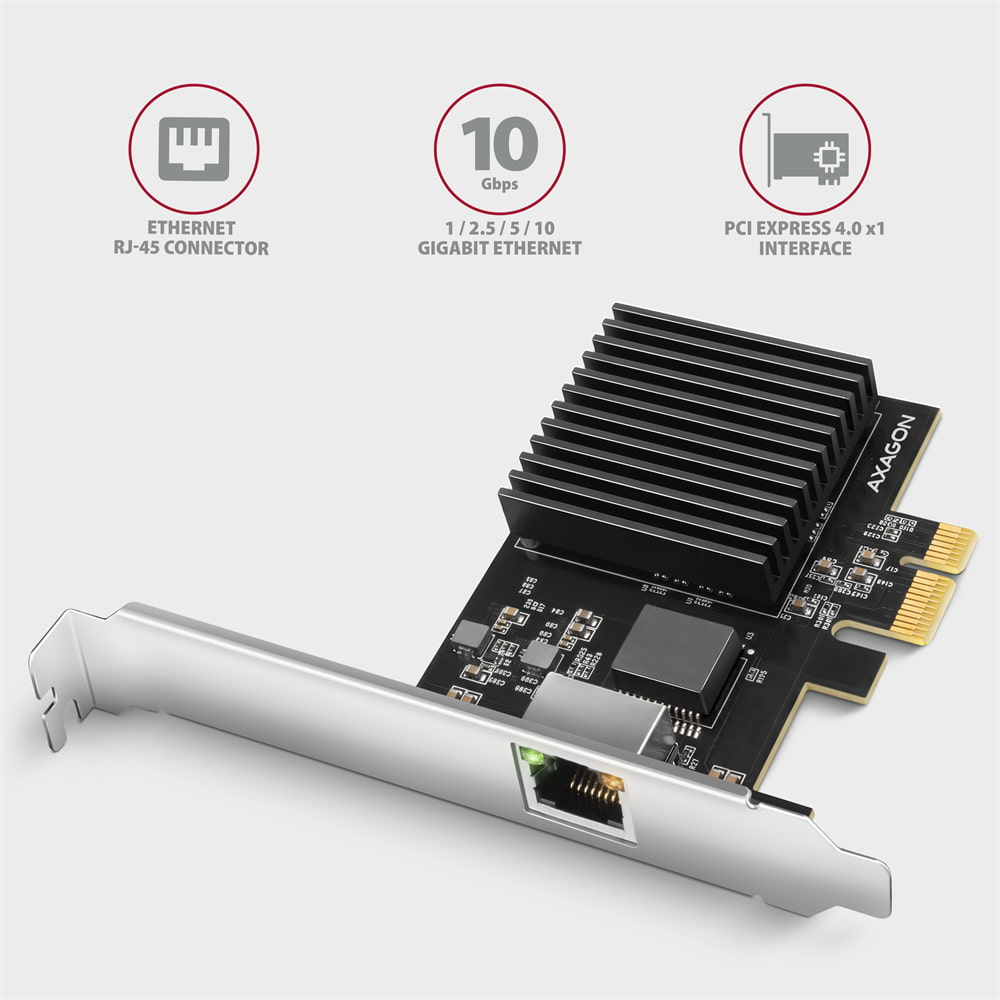
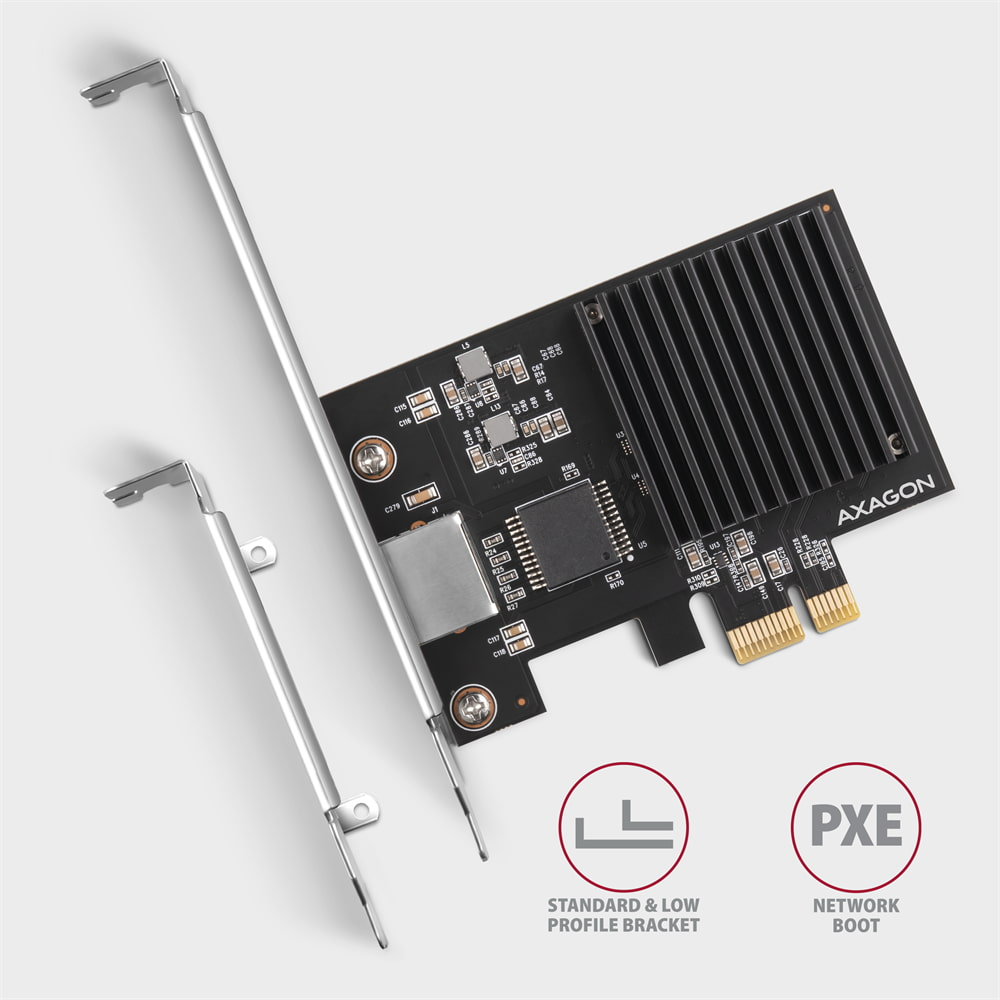
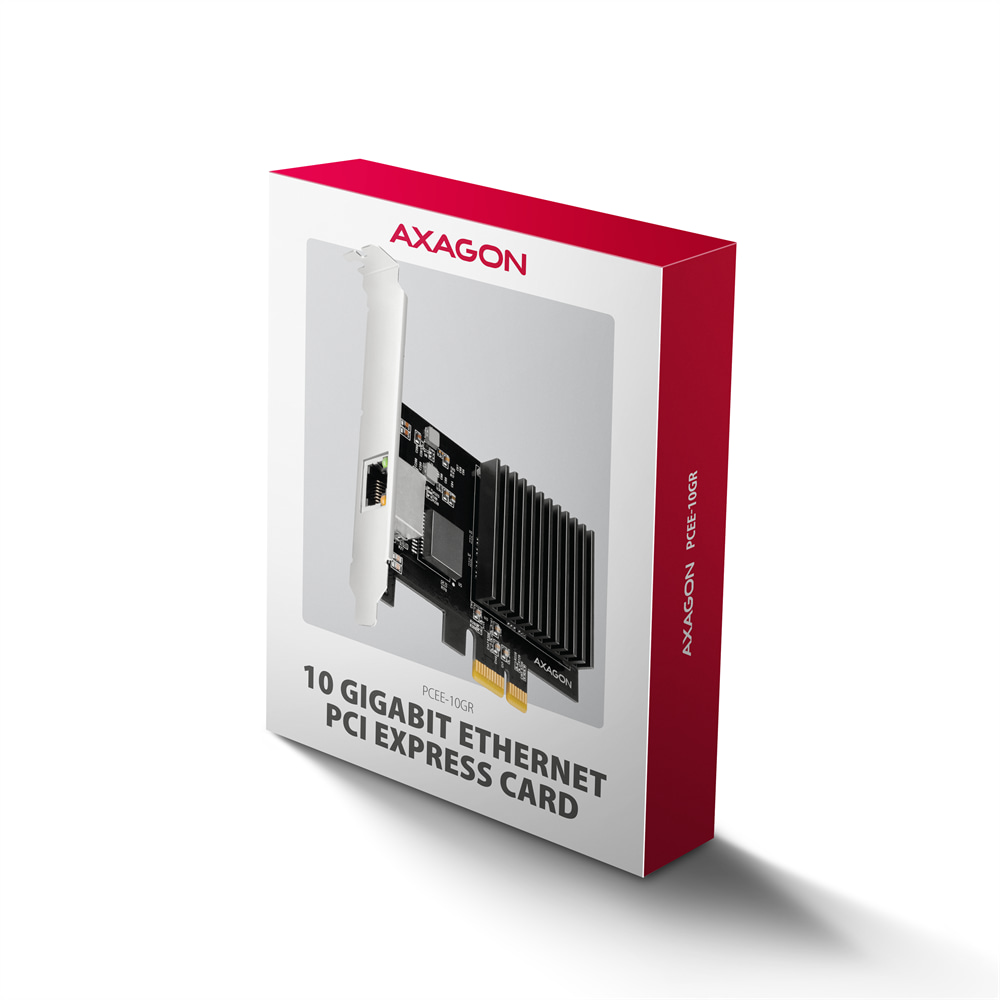
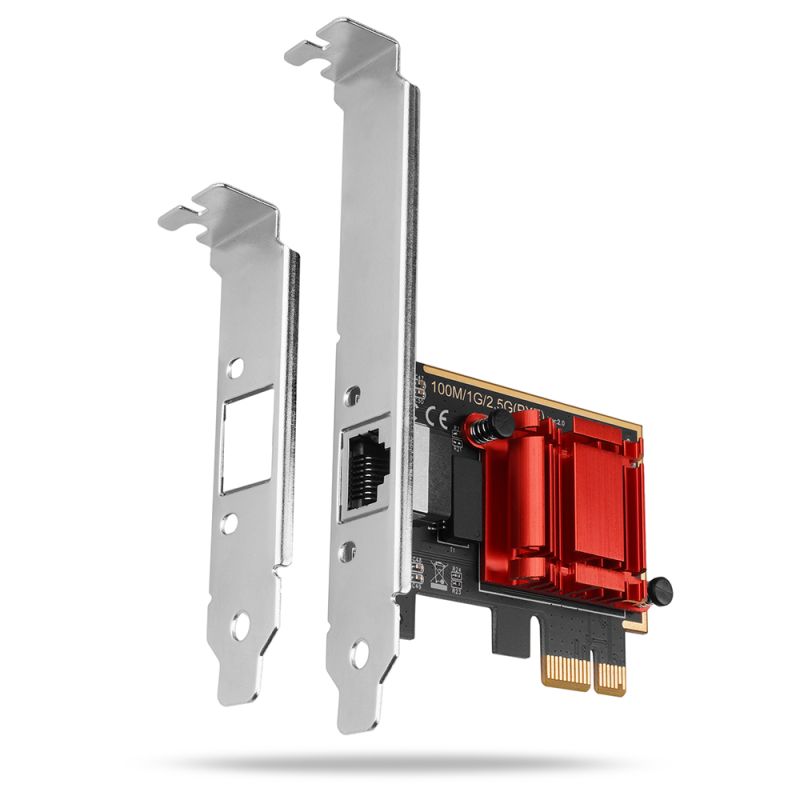
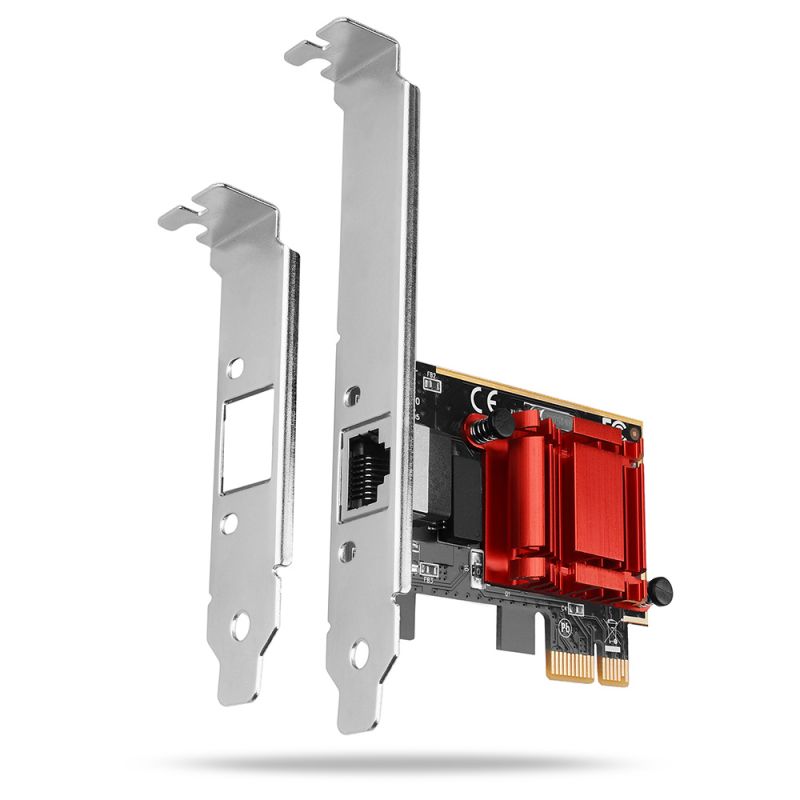
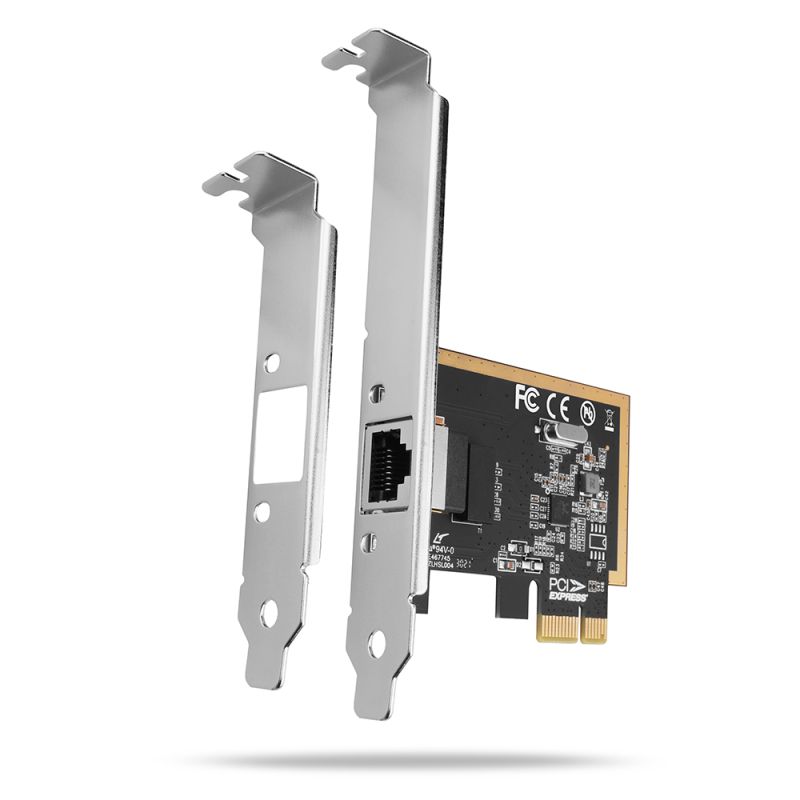
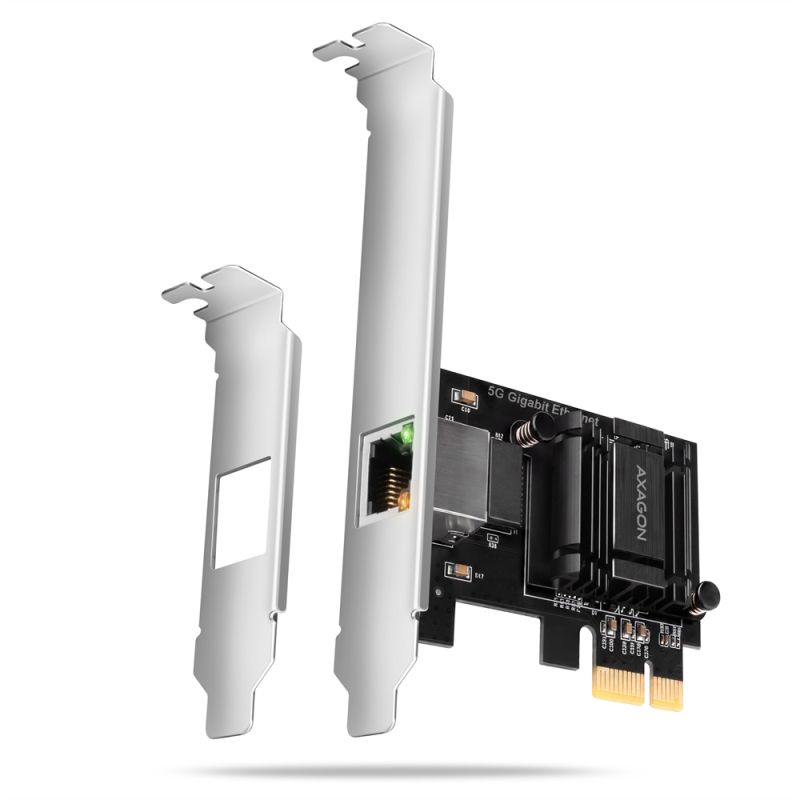
La carte réseau PCI Express AXAGON PCEE-10GR apporte à votre ordinateur de bureau, station de travail ou serveur une vitesse de 10 Gbit/s tout en se contentant du plus court des slots, le PCIe x1. Grâce au chipset Realtek RTL8127 avec interface PCIe 4.0 x1, vous n’avez pas à sacrifier le slot de la carte graphique ou d’un SSD M.2 pour profiter d’un réseau rapide, et avec son dissipateur thermique passif, la carte reste entièrement silencieuse. Un fichier de 100 Go, qui mettrait environ un quart d’heure à se transférer via un réseau gigabit, peut être transmis en quelques minutes, à condition que l’appareil distant prenne en charge la même vitesse. Le connecteur RJ-45 avec interface 10GBASE-T prend en charge les vitesses 1 / 2,5 / 5 / 10 Gbit/s avec détection automatique, ce qui permet de connecter cette carte à un réseau 10G, ainsi qu’à une infrastructure Gigabit et Multi-Gigabit existante, y compris les switchs et routeurs standards 2.5G. La carte prend aussi en charge le boot via réseau (PXE), le Wake-on-LAN et la synchronisation temporelle IEEE 1588 / 802.1AS. En plus du cache standard, l’emballage contient aussi un cache low profile pour l’installation dans des boîtiers low profile (à profil bas). Elle peut également remplacer une carte réseau intégrée.
La carte utilise une voie (lane) PCIe 4.0 avec une vitesse de 16 GT/s, soit environ 15,75 Gbit/s dans chaque sens après déduction du codage 128b/130b. Cela couvre pleinement la vitesse 10 Gbit/s en full duplex tout en n’occupant qu’une voie ; les slots x16 restent donc libres pour les cartes graphiques ou les contrôleurs NVMe. La carte peut être installée dans des slots x1, x4, x8 et x16.
Avec les slots plus anciens, le débit est inférieur : PCIe 3.0 x1 offre environ 7,9 Gbit/s, PCIe 2.0 x1 environ 4 Gbit/s. La carte n’exploitera pas pleinement la vitesse 10 Gbit/s dans ces cas, mais le débit suffit pour les 2,5 Gbit/s (PCIe 2.0) ou 5 Gbit/s (PCIe 3.0).
La carte respecte les normes IEEE 802.3an (10GBASE-T), IEEE 802.3bz (2.5GBASE-T et 5GBASE-T) et IEEE 802.3ab (1000BASE-T). La vitesse de la connexion est configurée automatiquement selon l’équipement distant (switch, routeur, NAS). Pour 10 Gbit/s sur une distance jusqu’à 100 m, un câble Cat 6A ou supérieur est requis, un câble Cat 6 permet 10 Gbit/s jusqu’à environ 55 m. La vitesse 2,5 Gbit/s fonctionne avec un câble Cat 5e, 5 Gbit/s avec un câble Cat 6 (ou parfois Cat 5e selon la qualité d’installation), toujours jusqu’à 100 m. La fonction Auto MDI/MDIX détecte automatiquement le type de branchement du câble.
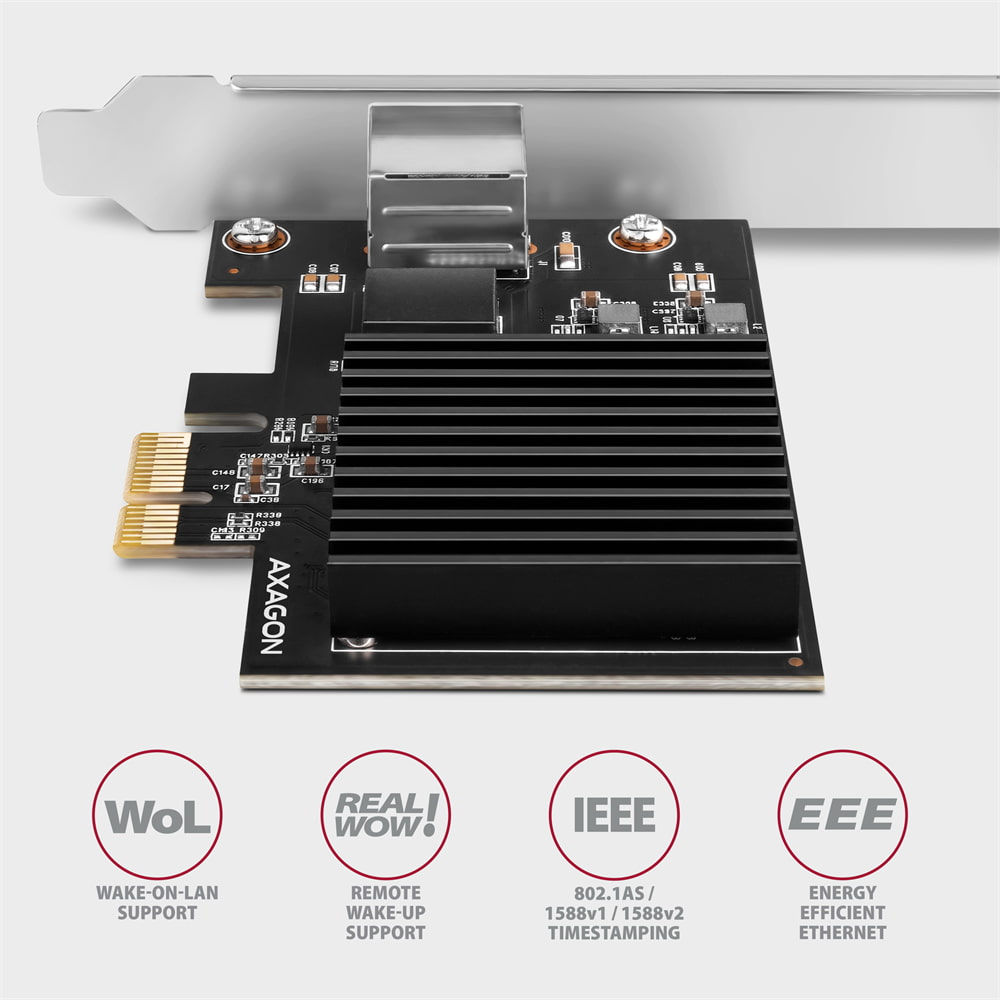
La prise en charge du PXE permet de démarrer le système d’exploitation via le réseau – idéal pour les stations sans disque, le déploiement en masse ou les environnements de maintenance et restauration. Wake-on-LAN peut réveiller l’ordinateur depuis le mode veille ou l’arrêt grâce à un Magic Packet (selon la prise en charge par la carte mère et la configuration BIOS/UEFI). La technologie Realtek RealWoW! permet également un réveil à distance via internet.
L’horodatage matériel IEEE 1588 (PTP) et IEEE 802.1AS (gPTP) assure une synchronisation exacte de l’heure entre les équipements, utile dans les réseaux AV, l’automatisation industrielle ou les systèmes de mesure. Le VLAN (IEEE 802.1Q) sépare le trafic réseau, IEEE 802.1P permet sa priorisation, et les Jumbo Frames jusqu’à 16 Ko optimisent le transfert de gros volumes de données, par exemple entre un PC et un NAS. Le Checksum offload et Large Send Offload déchargent une partie du traitement réseau vers la carte, réduisant la charge du processeur. L’ECC et le CRC matériels protègent l’intégrité des données transmises.
Le contrôleur est refroidi par un dissipateur thermique passif à ailettes sans ventilateur, ce qui rend la carte complètement silencieuse en fonctionnement. Le chipset RTL8127 a une consommation d’environ 1,95 W selon le fabricant. L’Energy Efficient Ethernet (IEEE 802.3az) réduit la consommation lors des phases de faible trafic réseau.
La carte est compatible avec Windows et Linux. Pour le fonctionnement, il est nécessaire d’installer le pilote Realtek disponible en téléchargement sur la page du produit sur www.axagon.eu. Après installation, la carte apparaît dans le Gestionnaire de périphériques sous le nom Realtek PCIe 10GbE Family Controller. La LED verte indique le transfert de données, la LED orange reste allumée en permanence en cas de connexion à 10 Gbit/s ; elle est éteinte pour les vitesses 5 Gbit/s et inférieures.
Entrée :
• Interface PCI Express 4.0 rétrocompatible avec PCI Express 1.1 / 2.0 / 3.0 (avec débit réduit).
• Nombre de voies (lanes) 1-Lane (x1), compatible avec slots PCIe x1 / x4 / x8 / x16.
• Débit d’une voie PCI Express 4.0 de 16 GT/s.
• Pour atteindre 10 Gbit/s, un slot PCI Express 4.0 ou plus récent est nécessaire.
Sortie :
• Interface 10 Gigabit Ethernet avec connecteur RJ-45 pour câble UTP ou STP,
• vitesses Ethernet prises en charge 1000/2500/5000/10000 Mb/s,
• spécifications IEEE 802.3ab 1000BASE-T, IEEE 802.3bz 2.5GBASE-T / 5GBASE-T, IEEE 802.3an 10GBASE-T,
• prise en charge de la norme NBASE-T - permet d’atteindre jusqu’à 5 Gbit/s via câbles UTP Cat5e standards,
• autodétection 1/2,5/5/10 Gbit/s,
• prise en charge PXE pour boot via réseau,
• prise en charge IEEE 1588v1, IEEE 1588v2, IEEE 802.1AS - synchronisation temporelle (PTP / gPTP),
• prise en charge du codage de priorité Layer 2 IEEE 802.1P,
• prise en charge VLAN IEEE 802.1Q,
• prise en charge Double VLAN IEEE 802.1ad,
• prise en charge du contrôle de flux Full Duplex IEEE 802.3x,
• prise en charge des Jumbo Frames jusqu’à 16 Ko,
• prise en charge Checksum Offload (IPv4, IPv6, TCP, UDP) et Segmentation Task-offload (Large send v1 et Large send v2) pour réduire la charge CPU,
• prise en charge Auto MDI/MDIX pour détection et correction automatique du croisement du câble,
• prise en charge matérielle du Cyclic Redundancy Check (CRC) pour la détection d’erreurs de transmission,
• prise en charge matérielle de l’Error Correction Code (ECC) pour la détection et la correction d’erreurs de données,
• fonction intégrée de self-loopback pour diagnostic.
• Câblage recommandé pour 10 Gbit/s : Cat 6A ou supérieur (jusqu’à 100 m), Cat 6 (jusqu’à environ 55 m).
Autres caractéristiques :
• Dissipateur passif sans ventilateur.
• Indication LED de transfert de données (verte) et de connexion 10G (orange).
• Chipset Realtek RTL8127.
Prise en charge de la fonction Wake-on-LAN :
• Prise en charge du mode veille et du réveil à distance via Magic Packet, Wake-up Frame (32 motifs de 128 octets),
• prise en charge de la technologie RealWoW! pour réveil à distance via internet.
Fonctions avancées de Power Management :
• Prise en charge du Power Management Offload (ARP et NS),
• prise en charge IEEE 802.3az (EEE) Energy Efficient Ethernet - réduction de la consommation en période d’inactivité,
• prise en charge de la norme ECMA-393 proxZzzy® pour gestion des connexions réseau d’hôtes en veille via serveurs proxy.
Systèmes d’exploitation pris en charge :
• Windows 10 / 11 et versions ultérieures, Windows Server 2022 et ultérieurs, Linux (pilote à installer depuis www.realtek.com).
Contenu de l’emballage :
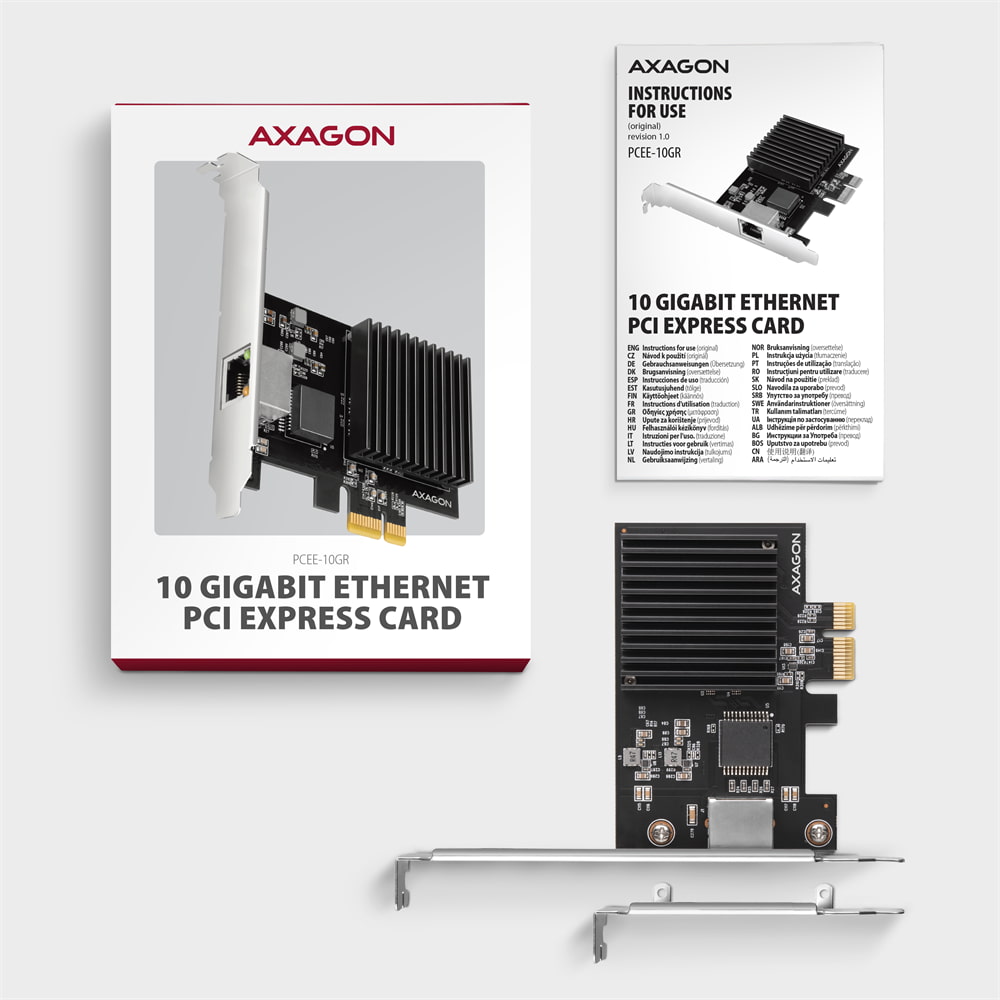
• Carte PCI Express Gigabit Ethernet 10 avec cache standard,
• cache low profile,
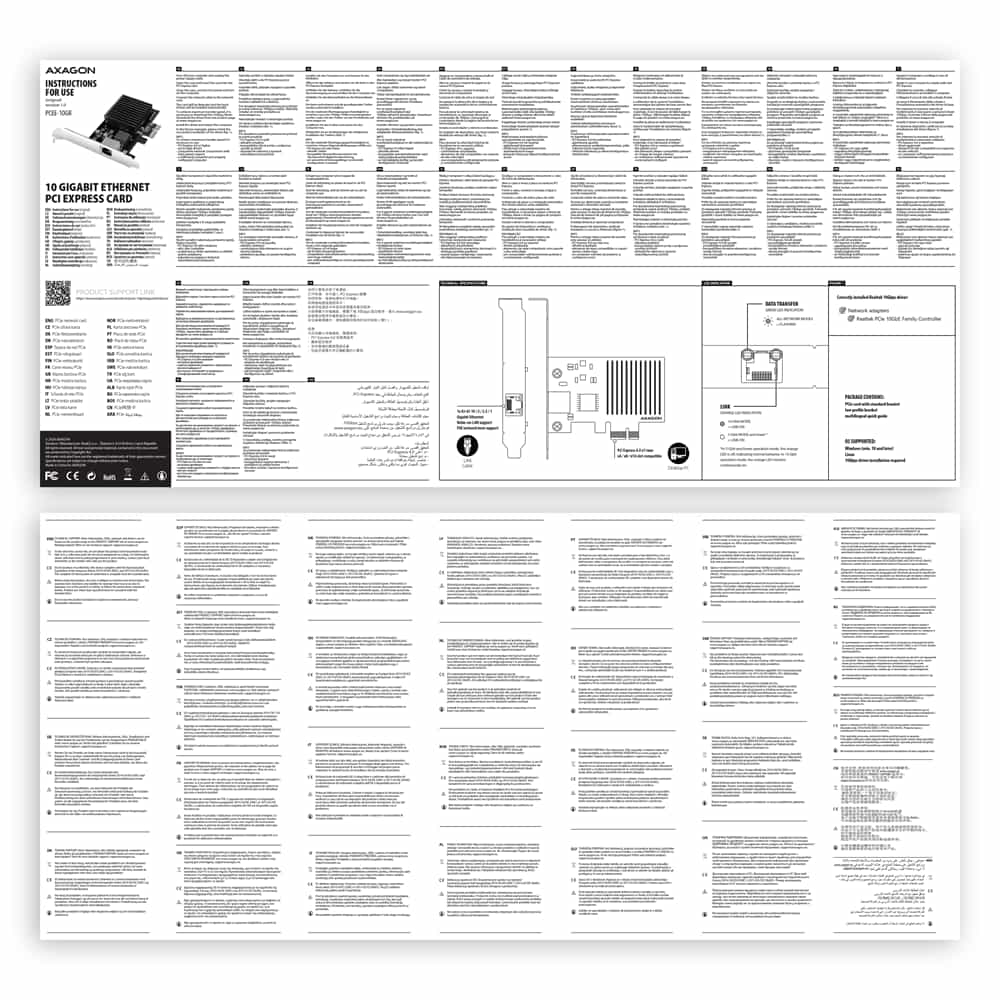
• manuel multilingue CZ / DE / DK / ENG / ESP / EST / FIN / FR / GR / HR / HU / IT / LT / LV / NL / NOR / PL / PT / RO / SK / SLO / SRB / SWE / TR / UA / ALB / BG / BOS / CN / ARA,
• emballé dans une boîte en carton.

- carte PCI Express Ethernet 10 Gigabit avec cache standard
- cache low profile
- manuel multilingue
- manuel multilingue CZ / DE / DK / ENG / ESP / EST / FIN / FR / GR / HR / HU / IT / LT / LV / NL / NOR / PL / PT / RO / SK / SLO / SRB / SWE / TR / UA / ALB / BG / BOS / CN / ARA
PCEE-10GR – manuel multilingue CZ / DE / DK / ENG / ESP / EST / FIN / FR / GR / HR / HU / IT / LT / LV / NL / NOR / PL / PT / RO / SK / SLO / SRB / SWE / TR / UA / ALB / BG / BOS / CN / ARA
A): If the PC does not run with the card or the card is mistakenly detected in “Device Manager”, or if there is a yellow exclamation mark on the driver, or if “Device Manager” reports an error code “Code 10 - The device cannot start”, the card is in conflict with another device in your computer.
B): In most cases, this conflict can be solved by moving the card to another PCI (PCIe) slot, with the BIOS assigning other free resources to the card. If the move does not help, try the card separately, with no additional cards inserted. If the card cannot be moved to another slot, you can reset the BIOS of the computer (by jumper on the board or pulling out the backup battery, we recommend that you note all the original settings and reset everything to the required values). This will cause the IRQ, DMA, and I/O resources to be redistributed.
A): If the network card is not displayed in "Device Manager", a USB port (or a PCIe slot in the event of an internal network card) may be malfunctioning.
B): Try plugging the network card into another USB port (or another PCIe slot on the PC motherboard in the event of an internal network card, or temporarily disconnect all other PCIe cards). The network card should be detected and you should be prompted to install the drivers. If the problem persists, plug the network card into the USB port (PCIe slot) of another computer to verify its functionality.
A): If this happens, it means that the operating system failed to get the necessary information to install the drivers.
B): The cause may be a defective USB extension cable or damaged device. If the problem persists, plug the network card into the PCIe slot of another computer to verify its functionality.
AXAGON M.2 SSD disk adapter is let say only HW connector change from M.2 into PCI-Express or SATA. Adapter itself do not have controller electronics and need no drivers. It is necessary to check M.2 disk driver availability for older OS like Windows 7.
Proper M.2 adapter function requires:
- computer mainboard support M.2 disks – SATA disks are more often supported than NVMe disks,
- computer mainboard support booting from PCI-Express bus – in case of OS installation to M.2 NVMe disk,
- driver availability for M.2 SSD disk – apply especially for NVMe disks on Windows 7 OS.
Please contact the motherboard manufacturer's technical support to determine support for motherboard M.2 drives. In some cases updating the BIOS/UEFI is sufficient.
Check the M.2 SSD driver availability on the manufacturer's website or contact the disk manufacturer's technical support.
The disks connected to the SATA motherboard controller are usually displayed In BIOS/UEFI. The NVMe disk is usually displayed in the "Disk Boot Order" menu.
This applies when the requirements of "Prerequisites for proper M.2 function" are met.
A): If the copy speed is approximately 35 MB/s, it means that the connection between the controller and the connected device is working only in the USB 2.0 mode. Some types of USB 3.0 devices may have a problem with proper detection.
B): Make sure that the connected device is USB 3.0 compatible. Please check if an additional power supply to the controller is connected (the power reduction is not included, the card is powered by a standard power connector that is part of each source; we recommend avoiding Molex connectors and splitters that often cause problems). The error could be caused by, for example, the old firmware of the device you want to connect, some manufacturers provide a new firmware to their products, which could solve this situation. Alternatively, try replacing the USB 3.0 cable that may be damaged. When testing, do not use USB 3.0 extensions that could also cause this problem.
A): Booting from an additional USB card is not possible because each card has a different chip. The BIOS of the motherboard does not contain information that will allow to "see" the connected USB device. Detection of attached devices occurs only after the additional card drivers have been booted when the operating system starts running.
B): When using the integrated USB from the motherboard, of course, the BIOS is programmed to include information about the chip of the controller used for USB on the motherboard. Therefore, the motherboard BIOS "sees" the connected USB device and therefore can boot from it.
A): Please check your BIOS settings. Power Management Setup – Wake Up Event Setup – Resume by PCI-E Device (individual items may vary by MB type) should be set to disabled.
B): If this does not help, try updating your motherboard BIOS and check the ACPI item when still in the BIOS If not even this helps, move the controller card to another PCIe slot (may also be x16 - slots differ only in the number of lines). It is possible that the card is in conflict with another device on your computer. For some types of BIOS, you can do this directly by enabling Force Update ESCD (Reset Configuration Data etc.) in the PnP & PCI Configurations menu. This will cause the IRQ, DMA, and I/O resources to be redistributed.
A): The VBScript is incorrectly registered in your Windows installation.
B): To fix the problem and download the patch go to Microsoft site: https://blogs.technet.microsoft.com/fixit4me/2009/01/30/register-windows-script-engine-fix-it-live/
A): The following steps are necessary to install the drivers correctly.
B): Remove the card from PC. Uninstall the existing drivers using the "MOSCHIP_PCIUninst.exe" utility (located on the installation CD in the directory; if you do not have the CD, you can download the drivers from our support pages http://www.axagon.eu/en/podpora-faq). Restart the PC. Reinstall the drivers and turn off the PC. Re-insert the card. Once rebooted, the drivers should be properly installed.
A): By initializing the disk, you can set the mode in which the hard disk will work
B): You can use the partition with the master boot record (MBR) or the GUID partition table (GPT). For disk up to 2TB, use the MBR option, we recommend selecting GPT on a larger disk than 2TB. Subsequently, the initialized disk should be formatted.
A): The newly purchased disk must be initialized before first use.
B): If the new disk is not initialized automatically, open "Disk Management", right-click on the desired disk and initialize it.
A): Please make sure that the port "LPT1: (Printer port)" or other number is set correctly in the printer properties, depending on the port settings on your card. If the port is not set correctly, select the correct port, save with the "OK" button and restart the PC.
B): If problems continue to persist, automatic printer driver installation may have failed. Try removing the printer and restarting the PC. After restart, install the printer drivers again, but so that you cancel the automatic installation and add the printer manually in Control Panels / Printers with manual selection from the list of printer drivers. When installing the printer manually, select the correct LPT port. If the problem still is not resolved, try moving the card to another PCI (PCIe) slot; it may be that the card is in conflict with another device on your computer.
A): Yes, it creates a fully fledged LPT port. However, it is still about the compatible with the SW device you connect to the LPT port.
B): System resources, including the LPT port address with additional cards (not only AXAGON, but also of other manufacturers), are allocated by the computer BIOS already when booting. The address can be changed in MS-DOS using the driver for this system. For higher OSs (WIN98, 2000, XP, etc.) this address cannot be changed. Addresses 378 or 278 are firmly reserved for the so-called Legacy LPT ports that are integrated into motherboard chipsets. If the HW key bypasses Windows management, it will not work. You can try to consult the manufacturer of the HW key, to which address it is set up and whether the address can be changed.
A): This situation may be due to the motherboard BIOS incompatibility with the card driver.
B): In this case, we recommend updating the BIOS of your computer's motherboard.
A): First, try moving the card to another PCI-e slot in case there is a device conflict. The issue could also be caused by a poor-quality or damaged SATA cable.
B): Check whether your SSD partition is properly aligned (using a program that displays this information, e.g., ASS SSD Benchmark). More information about this issue can be found here: http://pctuning.tyden.cz/software/ladeni-windows/17030-optimalizace-windows-7-pro-ssd-co-funguje-a-co-ne?start=2
Test
A): The lead time is naturally longer by the time it takes to detect the controller and connected disks. The start time can be shortened in the MB BIOS by enabling the "Quick Boot" feature. For newer boards, this feature is labeled "Fast boot". The lead time depends, of course, also on the disk used for the SSD/HDD operating system and the number of peripherals connected to the computer.
B): In the case of newer motherboards, it is more practical to use the spin down (instead of turn off) feature.
A): If this happens, it means that the operating system failed to get the necessary information to install the drivers.
B): The cause may be a defective USB extension cable or damaged device. If the problem persists, plug the network card into the USB port of another computer to verify its functionality.
A): Before connecting the USB network card to an Android device (tablet), you first need to verify with the device manufacturer whether the device supports the Ethernet network feature and also whether the USB network card drivers are included in your specific ANDROID ROM installation.
B): Use a USB connector with OTG support to connect the USB network card to your tablet. If the device (tablet) is equipped with a Mini USB or Micro USB connector, use an OTG reduction or cable to connect it.
A): The Ethernet interface transmission speed setting is a fully independent from USB connection and can be set in the network card's properties. The default setting is an automatic negotiation when the speed is set according to other elements in the LAN network.
B): If you connect the Gigabit adapter via the USB 2.0 port, the overall bandwidth of the adapter will be limited by bandwidth of the USB 2.0 interface, which is theoretically 480 Mb/s; in Gigabit Ethernet environments this adapter will be up to 4x faster than 10/100 Ethernet adapters.
The problem probably is that you did not allow the „installation of application from an unidentified developer“ from "Security & Privacy" application during installation the driver.
Please check "Security & Privacy" application if there is possible to allow the „installation of application from an unidentified developer“. If this option is no longer available, you need to proceed as follows:
- Close the "Security & Privacy" window - IMPORTANT !!!
- uninstall the driver using the "AX88772C_772B_772A_760_772_Uninstall_v140.command" file from the folder with the driver
- during the uninstallation the „application is from an unidentified developer“ message appears – left this window OPEN !!!
- open "Security & Privacy" again and allow „installation of application from an unidentified developer“ - you will need an administrator password
- Close the "Security & Privacy" window via OK button.
- Continue and finish uninstallation of the driver
- Restart the computer and then reinstall the driver
Because you have already allowed „installation of application from an unidentified developer“, the message should not be displayed again.
If it appears, do not close it, and allow „installation of application from an unidentified developer“ in "Security & Privacy".