


 English
 Čeština
 Slovenčina
 Deutsch
 Magyar
 Polski
 Français
How to Choose the Right USB-C Cable for Charging, Monitors and External SSDs
Not sure which USB-C cable to buy or why some USB-C cables support video output while others are only suitable for charging? In this guide, we'll explain how to choose the right USB-C cable and what to look for before you buy one.
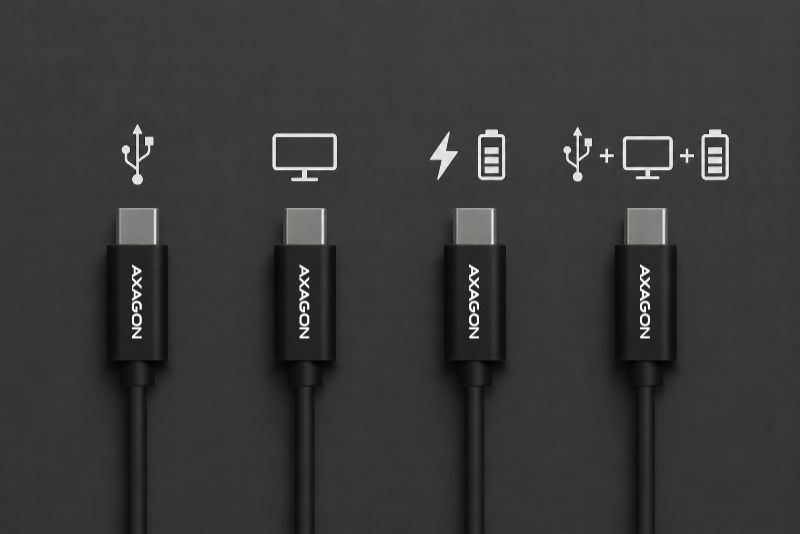
USB-C has become the most widely used connector for laptops, smartphones, tablets, monitors and countless other devices. Despite its widespread adoption, there is still plenty of confusion surrounding USB-C. Many users assume that all USB-C cables offer the same features. In reality, however, their capabilities can vary significantly.
Today, USB-C cables are available almost everywhere, often at very low prices. That's why many people wonder how to identify a high-quality USB-C cable and which USB-C cable to buy for reliable charging, fast data transfers and seamless monitor connectivity. Choosing the wrong cable is one of the most common causes of monitor connection issues, slow transfer speeds and insufficient laptop charging.
What Is USB-C – and What Doesn't It Tell You?
USB-C has become the universal standard for connecting and charging modern electronic devices. The European Union has also introduced USB-C as the common charging connector for most portable electronic devices, making chargers more convenient to use while helping reduce electronic waste.
However, the fact that many devices use the same USB-C connector does not mean that every USB-C cable offers the same features or performance.
USB-C refers only to the physical shape of the connector. It does not indicate supported data transfer speeds, video output capabilities or charging performance. As a result, two USB-C cables that look identical can offer completely different functionality.
How to Check Whether a USB-C Cable Supports Video Output
Not every USB-C cable can carry a video signal. If you want to connect an external monitor, your laptop, monitor and the USB-C cable itself must all support video output. Otherwise, the monitor may not display an image even though the devices appear to be connected correctly.
The most reliable way to verify compatibility is to check the manufacturer's technical specifications. Look for terms such as DisplayPort Alt Mode, Video Output, 4K Video, 8K Video, USB4, Thunderbolt™ 3 or Thunderbolt™ 4.
If the manufacturer only specifies the maximum charging power (for example, 60 W or 100 W) without mentioning video output or any of the standards listed above, you should not assume that the cable supports external displays.
If you're looking for a USB-C cable for a monitor, always make sure it supports video transmission via DisplayPort Alt Mode, Thunderbolt™ 3 or Thunderbolt™ 4.
Why Doesn't My Monitor Work over USB-C?
The most common reason is using the wrong cable. Some USB-C cables are designed only for charging or basic data transfer.
To transmit video, both the cable and the connected devices must support the appropriate video standard, such as DisplayPort Alt Mode or Thunderbolt.
Which USB-C Cable Do You Need for an External SSD?
Modern external SSDs are capable of delivering exceptionally high transfer speeds. However, using a slower cable can significantly reduce overall performance. Transfer speeds are always limited by the slowest component in the chain, whether that's the device, the USB port or the cable itself.
For most external SSDs, a USB 3.2 Gen 2 (10 Gb/s) cable is the recommended choice. If you're using a high-performance NVMe SSD in a modern enclosure, such as one supporting 20 Gb/s or USB4, choose a cable that supports USB 3.2 Gen 2x2 (20 Gb/s) or USB4 (40 Gb/s). Only then will you be able to take full advantage of your SSD's performance.
It's also important to remember that even the best cable cannot increase transfer speeds beyond the capabilities of your SSD enclosure or your computer's USB port. For example, if you connect a USB4 SSD enclosure capable of up to 40 Gb/s to a USB 3.2 Gen 2 port, transfer speeds will be limited to 10 Gb/s. To achieve maximum performance, your SSD, enclosure, cable and USB port should all support the same or a higher standard.
How to Choose the Right USB-C Cable
Choose your USB-C cable according to how you plan to use it. Some cables are designed exclusively for charging, while others also support high-speed data transfer, external displays or all of these functions at the same time.
If you're looking for a USB-C cable for a laptop or a USB-C charging cable, pay particular attention to the supported charging power and USB Power Delivery (USB PD). If you want to connect an external monitor, make sure the cable supports video output. For high-speed external SSDs, sufficient data transfer bandwidth is equally important.
If you're looking for a future-ready, all-in-one solution, you can't go wrong with a USB4 or Thunderbolt™ cable. A cable supporting these standards can handle high-speed data transfer, video output and laptop charging through a single connection.
Overview of Common USB Standards
| Standard | Max. speed | Typical Applications |
| USB 2.0 | 480 Mb/s | keyboards, mice, printers, smart card readers |
| USB 3.2 Gen 1 | 5 Gb/s | USB flash drives, external HDDs, USB hubs |
| USB 3.2 Gen 2 | 10 Gb/s | external SSDs, docking stations, large file transfers, external monitors |
| USB 3.2 Gen 2x2 | 20 Gb/s | high-performance NVMe SSD enclosures, external monitors |
| USB4 | up to 40 Gb/s | high-performance external SSDs, docking stations, all-in-one connectivity, professional photo and video workflows |
Summary
Although all USB-C cables use the same connector, they don't all offer the same capabilities. When choosing a USB-C cable, look beyond the connector itself and pay attention to the supported data transfer speed, video output and maximum charging power.
Understanding these differences makes it much easier to choose the right USB-C cable for your devices and the way you use them. A properly selected cable helps prevent compatibility issues and lets you get the most out of your devices.
A high-quality USB-C cable may cost a little more, but it can save you unnecessary frustration caused by monitor connection problems, slow data transfers or insufficient charging.
FAQ
How can I tell if a USB-C cable supports video output?
The cable's technical specifications should clearly state whether it supports video output. Without this feature, you won't be able to connect an external monitor via USB-C.
Will any USB-C cable work with a monitor?
No. Some USB-C cables are designed only for charging or basic data transfer and do not support video output.
Which USB-C cable do I need for a laptop?
That depends on the required charging power and any additional features you need, such as video output or high-speed data transfer.
Why isn't my laptop charging over USB-C?
Your laptop must support charging via USB Power Delivery (USB PD). Simply having a USB-C port is not enough. The issue may also be caused by an incompatible cable or a charger that does not provide sufficient power.
Why is my external SSD slower than expected?
The cause may be a slower USB port, an unsuitable SSD enclosure or a cable that doesn't support the required transfer speed.
How can I identify a high-quality USB-C cable?
Check the supported USB standard, maximum data transfer speed, video output support and charging power. A reputable manufacturer should always provide this information in the product's technical specifications.
Follow!


