Product code: EEM2-20GD
Category: All Products , Disk accessories , M.2 enclosures
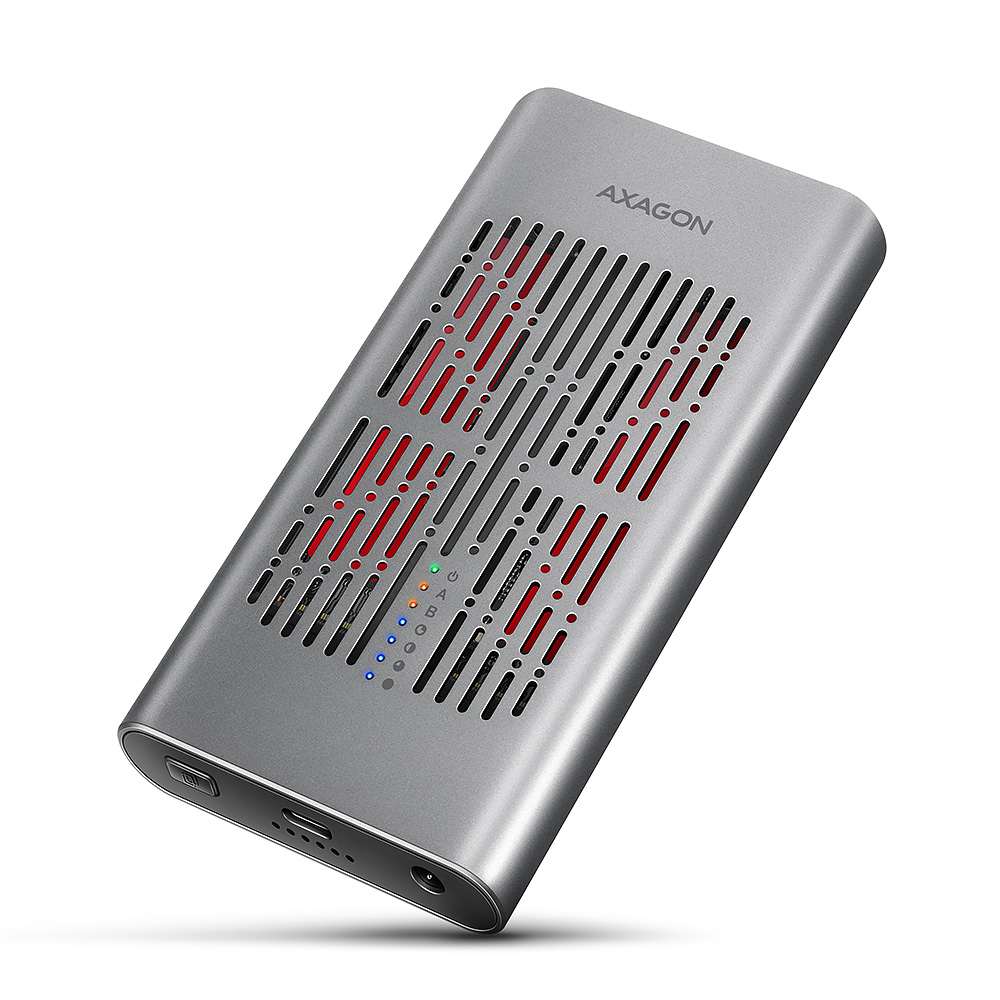
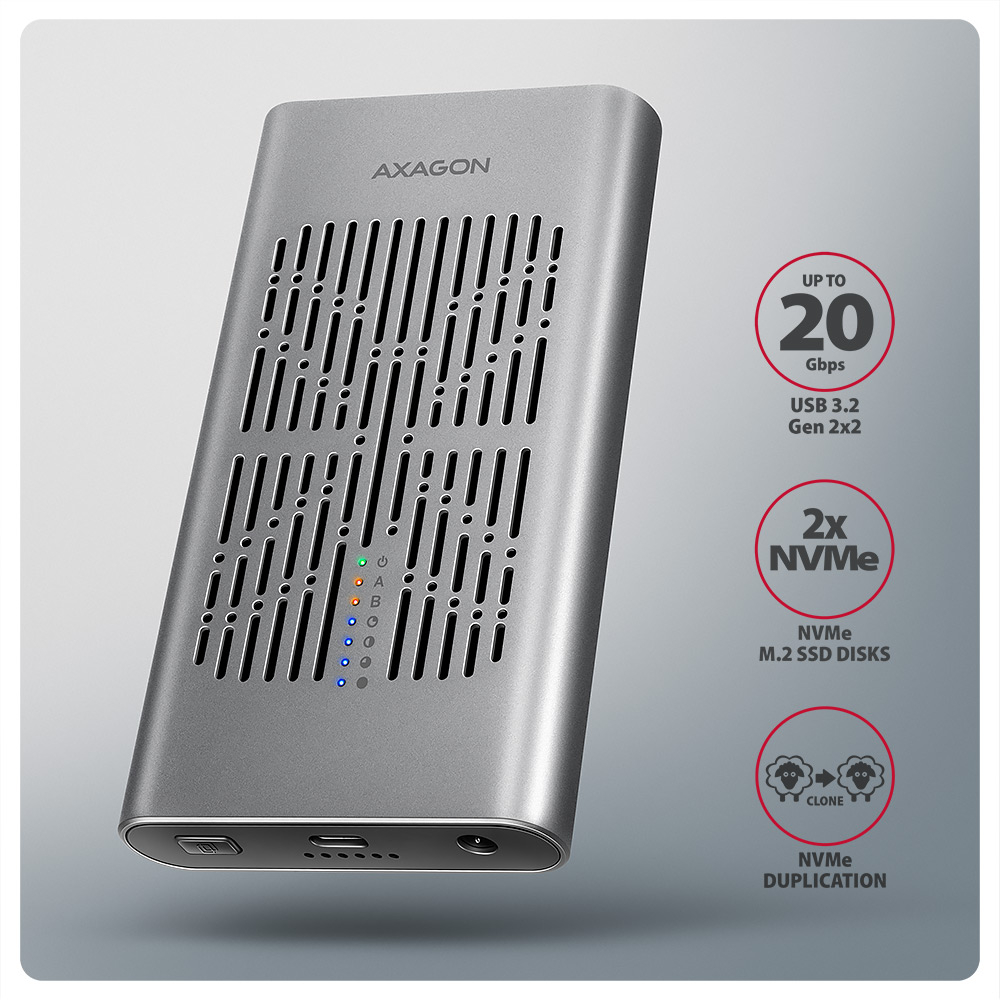
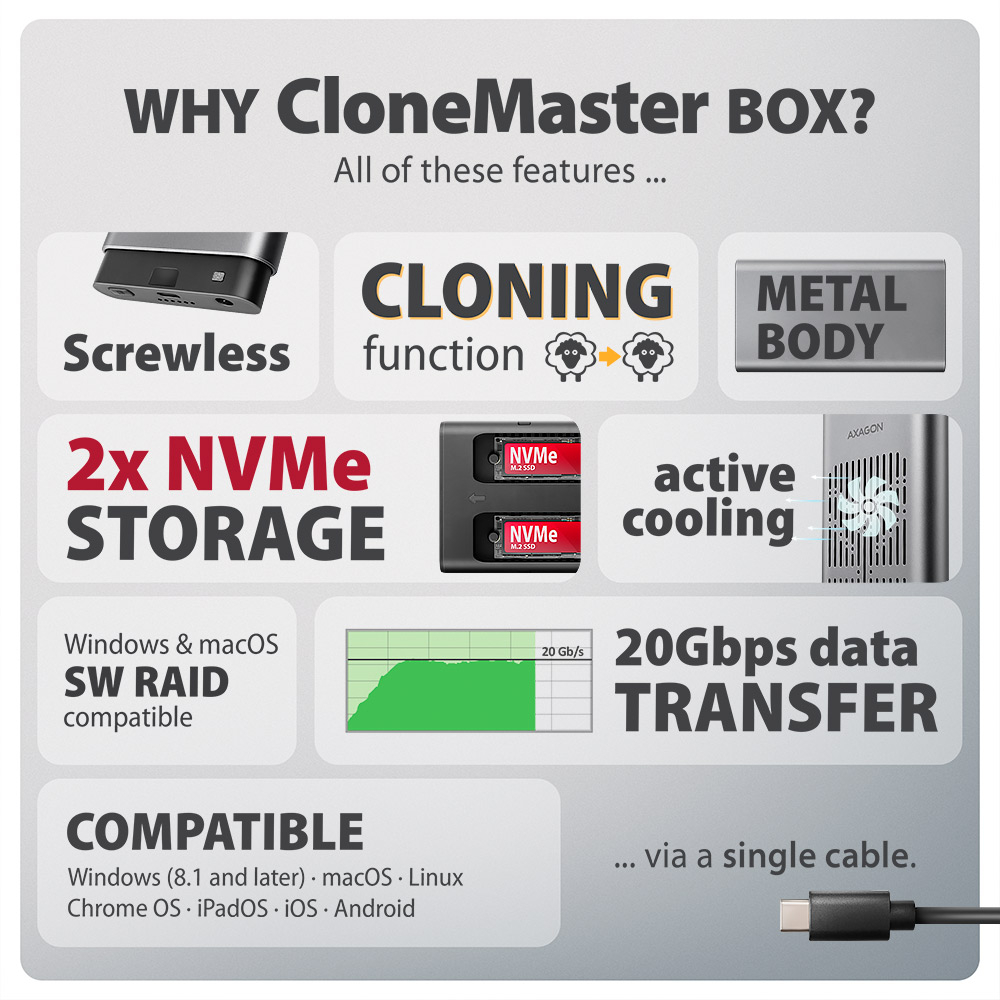
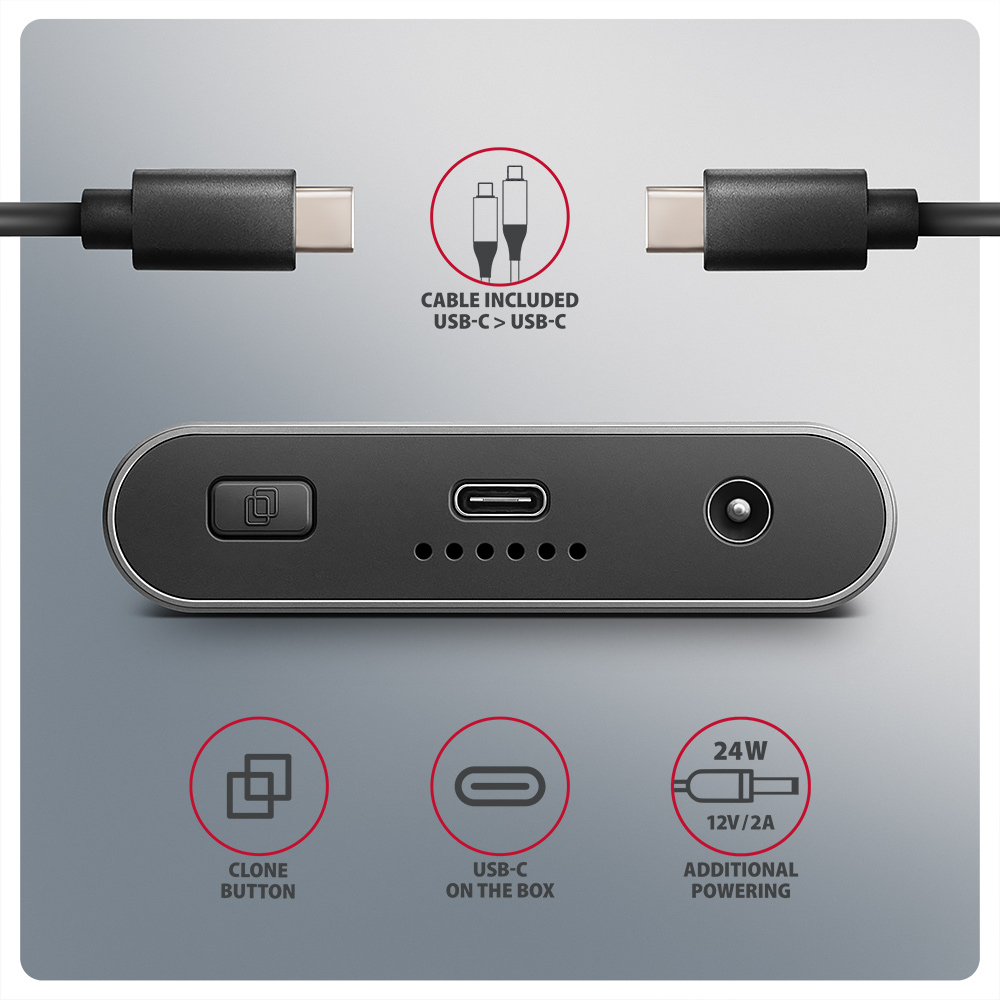
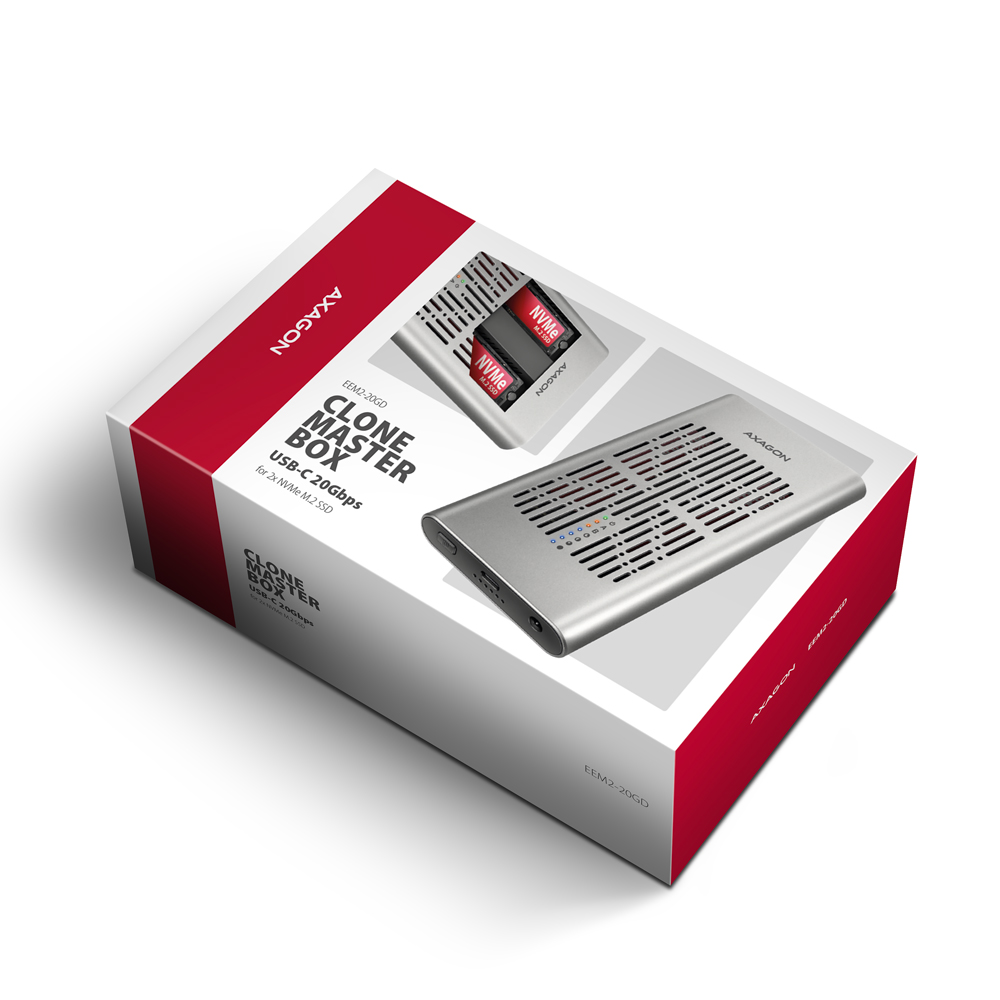
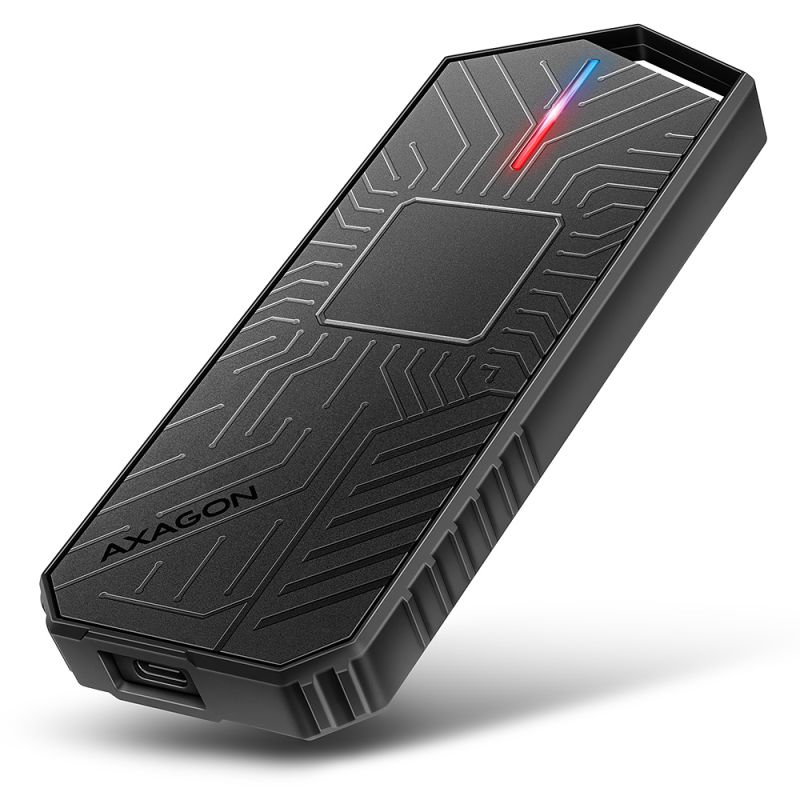
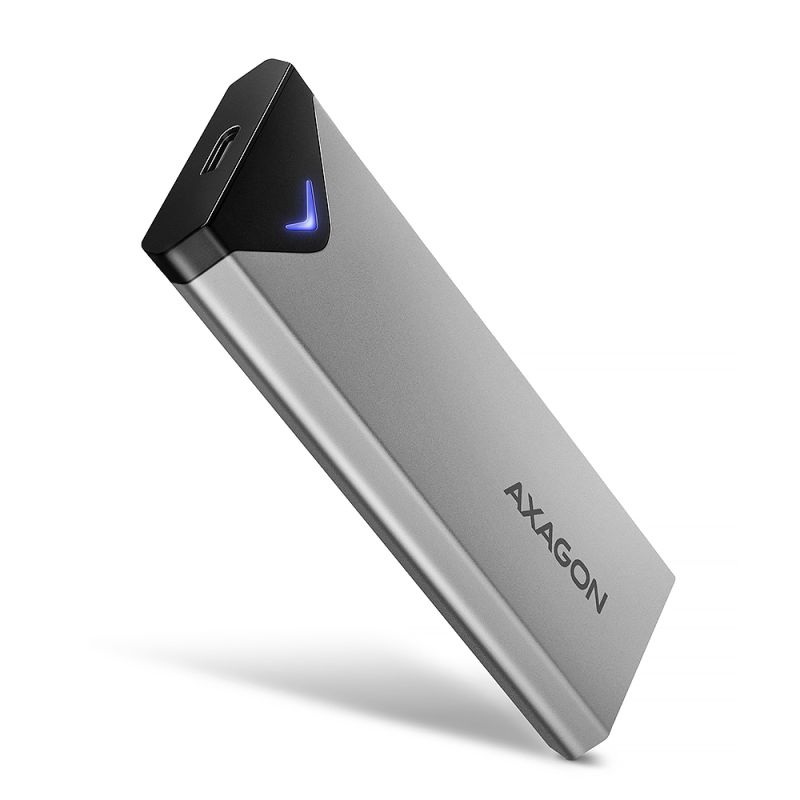
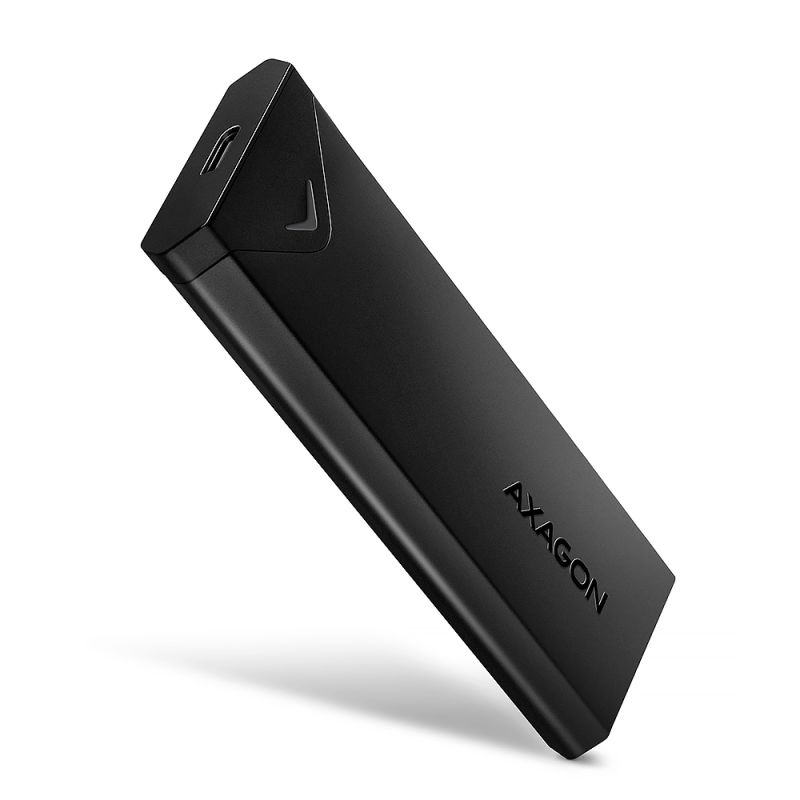
Fast external box AXAGON EEM2-20GD CLONE MASTER with USB 20Gbps interface. The box works not only as an external storage for two M.2 NVMe SSD disks simultaneously, but also as a docking station that allows easy cloning of M.2 disks without using a computer. The double-sided USB-C connector enables a reliable connection. The package includes USB-C -> USB-C cable for connecting the box to a computer.
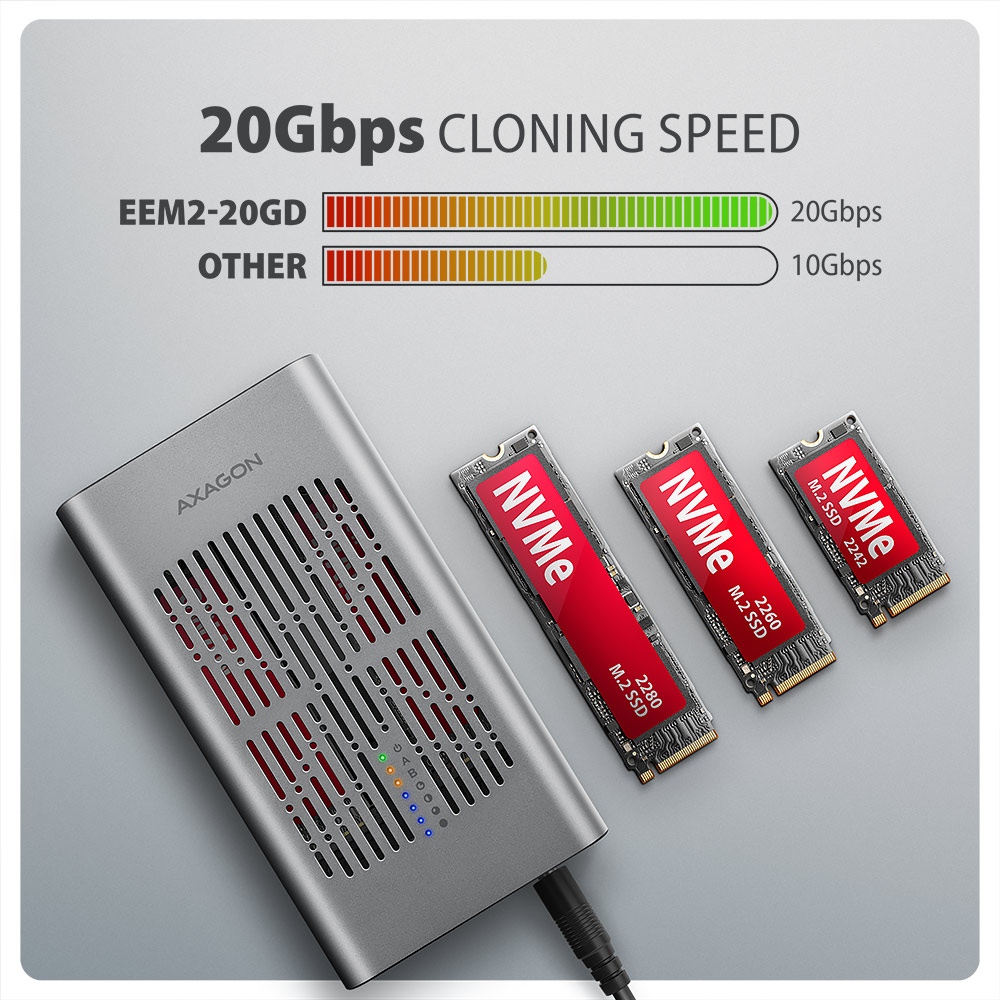
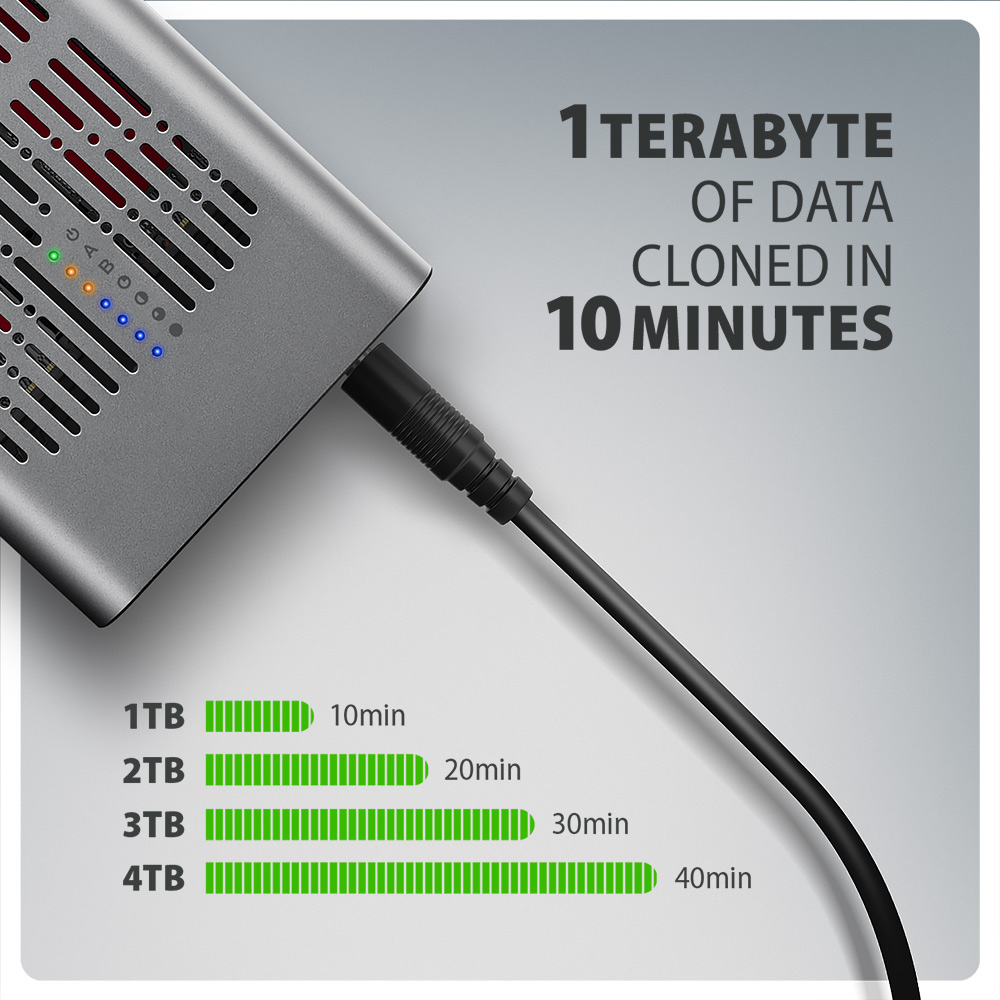
With this external box, you can easily clone NVMe disks at speeds up to 20 Gb/s. Insert the source M.2 disk into the first slot (Slot A) and the target M.2 disk into the second slot (Slot B). Then hold the cloning button, confirm cloning by pressing it, and monitor the progress on the scale with four LED indicators.
After completion, an exact copy of the original is created on the target disk. The box can also be used as a standalone device for convenient disk duplication and disk imaging. It is the simplest way to transfer content from one SSD to another, including a fully functional operating system (Windows, macOS, Linux…).
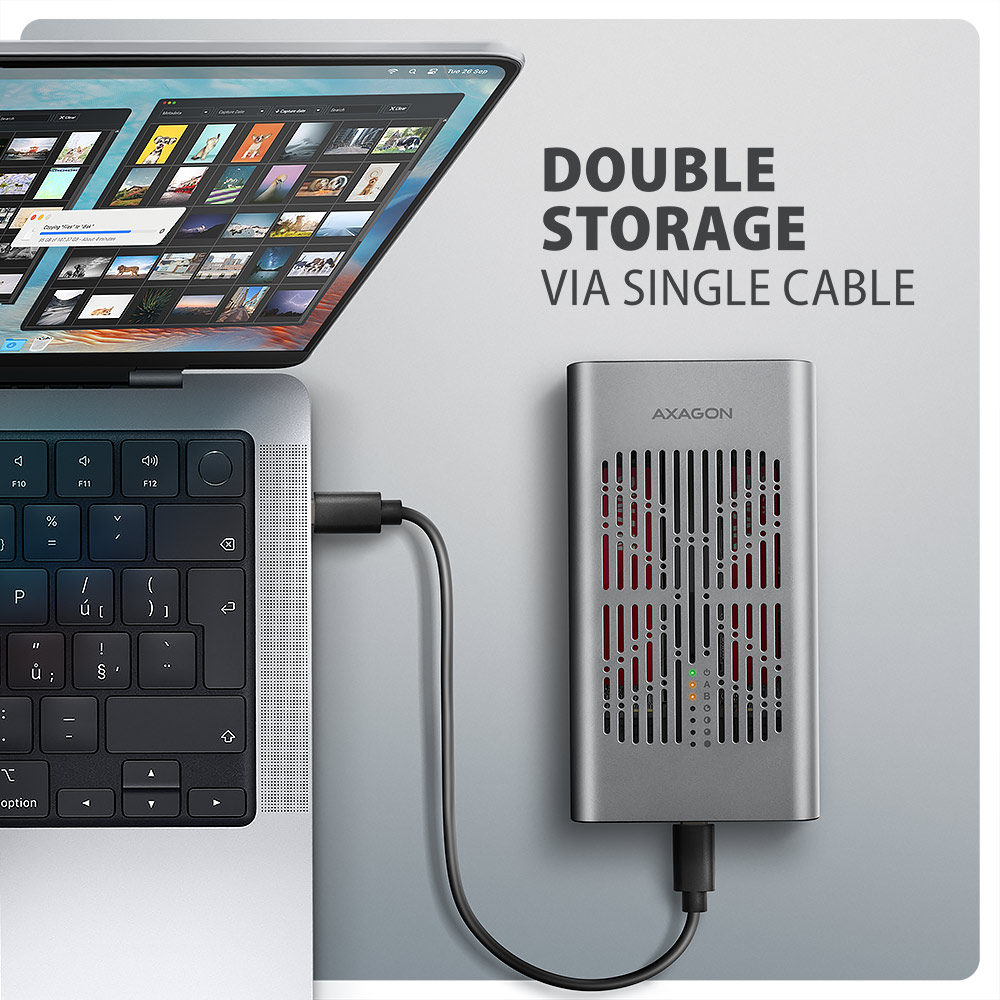
The box design allows both inserted NVMe M.2 disks to be connected to a notebook using a single cable. They appear in the system as two separate disks that can be used independently or simultaneously. When using two disks, the box design allows setting up a software RAID for higher data protection in Windows and macOS. To configure this protection, use „Storage Spaces“ in Windows or the „RAID Assistant“ in Disk Utility in macOS.
To achieve maximum transfer speed, the controller of the connected device must support USB 20Gbps. The external M.2 box also supports other modern features e.g. UASP, TRIM and enables reading S.M.A.R.T. disk status monitoring information. After a longer period of inactivity, the box switches to power-saving mode. Another advantage is that it supports both single-sided and double-sided M.2 SSDs in three lengths (42, 60 and 80 mm). SSD capacity is not limited.
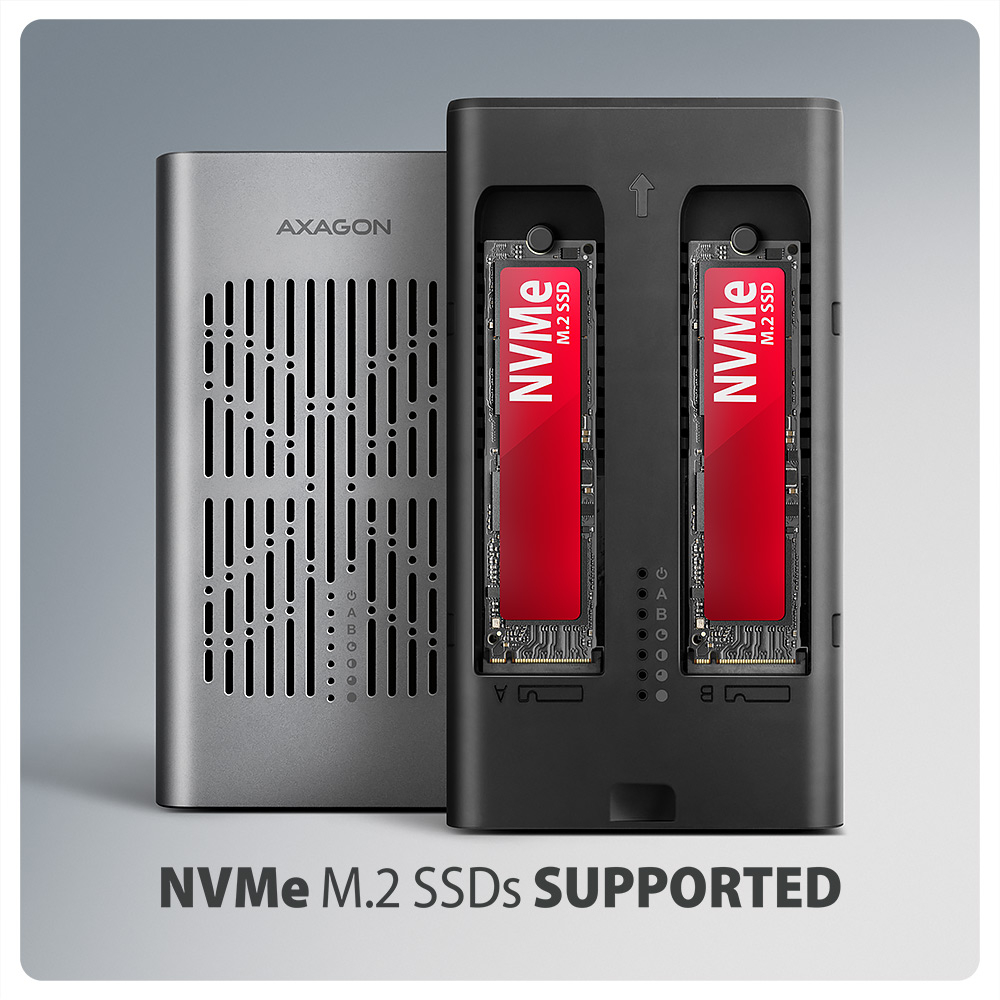
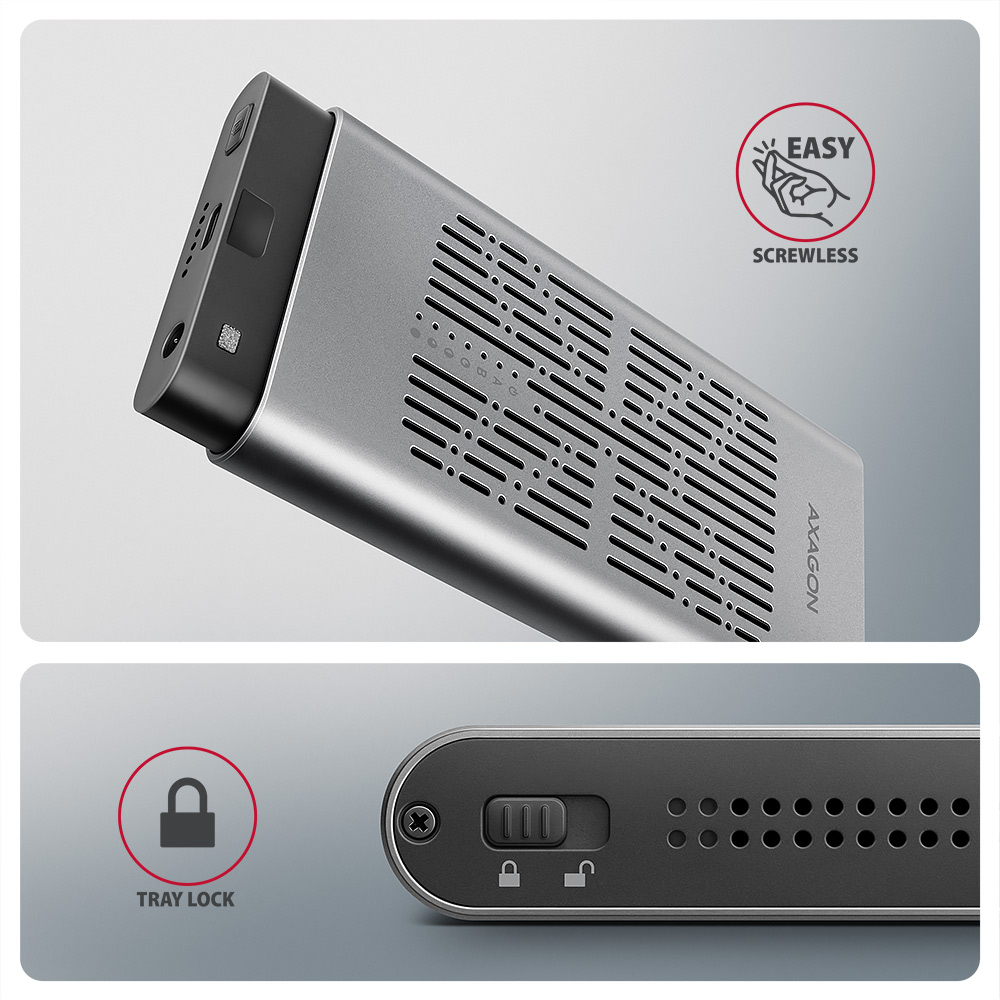
A mechanical lock on the front panel protects against accidental opening. After sliding the lock to the unlocked position, press the front panel and the inner module will automatically slide out. This allows easy and fast disk replacement and convenient use for data migration or testing.
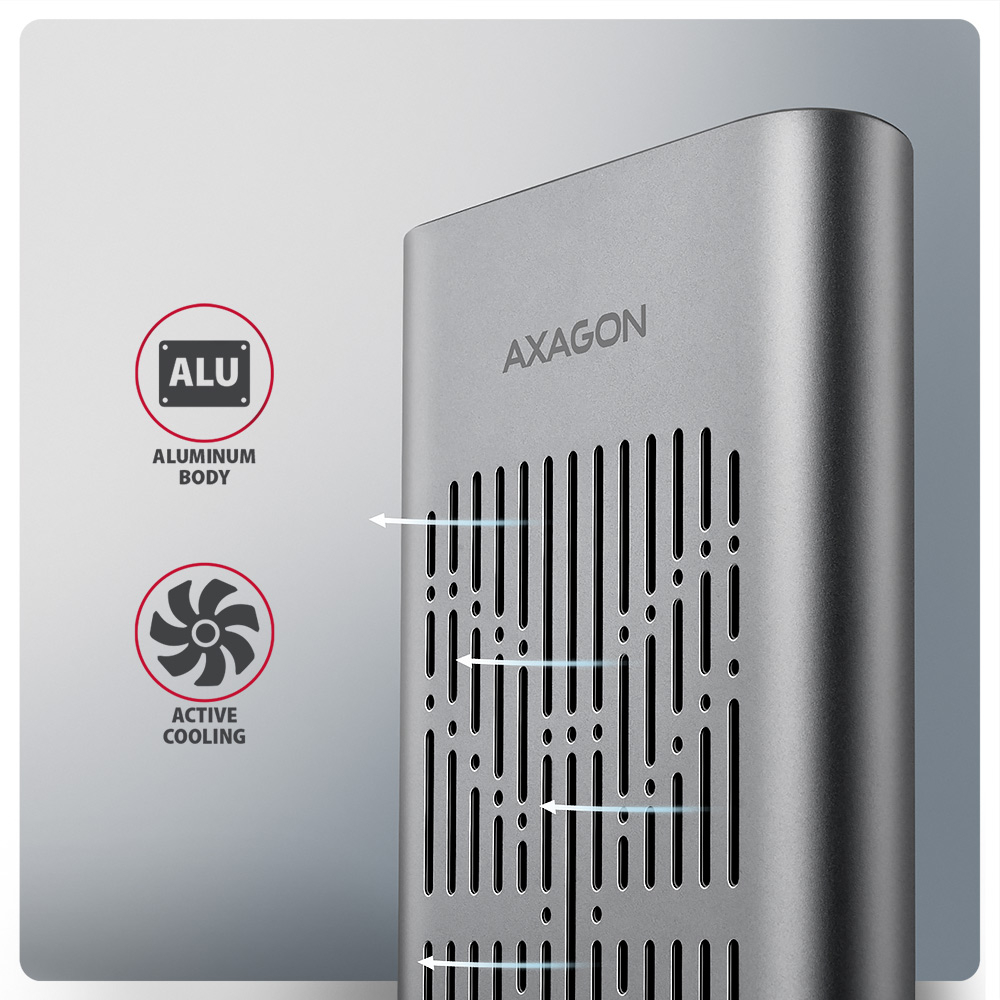
The aluminum box body together with thermal conductive pads dissipates heat from the inserted M.2 SSDs. Cooling is supported by an active fan that continuously circulates air inside the device. This maintains optimal operating temperature during long-term load (e.g. cloning or large data transfers). The risk of overheating and performance throttling due to “Thermal Throttling” is minimized. This stabilizes performance and extends SSD lifespan.
By inserting an M.2 SSD, you can easily create a fast and universal 2in1 external disk. The box can be used with computers, laptops, mobile phones and tablets.
Input:
• USB 20Gbps (USB 3.2 Gen 2x2), connector USB-C female.
• Compatible with USB 5Gbps, USB 10Gbps, USB 40Gbps, Thunderbolt 3/4/5.
Device support:
• 2x NVMe M.2 SSD disks,
• designed for M key or B+M key card formats,
• 2x NGFF 75-pin M key slot for M.2 drives.
Disk cloning feature:
• Cloning takes place without connecting the station to a computer.
• The target disk must have the same or larger capacity as the source disk, otherwise cloning cannot be started.
• SSD cloning speed up to 2000 MB/s.
• Total cloning time depends on the speed of the disks used and the capacity of the source disk, not on the amount of data stored.
Maximum theoretical supported speeds and compatibility with USB controllers (ports):
• Laptop / PC with USB 20Gbps (USB 3.2 Gen 2x2) port: max. speed 20 Gbit/s.
• Laptop / PC with USB 10Gbps (USB 3.2 Gen 2) port: max. speed 10 Gbit/s.
• Laptop / PC with USB 5Gbps (USB 3.2 Gen 1 / USB 3.0) port: max. speed 5 Gbit/s.
• Compatibility with USB 40Gbps, Thunderbolt 3/4/5 ports: max. speed 10–20 Gbit/s depending on CPU and chipset.
• The real box bandwidth / transmission rate is about 2000 MB/s (2 GB/s), it is given by the limits of the USB 3.2 Gen 2x2 interface.
Other features:
• Supports transmission rates 20.000 / 10.000 / 5.000 Mbit/s.
• Support of M key or B+M key NVMe (PCI Express) M.2 SSD disks without a maximum capacity limit.
• Support of M.2 drives with a size of 2242, 2260, 2280 mm.
• Support of both one-sided and double-sided M.2 SSDs.
• Compliant with PCI Express Base Specification Revision 3.1a specification.
• Compliant with NVM Express 1.4 specification.
• Compliant with USB Mass Storage Class specification.
• Supports BOT (Bulk-Only Transport).
• Supports UASP (USB Attached SCSI) for faster data transmission in Windows 8 and later.
• Supports TRIM functionality to limit gradual degradation of the SSD performance over time.
• Supports S.M.A.R.T. (Self-Monitoring, Analysis, and Reporting Technology) system monitoring disk condition.
• SSD boot support in external box.
• Possibility to connect your device while running thanks to the Hot Plug support.
• Full Plug and Play support.
• Power supply via USB bus up to 900 mA from one USB port is sufficient in all cases.
• Heavy-duty aluminium body and thermal conductive pads, helps to better cooling the M.2 SSD disk.
• Active cooling with integrated fan.
• Mechanical lock of the inner module on the front panel.
• Higher box surface temperature is not a defect – thanks to the aluminum body, the heat generated by the disk operation is better drained and transferred to the environment.
• Connection via USB 3.2 Gen 2x2 type C female connector.
• USB type C male / USB type C male cable length 30 cm in the package.
• Compatible with Windows software RAID (Storage Spaces) and macOS RAID (Disk Utility RAID Assistant).
Other data:
• External box dimensions 143 x 78 x 19 mm (B × D × H).
• Box weight 176 g (without cable, without disk).
Power supply:
• Power via included external AC/DC adapter 12V-2A with 150 cm cable.
LED indication:
• 1x LED indicating the box's power status.
• 2x LED per disk indicate connection (steady light) and data transfer (blinking).
• 4x LED indicate cloning progress 25% - 50% - 75% - 100%. After completion, LEDs remain on.
Supported OS:
• Windows 8.1 / 10 / 11 and later, macOS, iPadOS, iOS, Linux, Chrome OS and Android.
• Compatibility depends on the operating system and device manufacturer support.
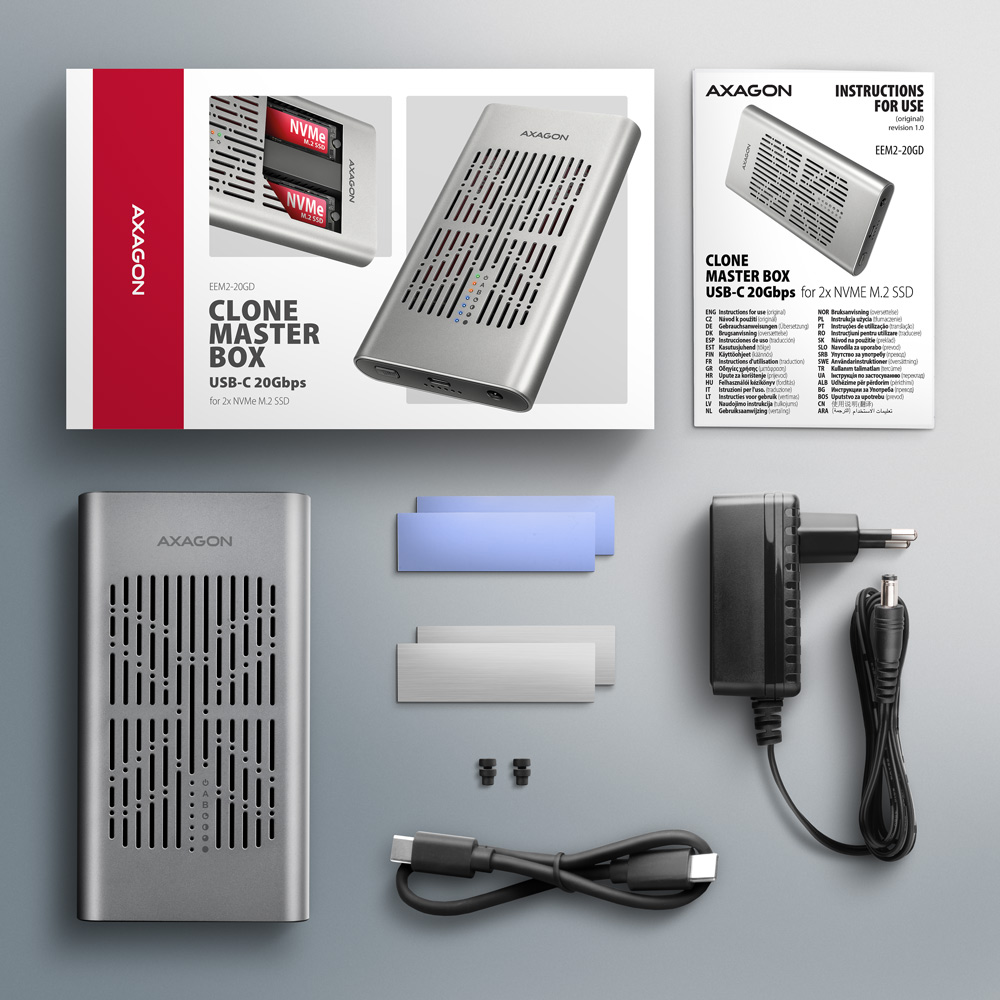
Package contains:
• USB-C 20Gbps external box for 2x M.2 SSD,
• USB-C – USB-C cable 30 cm long,
• 2 pcs thermal conductive pads,
• 2 pcs thermal conductive metal pads,
• power adapter 100-240V / 12V-2A,
• multilingual manual CZ / DE / DK / ENG / ESP / EST / FIN / FR / GR / HR / HU / IT / LT / LV / NL / NOR / PL / PT / RO / SK / SLO / SRB / SWE / TR / UA / ALB / BG / BOS / CN / ARA,
• packed in a cardboard box.

- USB-C 20Gbps external box for 2× M.2 SSD,
- USB-C – USB-C cable 30 cm long,
- 2 pcs thermal conductive pads,
- 2 pcs thermal conductive metal pads,
- power adapter 100-240V / 12V-2A,
- multilingual manual
- multilingual manual CZ / DE / DK / ENG / ESP / EST / FIN / FR / GR / HR / HU / IT / LT / LV / NL / NOR / PL / PT / RO / SK / SLO / SRB / SWE / TR / UA / ALB / BG / BOS / CN / ARA
- a cardboard box
- package dimensions: 7 × 18 × 11 cm
- weight of 1 pc package: 525 g
- EAN: 8595247909107
- number of pieces in the box: 20
- box dimensions: 21 × 37 × 46 cm
- total weight of the box: 11.6 kg G.W.
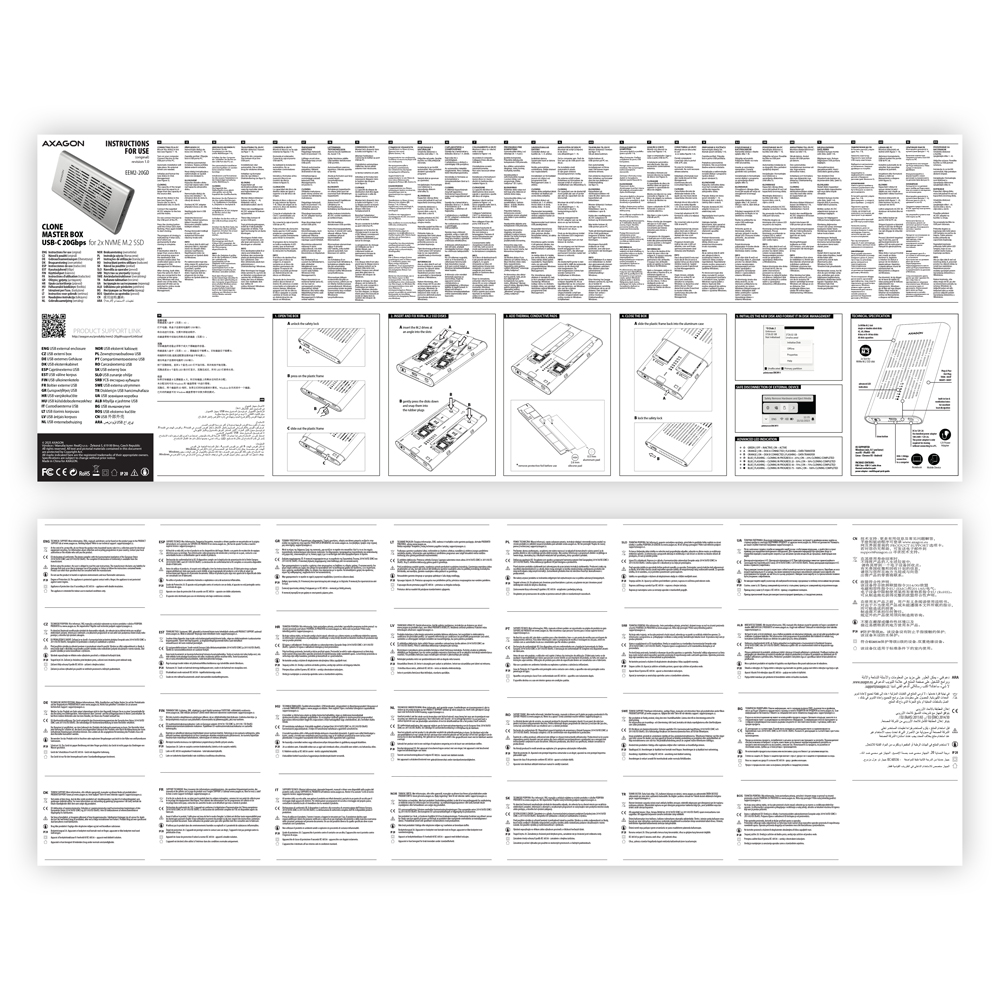
EEM2-20GD – multilanguage manual – CZ / DE / DK / ENG / ESP / EST / FIN / FR / GR / HR / HU / IT / LT / LV / NL / NOR / PL / PT / RO / SK / SLO / SRB / SWE / TR / UA / ALB / BG / BOS / CN / ARA
AXAGON M.2 SSD disk adapter is let say only HW connector change from M.2 into PCI-Express or SATA. Adapter itself do not have controller electronics and need no drivers. It is necessary to check M.2 disk driver availability for older OS like Windows 7.
Proper M.2 adapter function requires:
- computer mainboard support M.2 disks – SATA disks are more often supported than NVMe disks,
- computer mainboard support booting from PCI-Express bus – in case of OS installation to M.2 NVMe disk,
- driver availability for M.2 SSD disk – apply especially for NVMe disks on Windows 7 OS.
Please contact the motherboard manufacturer's technical support to determine support for motherboard M.2 drives. In some cases updating the BIOS/UEFI is sufficient.
Check the M.2 SSD driver availability on the manufacturer's website or contact the disk manufacturer's technical support.
The disks connected to the SATA motherboard controller are usually displayed In BIOS/UEFI. The NVMe disk is usually displayed in the "Disk Boot Order" menu.
This applies when the requirements of "Prerequisites for proper M.2 function" are met.
A): If the PC does not run with the card or the card is mistakenly detected in “Device Manager”, or if there is a yellow exclamation mark on the driver, or if “Device Manager” reports an error code “Code 10 - The device cannot start”, the card is in conflict with another device in your computer.
B): In most cases, this conflict can be solved by moving the card to another PCI (PCIe) slot, with the BIOS assigning other free resources to the card. If the move does not help, try the card separately, with no additional cards inserted. If the card cannot be moved to another slot, you can reset the BIOS of the computer (by jumper on the board or pulling out the backup battery, we recommend that you note all the original settings and reset everything to the required values). This will cause the IRQ, DMA, and I/O resources to be redistributed.
A): If the network card is not displayed in "Device Manager", a USB port (or a PCIe slot in the event of an internal network card) may be malfunctioning.
B): Try plugging the network card into another USB port (or another PCIe slot on the PC motherboard in the event of an internal network card, or temporarily disconnect all other PCIe cards). The network card should be detected and you should be prompted to install the drivers. If the problem persists, plug the network card into the USB port (PCIe slot) of another computer to verify its functionality.
A): By initializing the disk, you can set the mode in which the hard disk will work
B): You can use the partition with the master boot record (MBR) or the GUID partition table (GPT). For disk up to 2TB, use the MBR option, we recommend selecting GPT on a larger disk than 2TB. Subsequently, the initialized disk should be formatted.
A): The newly purchased disk must be initialized before first use.
B): If the new disk is not initialized automatically, open "Disk Management", right-click on the desired disk and initialize it.
A): If this happens, it means that the operating system failed to get the necessary information to install the drivers.
B): The cause may be a defective USB cable or damaged device. If the problem persists, plug the external box into the USB port of another computer to verify its functionality.
A): The newly purchased disk must be initialized before first use.
B): If the new disk is not initialized automatically, open "Disk Management", right-click on the desired disk and initialize it.
A): First, try moving the card to another PCI-e slot in case there is a device conflict. The issue could also be caused by a poor-quality or damaged SATA cable.
B): Check whether your SSD partition is properly aligned (using a program that displays this information, e.g., ASS SSD Benchmark). More information about this issue can be found here: http://pctuning.tyden.cz/software/ladeni-windows/17030-optimalizace-windows-7-pro-ssd-co-funguje-a-co-ne?start=2
A): By initializing the disk, you can set the mode in which the hard disk will work.
B): You can use the partition with the master boot record (MBR) or the GUID partition table (GPT). For disk up to 2TB, use the MBR option, we recommend selecting GPT on a larger disk than 2TB. Subsequently, the initialized disk should be formatted.
Test
A): The lead time is naturally longer by the time it takes to detect the controller and connected disks. The start time can be shortened in the MB BIOS by enabling the "Quick Boot" feature. For newer boards, this feature is labeled "Fast boot". The lead time depends, of course, also on the disk used for the SSD/HDD operating system and the number of peripherals connected to the computer.
B): In the case of newer motherboards, it is more practical to use the spin down (instead of turn off) feature.
A): The ADSA-ST clones disks bit by bit, regardless of their content. This creates an identical copy of the disk. A requirement for cloning is that the source disk must not contain any bad sectors (otherwise, the cloning process will stop). If the target HDD is smaller than the source HDD, cloning will not start.
B): For cloning, the target HDD must be the same size or larger than the source HDD. If the target HDD is larger than the source HDD, a partition equal to the size of the source HDD will be created on the target disk, and the remaining space will stay unallocated. After cloning, you can extend the partition to include the unallocated space or create a new partition using Windows Disk Management.
A): Drivers are included with operating systems and are installed completely automatically. The external box (adapter / docking station) is detected as a standard storage device, such as a USB flash disk, no additional drivers are needed.
B): No other drivers need to be installed and are not even available. If you continue to have problems with your external box (adapter / docking station), check out more tips that can help you troubleshoot problems.
A): If the external box (adapter / docking station) is not displayed in "Device Manager", there may be a USB port malfunction. It is also possible that your computer has a poor power supply to USB ports and the power is not sufficient to operate an external box (you can detect by listening that HDD is not spinning). This is a problem especially for older computers, where the source part already works at the limit of its parameters. In this case, it would help to use a USB hub, with an auxiliary power supply, by which the external box (adapter / docking station) would be connected to the computer.
B): Try plugging the external box (adapter / docking station) into another USB port, preferably on the back of your PC. The external box (adapter / docking station) should be detected and the drivers loaded automatically. If the problem persists, plug the external box (adapter / docking station) into the USB port of another computer to verify its functionality.
A): If this happens, it means that the operating system failed to get the necessary information to install the drivers.
B): The cause may be a defective USB cable or damaged device. If the problem persists, plug the external box (adapter / docking station) into the USB port of another computer to verify its functionality.
A): If this happens, it means that the Windows operating system did not assign a drive letter to the new storage device.
B): If the drive letter is not assigned, open "Disk Management", right-click on the desired drive and manually assign the drive letter. If the drive letter can not be assigned to the disk, it is possible that the disk is formatted as "dynamic". If you want to keep disk data, connect it to the original device and make a backup of the disk. Then convert it to a normal disk, initialize it to MBR (or GPT, see other points), and then perform Low Level Format (e.g. using the Low Level Format Tool)
A): The newly purchased disk must be initialized before first use.
B): If the new disk is not initialized automatically, open "Disk Management", right-click on the desired disk and initialize it.
A): By initializing the disk, you can set the mode in which the hard disk will work.
B): You can use the partition with the master boot record (MBR) or the GUID partition table (GPT). For disk up to 2TB, use the MBR option, we recommend selecting GPT on a larger disk than 2TB. Subsequently, the initialized disk should be formatted.
A): If the external box (adapter / docking station) with a 3.5“ HDD is not displayed in "Device Manager ", the inserted disk may not be powered.
B): Make sure you have the power supply plugged in and the external box (adapter / docking station) turned on with the power switch. If the disk is properly powered, it should spin (can be detected by listening).
A): The AXAGON external boxes (adapters / docking stations) are always equipped with the latest firmware to support disks of all capacities.
B): The 2TB limit is given as the maximum partition size when initializing a disk with the master boot record (MBR). If you want to create a larger partition on the HDD stored in the external box (e.g. 3TB or more), you must select the GUID partition table (GPT) when initializing the disk. Subsequently, the initialized disk should be formatted.
A): The external AXAGON boxes (adapters / docking stations) support the USB Mass Storage protocol making it easy to connect to TV.
B): When using a disk larger than 2TB, some TVs do not support GPT format. In such case, MBR format must be used when initializing a disk.
A): The connectors are compatible, but inside the USB 3.0 connector has five more contacts. The USB 3.2 Gen 1 (USB 3.0) connector is usually identified by the use of blue (exceptionally black) plastic.
B): The main difference is the speed of data transmission. USB 2.0 reaches a maximum speed of about 30 MB/s, while USB 3.2 Gen 1 (USB 3.0) is able to achieve a theoretical speed of up to 600 MB/s. If you place a disk in the external box that has a read speed of 120 MB/s, you can only get a quarter speed, that is about 30 MB/s, in the box with USB 2.0.
A): For proper spin-down setting, this feature must be supported by all components that are in the path between the operating system and the HDD, i.e. the USB controller, box electronics, and the disk itself. The spinning down of idle disks is set up by the operating system, but it is very complicated.
B): We recommend setting up using one of the freeware programs, where the procedure is mostly simplified. E.g. by HDDScan (http://hddscan.com/). The program has the ability to verify whether the disk and all components in the path support the feature. Select "Spindown" to test an immediate spin down of the disk. Set up the spindown time using a slider in the "Power Management" section.
A): Check if the M.2 disk type is NVMe (neither SATA M.2 drives nor mSATA drives are covered by this box)
B): Update the firmware of your NVMe M.2 drive using the manufacturer's utility
C): Update the firmware of the external box - download link
A): Drivers are included with operating systems and are installed completely automatically. The external box is detected as a standard storage device, such as a USB flash disk, no other drivers are needed.
B): No other drivers need to be installed and are not even available. If you continue to have problems with your external box, check out more tips that can help you troubleshoot problems.
A): If the external box is not displayed in "Device Manager", there may be a USB port malfunction.
B): Try plugging the external box into another USB port. The external box should be detected and the drivers loaded automatically. If the problem persists, plug the external box into the USB port of another computer to verify its functionality.
In the ACTIVE profile, set the hard drive sleep time for battery and mains power to 0 minutes / Never.
A) Path in Windows 10: Settings > System > Power & Sleep > Additional power settings > in the ACTIVE profile Change Schema Settings> Change advanced power settings > Hard drive > Turn off hard disk after
B) Path in Windows 11: Search for: Control Panel > Hardware and Sound > Power Options > in the ACTIVE profile Change Schema Settings> Change advanced power settings > Hard disk > Turn off hard disk after.