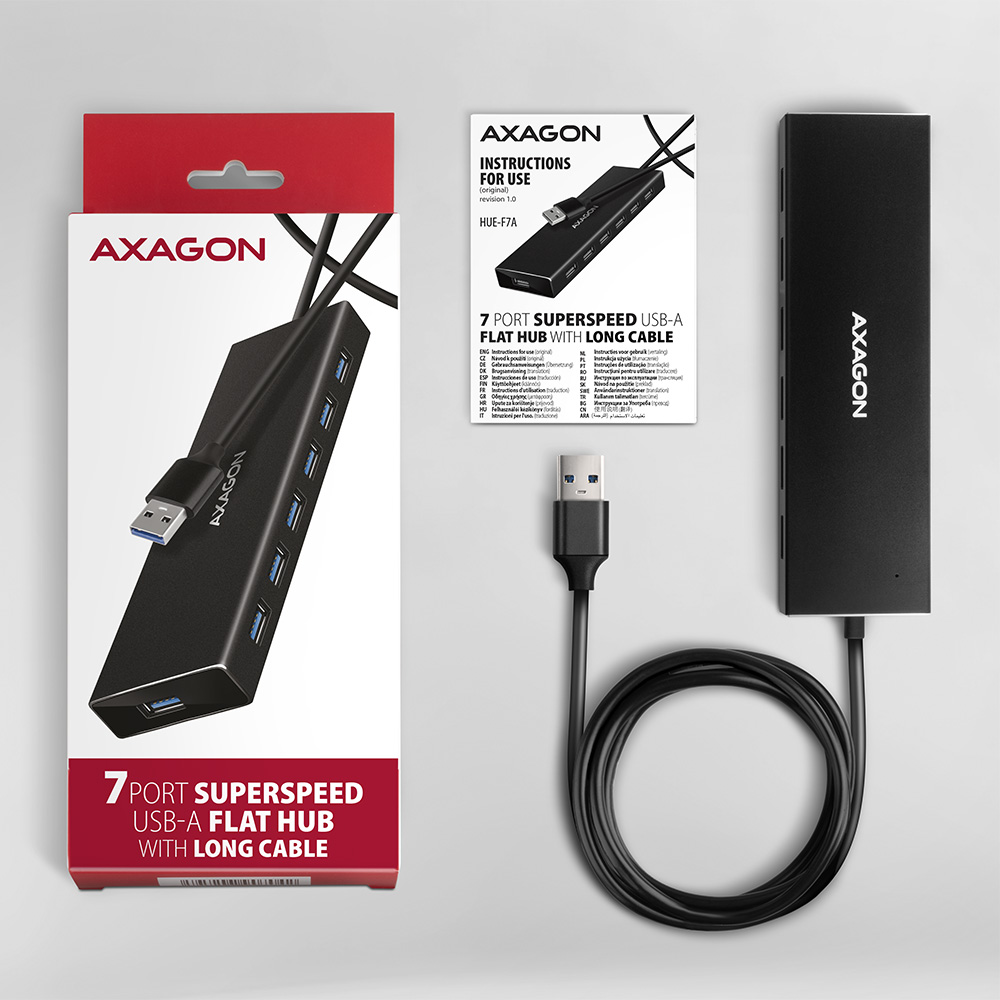
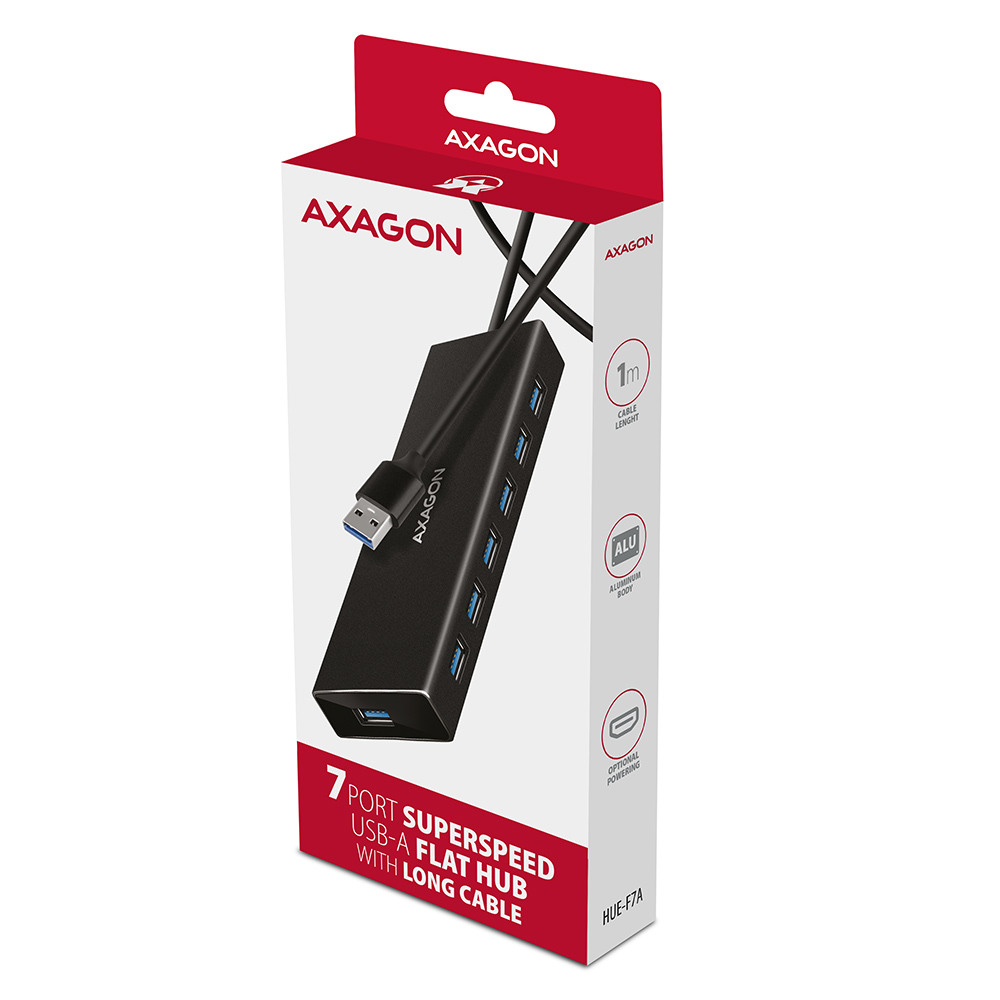
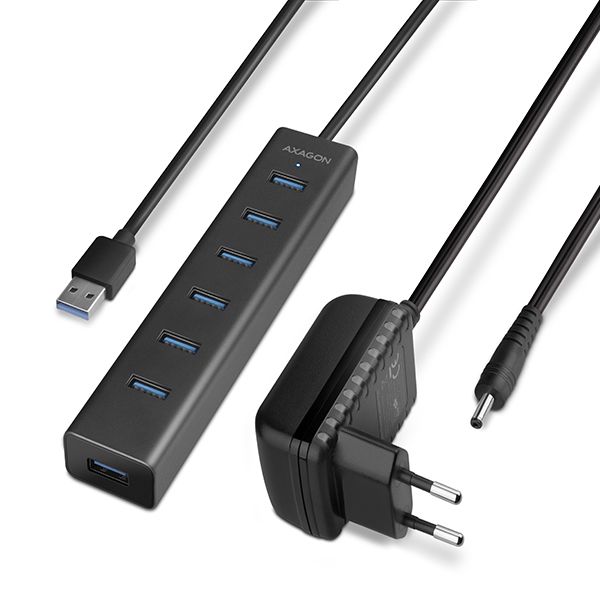
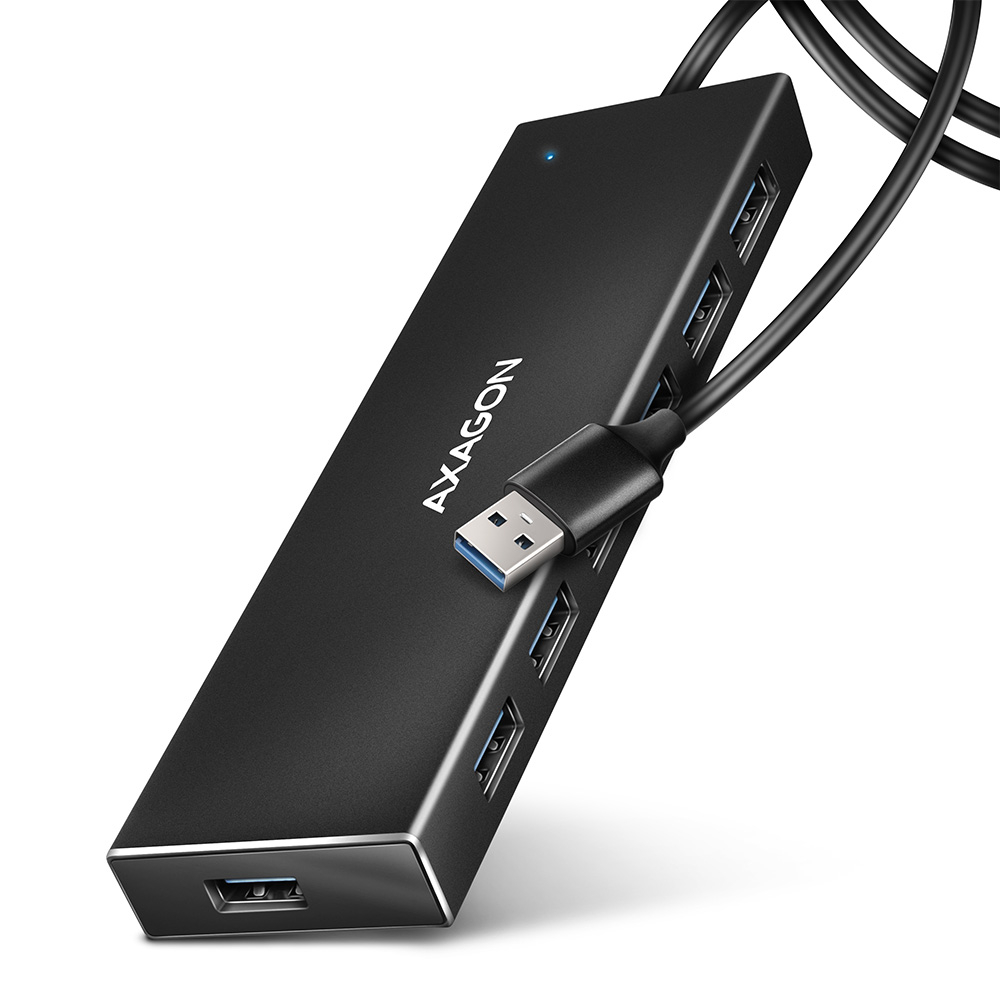
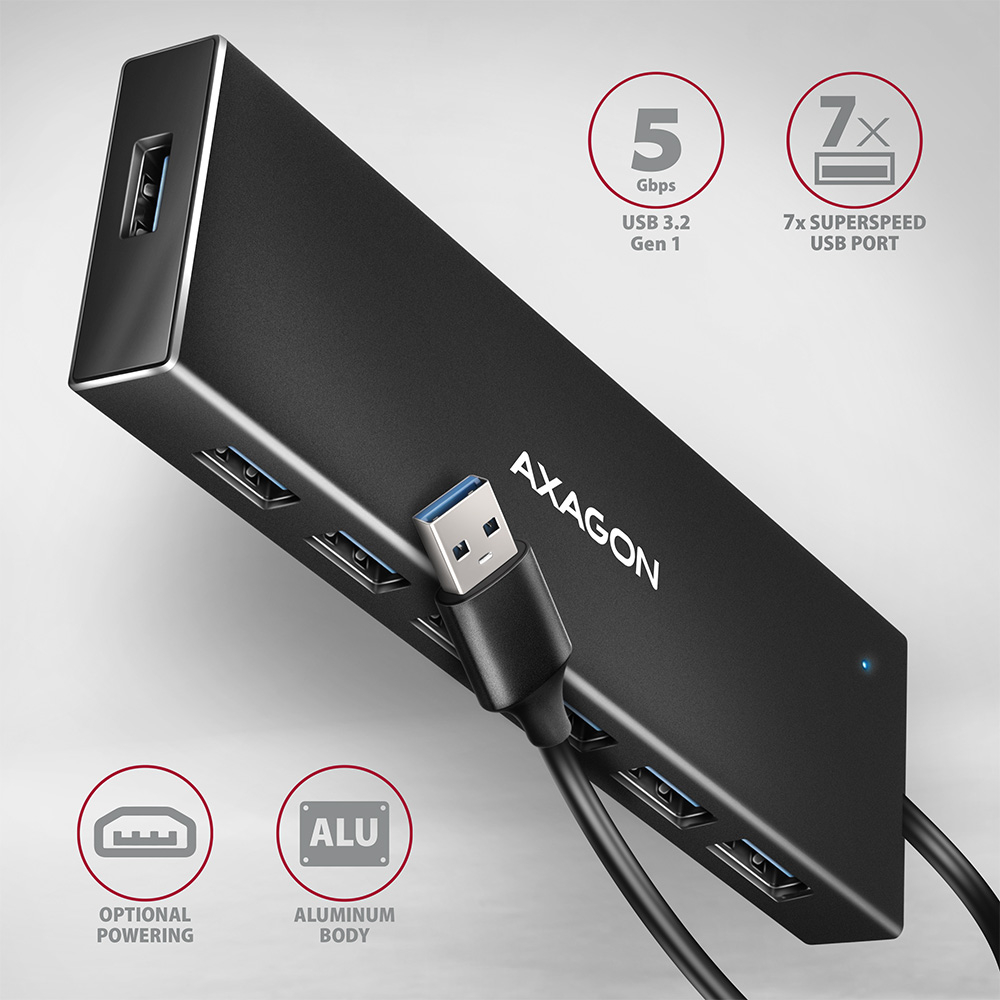
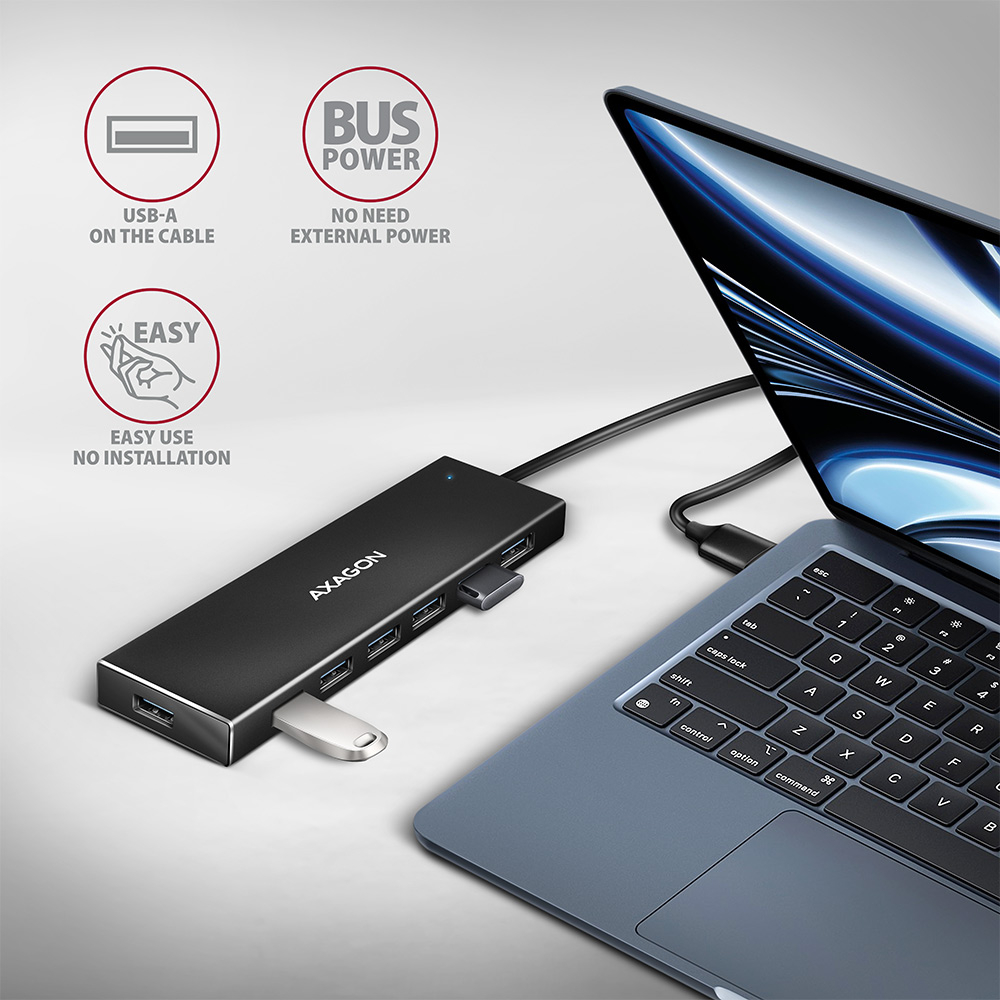
The slim USB 3.2 Gen 1 (USB 3.0) hub AXAGON HUE-F7A with a 1 m long USB cable easily and quickly connects up to seven USB devices to the computer at the same time. The USB 3.2 Gen 1 standard enables transfer speeds of up to 5Gb/s.
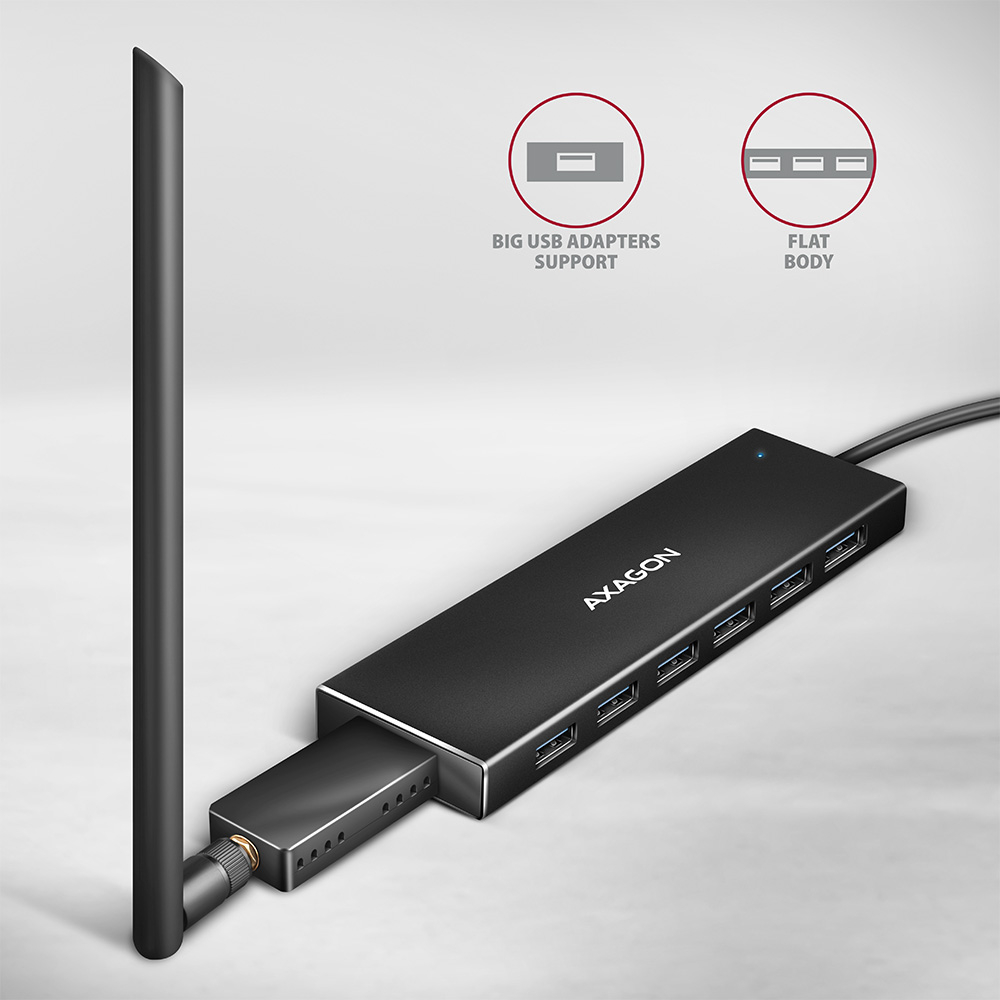
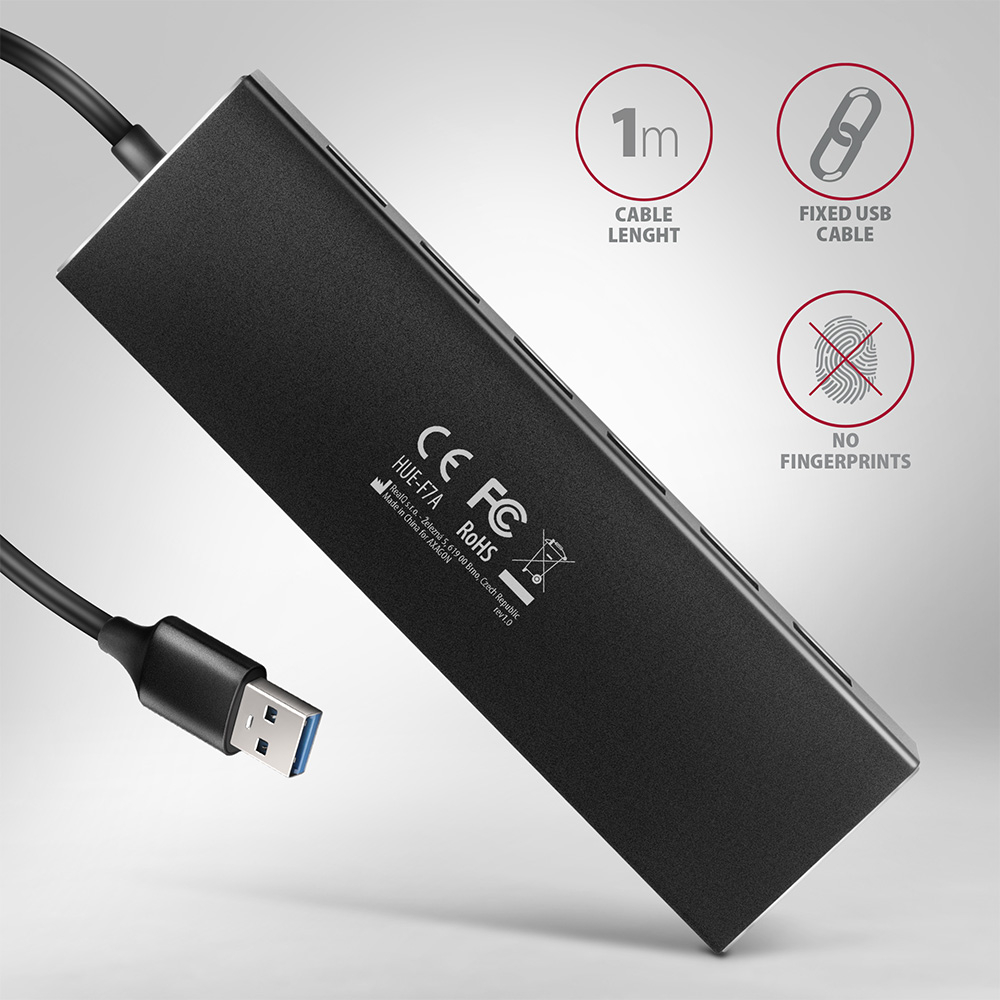
The metal hub body is made of aluminum and provides perfect mechanical protection. Elegant finely structured body surface against fingerprint. Permanently fixed 100 cm long USB-A cable is suitable for use with a desktop computer. The advantage is a separate USB-A port on the front, which is used to connect larger flash disks, readers and other USB devices.
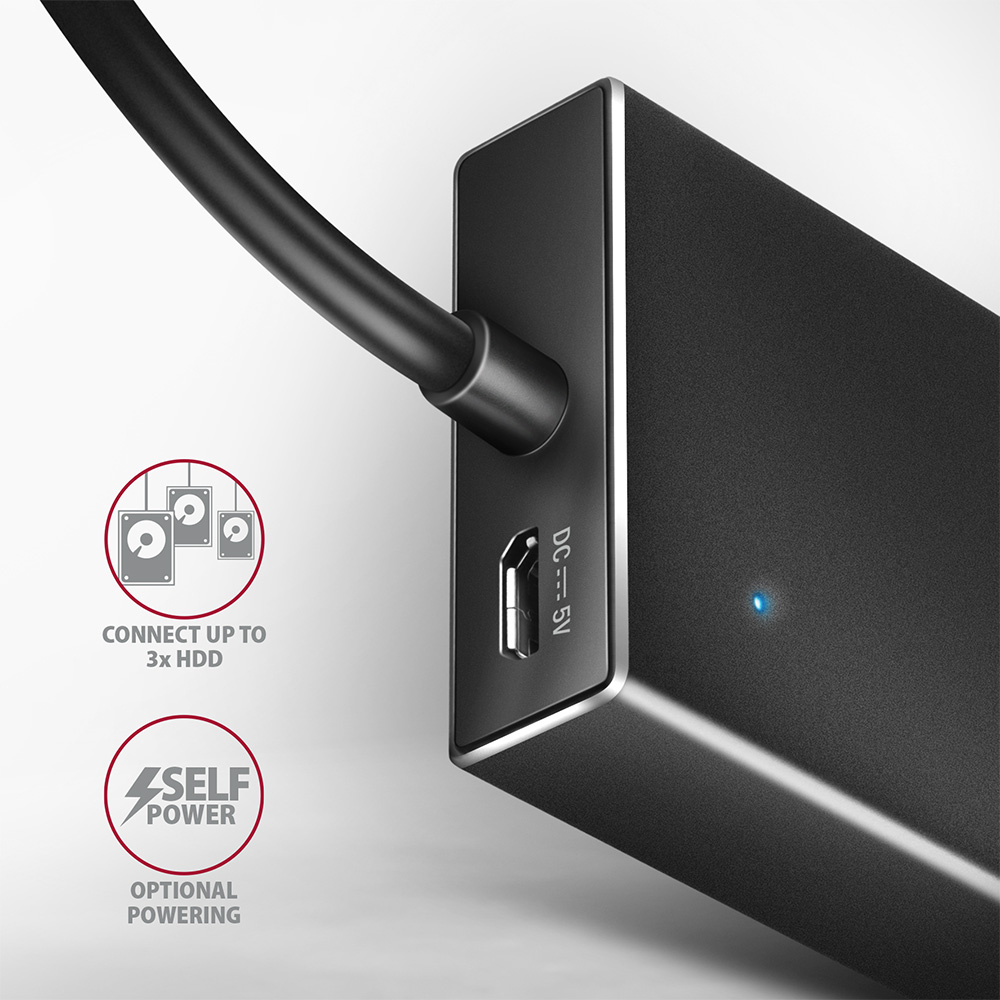
The versatility of this USB hub is also enhanced by the built-in micro USB connector for additional power from standard USB chargers supplied with mobile phones. Thanks to this additional power supply several external disks or increase the number of mobile phones you can charge. It can handle the permanent connection of several external drives even without an external power supply to the hub. After connecting the external power supply, it is possible to work with five external disks at the same time.
Thanks to the Charging hub function, mobile devices can be charged even without connecting to a computer. An unused charger turns this USB hub into a charging hub for free. The hub will also enable charging of phones and tablets with a current of up to 1.5A/5V, so you can easily charge e.g. Android smartphone, Apple iPhone, Apple iPad etc.
Input:
• 1x USB 3.2 Gen 1 / SuperSpeed USB port, USB-A male connector.
• Backward compatible with USB 3.1 Gen 1 / USB 3.0 / USB 2.0 and USB 1.1.
• Connecting USB type A male connector on a fixed 100 cm long cable.
Outputs:
• 7x SuperSpeed USB port, USB-A female connectors.
• Support transfer rates 5.000 / 480 / 12 / 1.5 Mb/s (SuperSpeed / High / Full / Low speed).
• The total bandwidth / transfer rate of the box is given by the USB 3.2 Gen 1 interface (theoretically up to 5 Gbit/s).
Features:
• Possibility to connect your device while running thanks to the Hot Plug support.
• Full Plug and Play support.
• Standby mode support.
• High quality shielded cable ensures fast communication speed and minimal unwanted interference.
• Blue LED indicates the connection to the computer's USB port.
• Dimensions 145 x 42 x 15 mm.
• Weight 110 g (incl. cable).
• USB cable length 100 cm.
The hub power mode via USB cable (bus power):
• USB power is sufficient to connect low-power USB devices (mouse, keyboard, card reader, flash drive, etc.) or self-powered (printer, scanner, 3.5" external drive) to all four ports.
• In this power mode, the USB hub is also able to work with up to 3 magnetic 2.5" external disks simultaneously.
• Charge mobile devices (including iPad) with current up to 1.5A in each of the hub ports. The total charging current (which is divided into ports) reaches up to 3A at 5V (depending on the capabilities of the computer's USB port).
The hub power mode via USB + external USB charger (self power):
• Integrated micro USB connector for additional powering the hub.
• Any mobile device wall charger (not included) with micro USB connector can be used (recommended output current of the charger min. 2A).
• In this power mode, the USB hub is able to work with up to 5 magnetic 2.5" external disks. However, for reliable long-term operation of the hub, we recommend connecting a maximum of 3 magnetic external 2.5" drives at the same time.
• Charge mobile devices (including iPad) with current up to 1.5A in each of the hub ports. The total charging current (which is divided into ports) reaches up to 5A at 5V (depending on the capabilities of the external wall charger).
Independent charging hub mode without connecting to a computer (charging hub):
• After turning off the connected computer or without connecting to the computer, the hub works with power via a USB charger as a separate charging USB hub, just plug a standard charger with a micro USB connector into the hub (micro USB input).
• Charging mobile devices (including iPad) with current up to 1.5A in each of the hub ports, the total charging current (which is divided into ports) reaches up to 3A at 5V (depending on the capabilities of the external power adapter).
Supported OS:
• MS Windows XP / Vista / 7 / 8 / 8.1 / 10 / 11 and later, Windows Server 2003 / 2008 / 2012 / 2016 / 2019 / 2022 and later (supported are all 32 and 64-bit versions of Windows OSs), MacOS X 10.4.x and later, Linux with kernel 2.6.x and later, Android most versions.
• Note: Drivers are included with supported operating systems and are installed completely automatically. No other drivers need to be installed and are not even available.
Package contains:
• SuperSpeed USB hub with fixed 100 cm long USB cable,
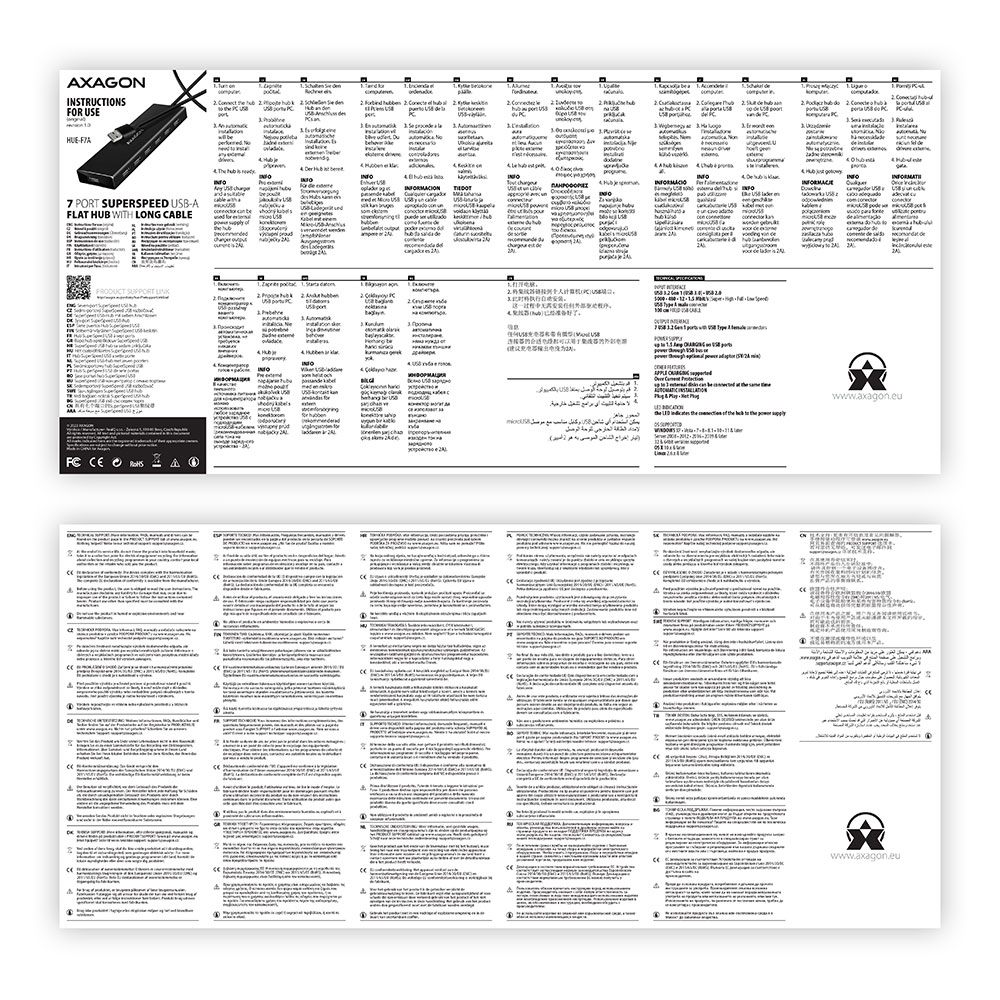
• multilingual manual CZ / DE / DK / ENG / ESP / FIN / FR / GR / HR / HU / IT / NL / PL / PT / RO / RU / SK / SWE / TR / BG / CN / ARA,
• packed in a cardboard box with a hanging hole.



 English
 Czech
Czech
 Slovak
 German
 Hungarian
 Polish

 + 1 more photos