


 English
 Czech
Czech
 Slovak
 German
 Hungarian
 Polish
Why Is Your External SSD Slower Than Advertised?
Is your external SSD slower than the manufacturer’s specifications suggest? Learn how the USB port, cable, SSD enclosure, SLC cache and temperature affect real-world transfer speeds.
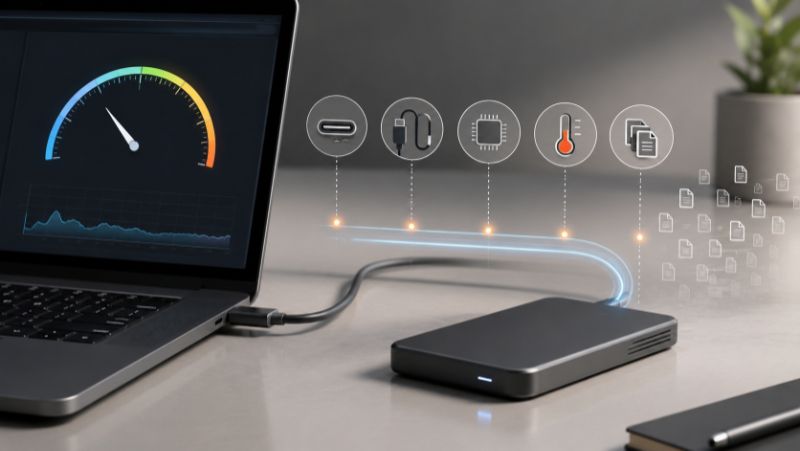
External SSDs often fail to reach the maximum speeds stated by the manufacturer. That does not necessarily mean the drive is faulty or the specification is misleading. Actual performance is limited by the slowest component in the entire setup, which may be the USB port, cable, enclosure controller, SSD itself, temperature or the type of data being transferred.
The figure shown on the packaging usually represents the maximum sequential speed measured under ideal test conditions. In real-world use, data passes through several layers of hardware and software. Each layer adds overhead and may create a performance bottleneck.
External SSD speed depends on the entire data path
External storage performance is not determined by the SSD alone. Data must travel from the NAND flash through the SSD controller, the USB-to-SATA or USB-to-NVMe bridge controller in the enclosure, the USB cable and the computer’s USB controller before reaching system memory or the destination drive. Overall speed is therefore limited by the slowest link in this chain.
Basic rule: the entire setup can only run as fast as its slowest component
1. The USB port and cable can limit bandwidth
A USB 10Gbps connection has a raw theoretical bandwidth of 10 Gbps, or approximately 1 250 MB/s. File transfers cannot normally reach this figure because encoding, protocol management and other overhead consume part of the available bandwidth.
Connecting a 10Gb/s external SSD enclosure to a USB 5Gbps port reduces the maximum potential speed by roughly half. The cable can create the same type of bottleneck. USB-C describes the connector shape, not the data rate: visually identical cables may support anything from USB 2.0 to much faster USB4 connections.
2. The enclosure’s bridge controller handles communication
An external SSD enclosure contains a bridge controller that translates communication between USB and the SATA or NVMe interface. Its performance depends on the controller chip, firmware and supported protocols. UASP can process multiple storage commands more efficiently than the older USB Mass Storage mode, which can improve performance during more demanding workloads.
3. Sequential benchmarks are not the same as everyday file transfers
Manufacturers generally quote sequential speeds measured while transferring large, contiguous blocks of data. A single multi-gigabyte file will therefore usually copy faster than a folder containing tens of thousands of small files. Each file requires the operating system to process metadata, permissions and file-system updates separately.
4. Write speed can drop sharply when the SLC cache is full
Many SSDs use part of their NAND flash as a fast SLC cache. The drive can maintain high write speeds while incoming data fits within this cache. During a long transfer, however, the cache may fill up and the controller must write directly to slower TLC or QLC NAND. As a result, write speed may start high and then fall significantly after several seconds or minutes.
5. Excess heat can trigger thermal throttling
Both the NVMe SSD and the enclosure’s bridge controller generate heat during sustained transfers. Once a temperature threshold is reached, the device automatically reduces performance to prevent overheating. This protective mechanism is known as thermal throttling. A metal enclosure and a correctly installed thermal pad help dissipate heat and maintain more consistent transfer speeds.
6. The bottleneck may be outside the external SSD
Transfer speed may also be limited by the source or destination drive. When copying data from a conventional hard disk, the external SSD cannot receive data faster than the source drive can read it. Antivirus scanning, encryption, low free space, drivers and other applications accessing the storage device can also affect the result.
Theoretical bandwidth is not the same as file-transfer speed
When comparing interface speeds, it is important to distinguish between bits and bytes. USB data rates are stated in Gb/s or Gbps, while file-copy tools usually display MB/s. Eight bits equal one byte, so dividing the Gb/s figure by eight provides a rough theoretical conversion. Real-world speed will always be lower because of protocol overhead and the limitations of the specific hardware setup.
| Interface rating | Raw conversion | What it means in practice |
| USB 5Gbps | 625 MB/s | Actual speed is lower because of protocol overhead and device limitations. |
| USB 10Gbps | 1 250 MB/s | A well-matched setup can approach approximately 1 000 MB/s. |
| USB 20Gbps | 2 500 MB/s | The port, cable and external SSD enclosure must all support USB 20Gbps. |
| USB4 40Gbps | 5 000 MB/s | Performance depends heavily on the controllers, USB4 overhead and the NVMe SSD used. |
Note: These conversions show the raw bandwidth of the interface, not a guaranteed file-transfer speed.
How to identify what is slowing down your external SSD
1. Check the computer’s specifications to confirm the data rate supported by the USB port you are using.
2. Use a data cable that supports the same or a higher speed than the external SSD enclosure.
3. Connect the external SSD directly to the computer and temporarily bypass any USB hub or docking station.
4. Compare the transfer of one large file with a folder containing many small files.
5. Watch the transfer-speed graph: a sudden drop after a period of time may indicate a full SLC cache or thermal throttling.
6. Check the performance of both the source and destination drives and close applications that are actively using storage.
7. Confirm UASP support and check for updated drivers or enclosure firmware.
Summary
An external SSD is only one component in the complete data path. Maximum performance depends on the SSD, enclosure, USB port, cable, cooling, data type and software environment. When measured speed does not match the advertised maximum, look for the bottleneck across the entire setup rather than assuming that the SSD is defective.
FAQ
Why does my external SSD start fast and then slow down?
The most common causes are a full SLC cache or rising temperature. Once the fast write cache is exhausted, the SSD writes directly to slower NAND flash. At high temperatures, it may also activate thermal throttling.
Can a USB-C cable limit external SSD speed?
Yes. USB-C only describes the connector. A USB-C cable may support different data standards, and some cables designed primarily for charging transfer data only at USB 2.0 speeds.
Why do small files copy more slowly than one large file?
Every file must be opened separately, its metadata processed and file-system changes recorded. With one large contiguous file, this overhead represents a much smaller proportion of the overall transfer.
Does a metal external SSD enclosure make the drive faster?
The enclosure material does not increase the interface’s maximum data rate. However, better heat dissipation can reduce or prevent thermal throttling, allowing the SSD to maintain higher performance for longer.
Follow!


