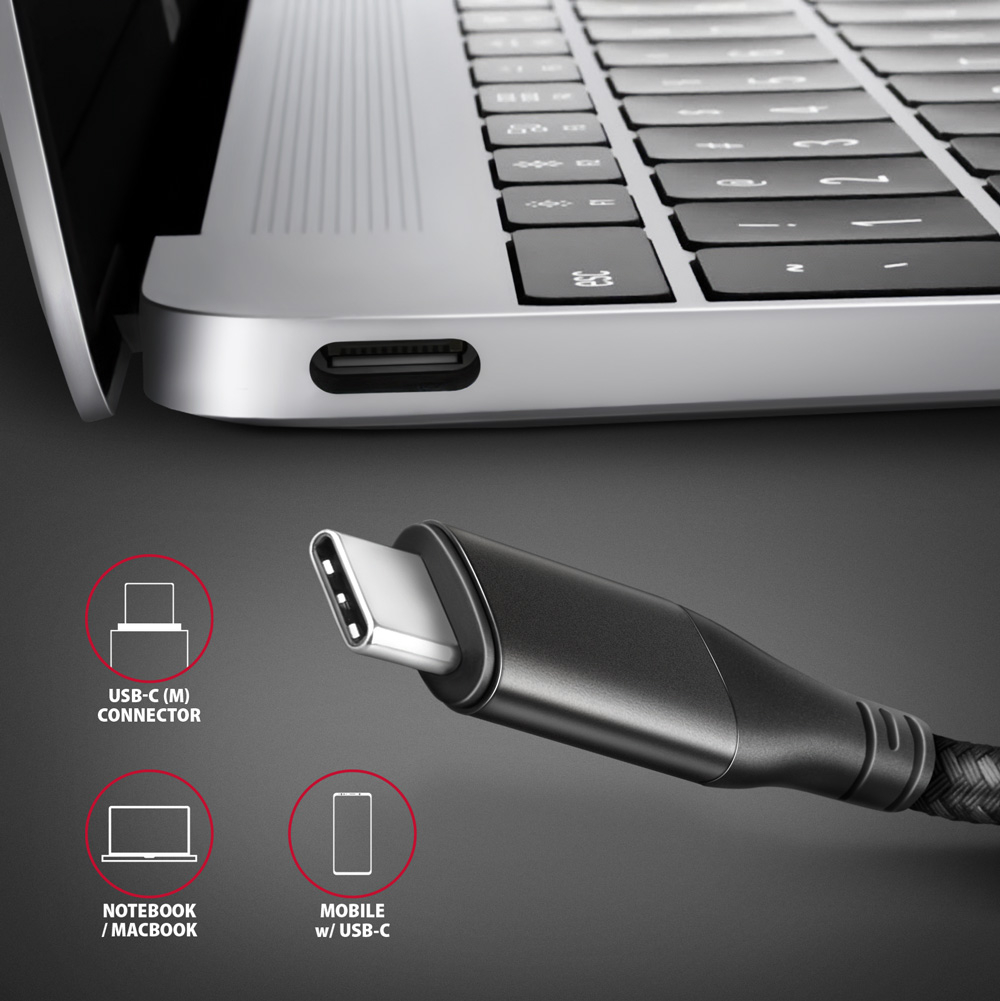
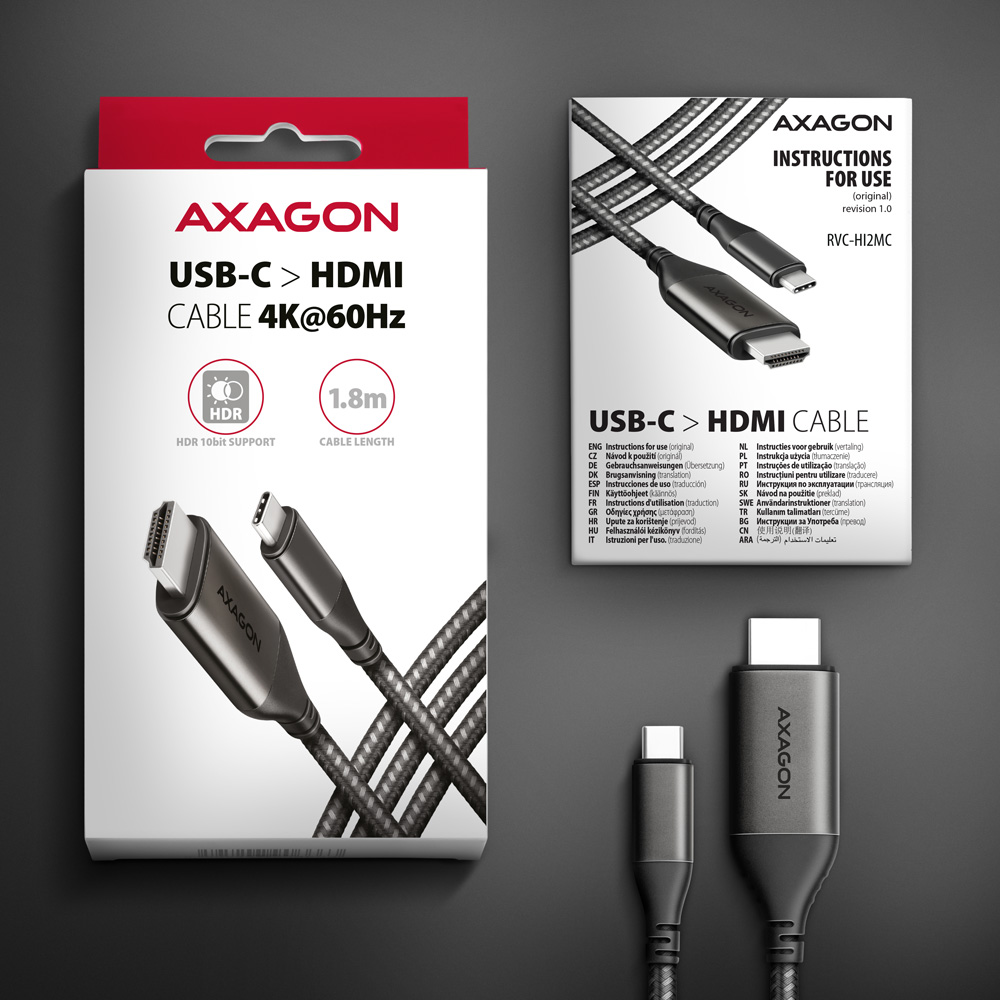
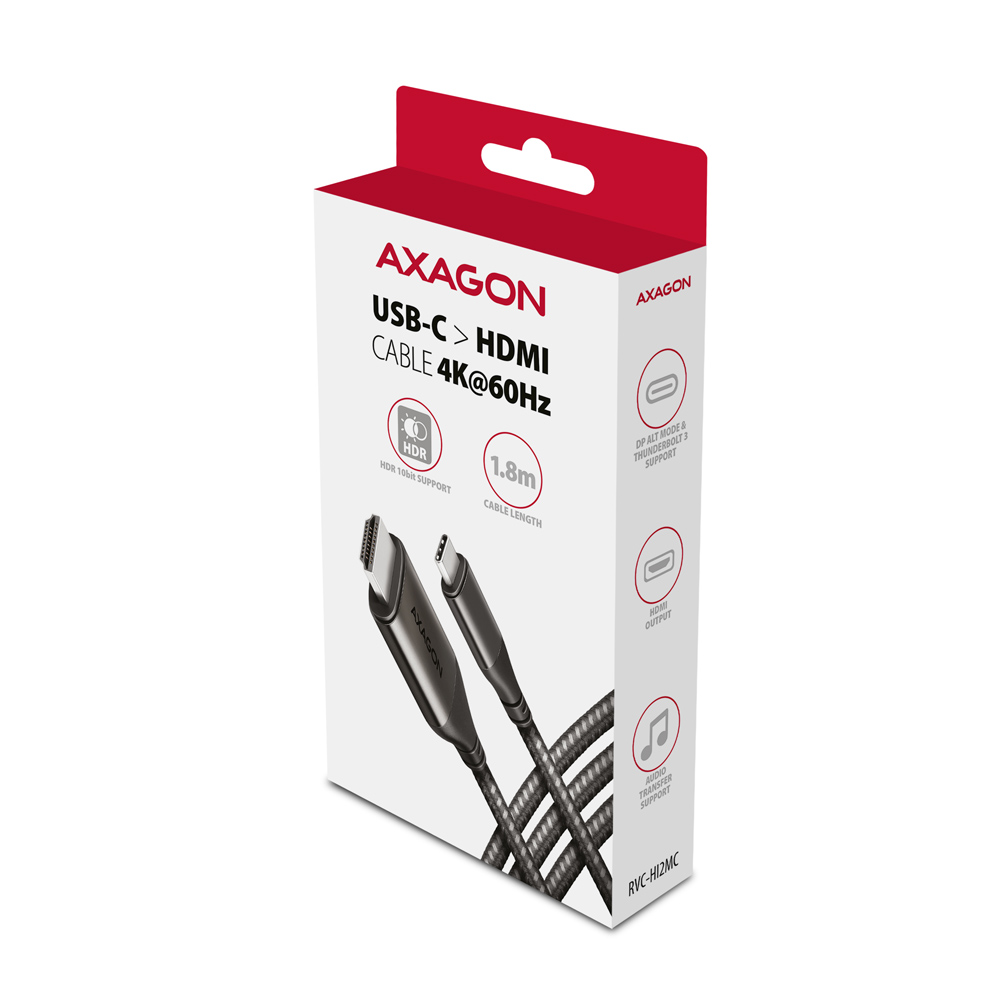
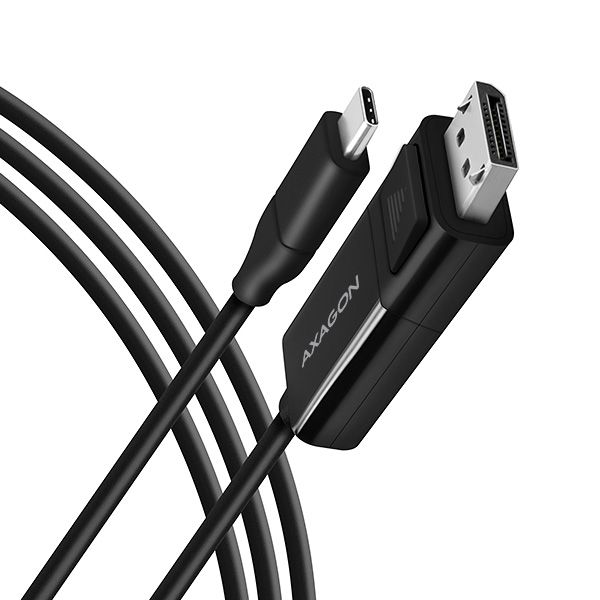
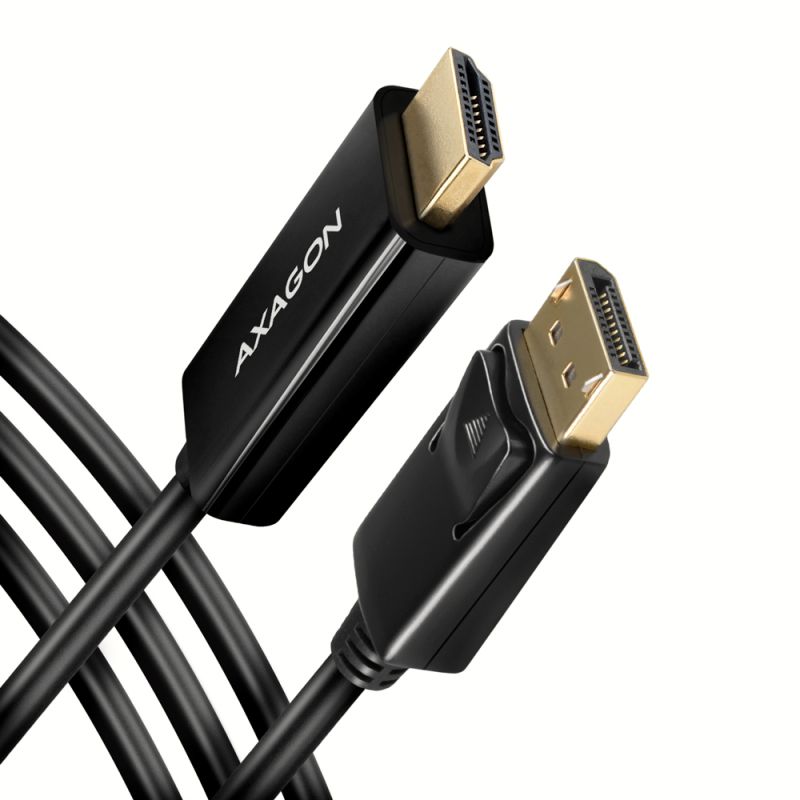
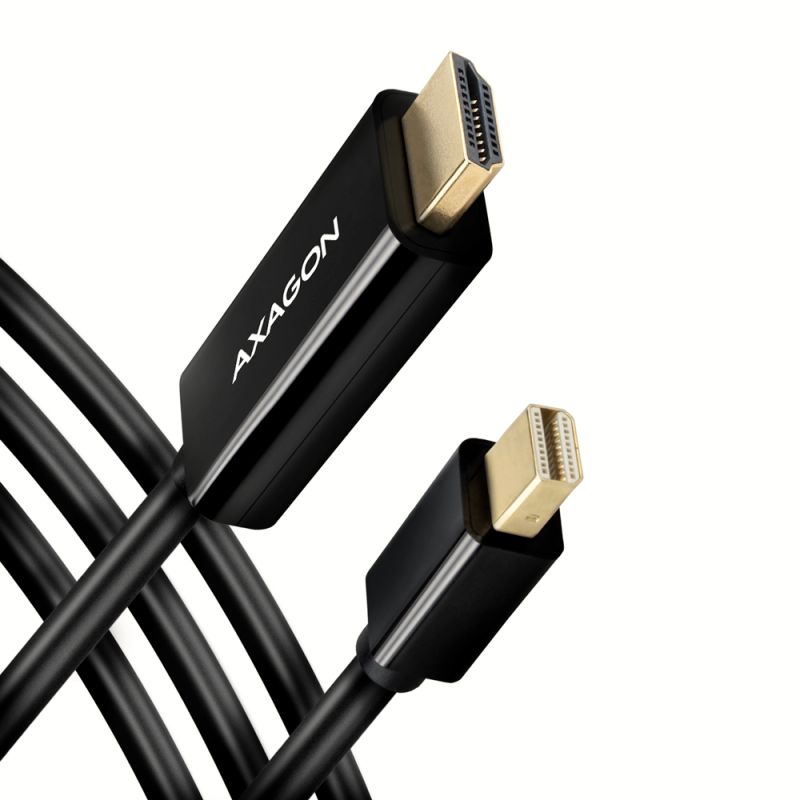
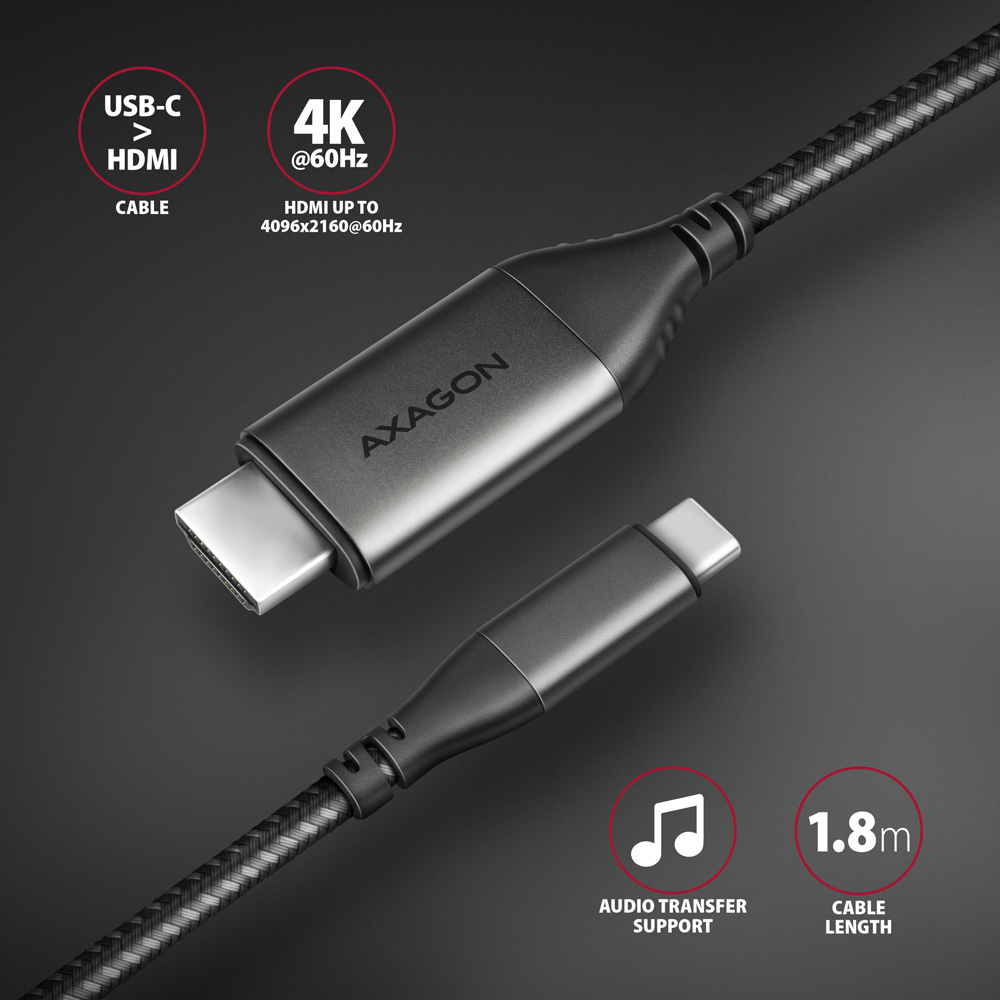
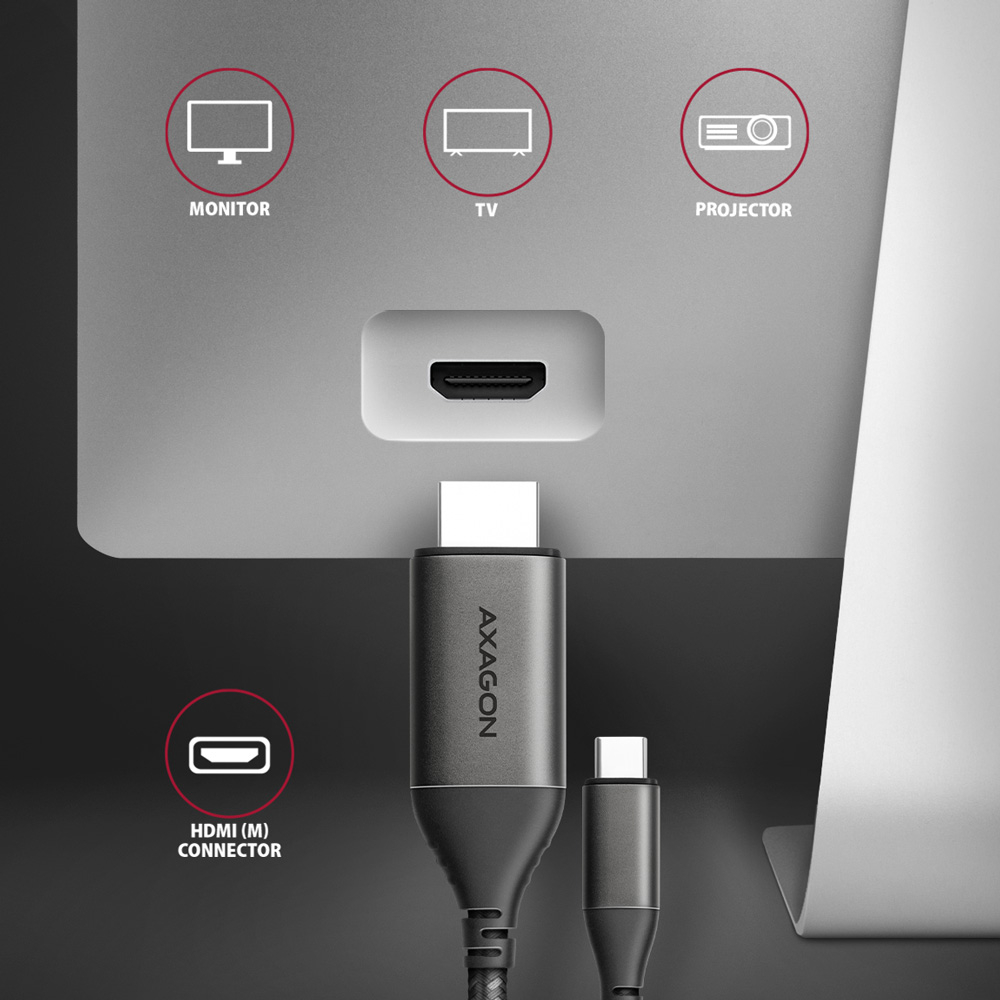
Modern USB-C > HDMI active cable - adapter AXAGON RVC-HI2MC for connecting a HDMI monitor/TV/projector to a notebook or phone using USB-C connector.
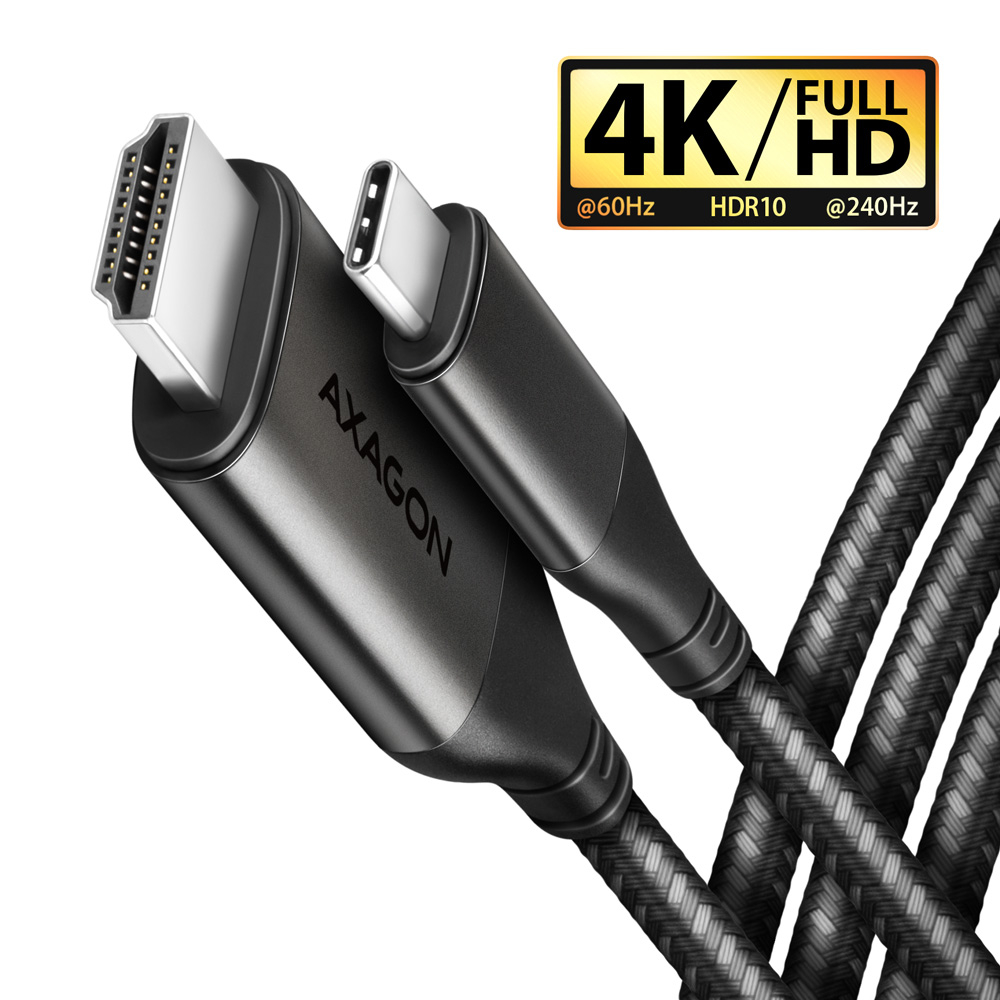
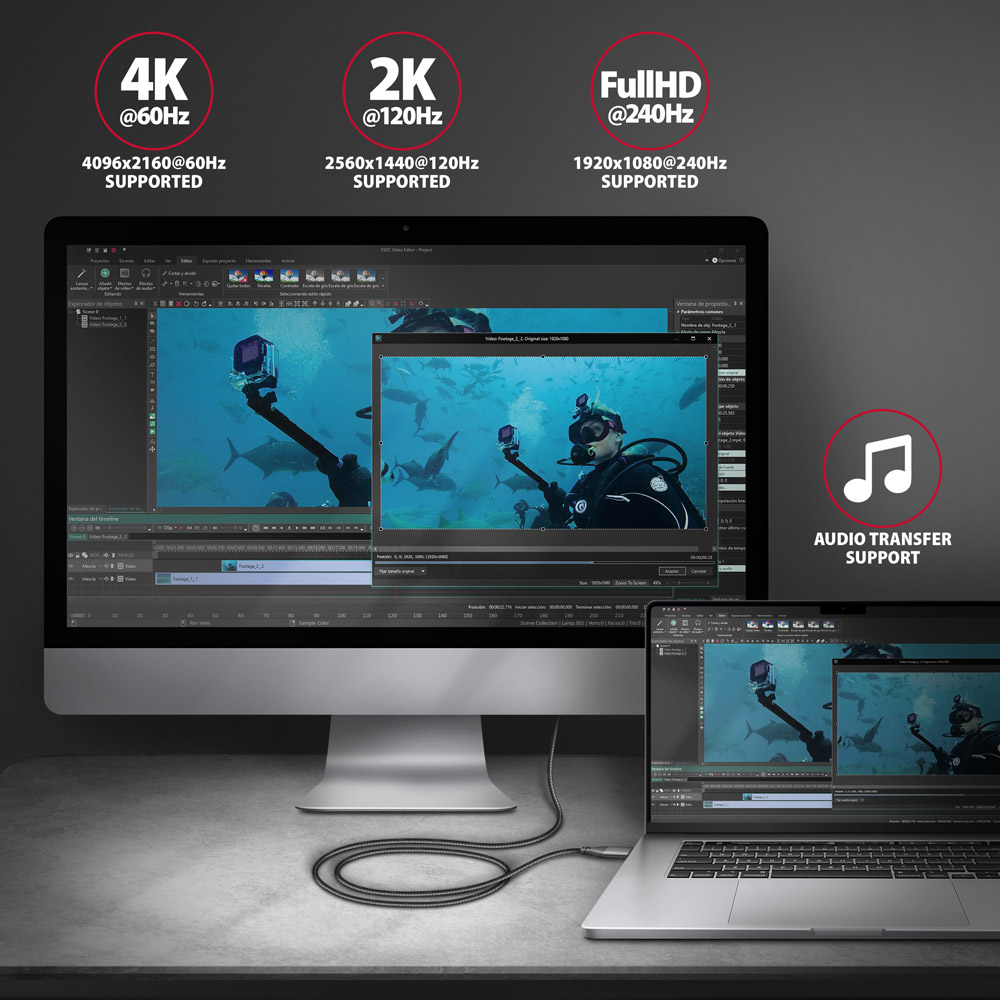
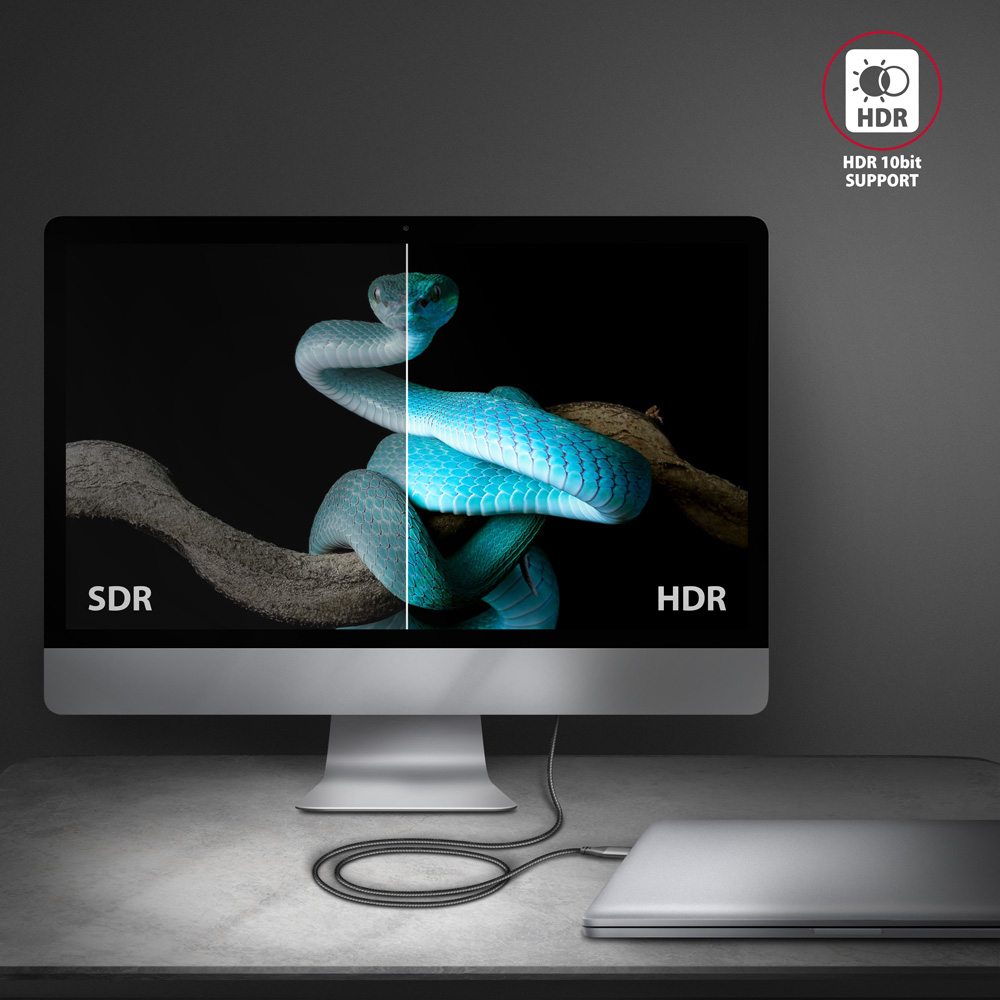
A hardware converter ensures quality image up to 4K/60Hz Ultra HD resolution without any installation. Popular gaming resolution WQHD 2560 x 1440 at 60, 120 and 144 Hz or FullHD 1920 x 1080 at 60, 120, 144 and 240 Hz are also supported. Thanks to HDR (high dynamic range) support, you can enjoy a significantly expanded range of colors and contrasts without restrictions.
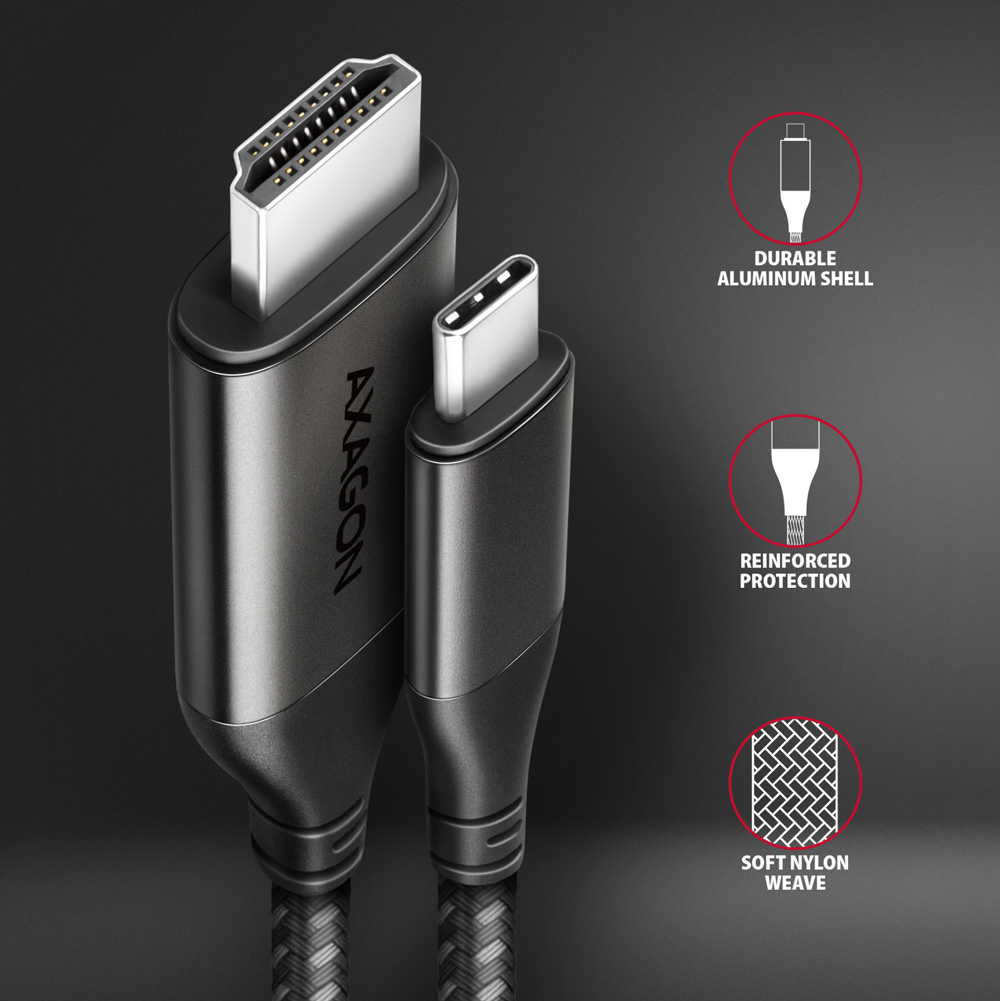
Durable cable is equipped with solid metal ends, connectors with a nickel-plated surface and gold-plated contacts. The final strength of the cable is provided by the nylon braid. The bonus is a practical strip for easy packing of the cable. Video and audio transfer from a computer, laptop, phone or Apple MacBook will now be easy.
Compact dimensions provide the possibility to use the cable in insufficient space. The converter dimensions are almost identical to the standard cable connectors. You have an ideal solution - you don't need a cable and converter, with this active cable everything is integrated into one compact unit.
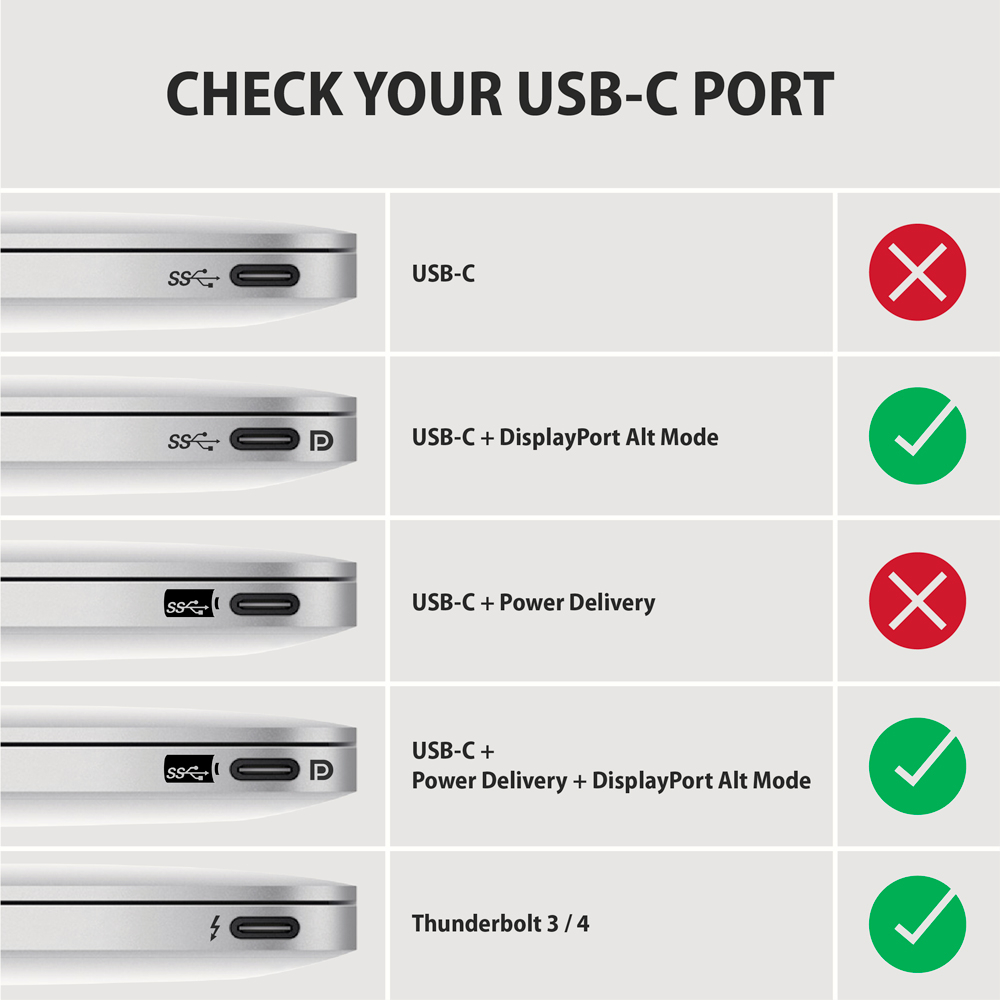
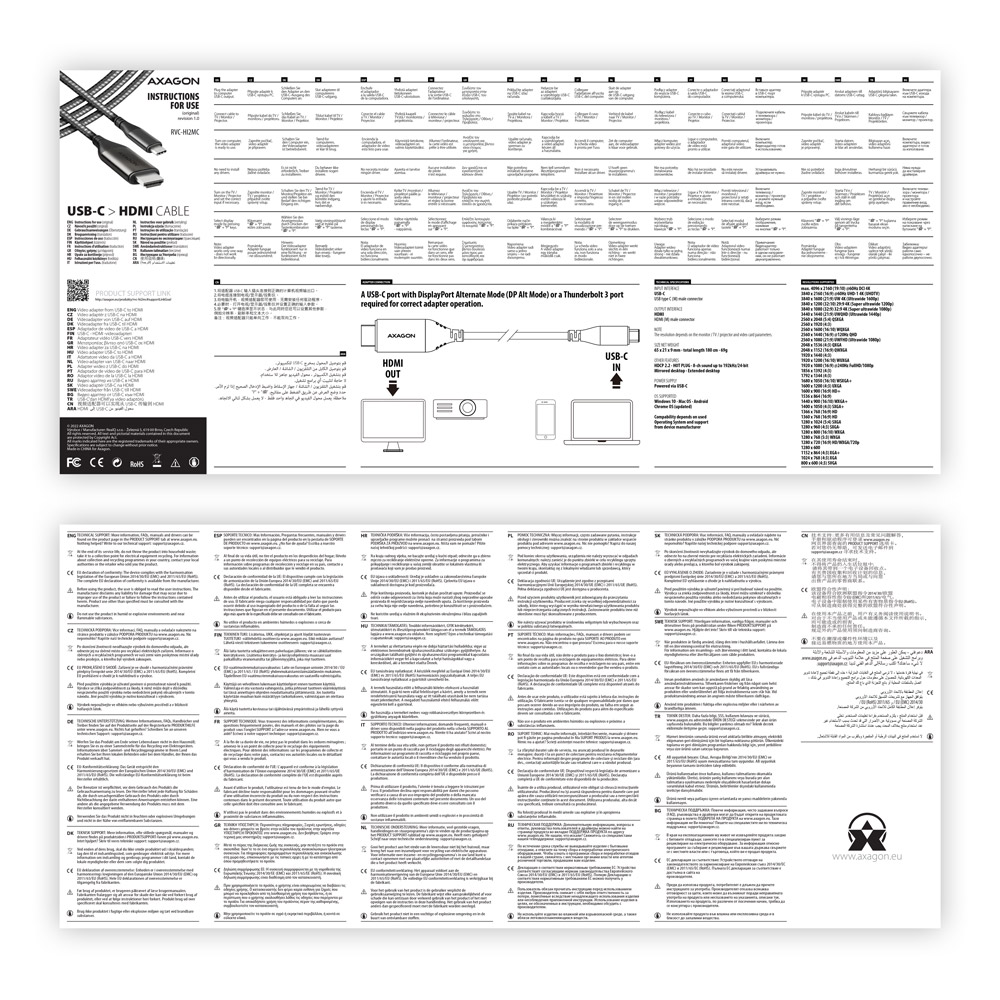
The cable is only oneway, i.e. USB-C to HDMI, not otherwise. A USB-C port with DisplayPort Alternate Mode (DP Alt Mode) support of a device with Thunderbolt 3/4 port is required for the adapter to function properly.
Input:
• USB-C
• USB type C (M) male connector
Output:
• HDMI 2.1a 4K/60Hz HDR10 (before HDMI 2.0a)
• HDMI (M) male connector
Supported resolutions:
• max. 4096 x 2160 (19:10) @60Hz DCI 4K
• 3840 x 2160 (16:9) @60Hz UHD-1 4K (UHDTV)
• 3840 x 1600 (21:9) UW 4K (Ultrawide 1600p)
• 3840 x 1200 (32:10) 29:9 4K (Super ultrawide 1200p)
• 3840 x 1080 (32:9) 32:9 4K (Super ultrawide 1080p)
• 3440 x 1440 (21:9) UWQHD (Ultrawide 1440p)
• 2560 x 2048 (5:4) QSXGA
• 2560 x 1920 (4:3)
• 2560 x 1600 (16:10) WQXGA
• 2560 x 1440 (16:9) @60, 120 a 144Hz QHD
• 2560 x 1080 (21:9) UWFHD (Ultrawide 1080p)
• 2048 x 1536 (4:3) QXGA
• 2048 x 1152 (16:9) QWXGA
• 1920 x 1440 (4:3)
• 1920 x 1200 (16:10) WUXGA
• 1920 x 1080 (16:9) @60, 100, 120, 144 a 240Hz Full HD/1080p
• 1856 x 1392 (4:3)
• 1792 x 1344 (4:3)
• 1680 x 1050 (16:10) WSXGA+
• 1600 x 1200 (4:3) UXGA
• 1600 x 900 (16:9) HD+
• 1536 x 864 (16:9)
• 1440 x 900 (16:10) WXGA+
• 1400 x 1050 (4:3) SXGA+
• 1366 x 768 (16:9) HD
• 1360 x 768 (16:9) HD
• 1280 x 1024 (5:4) SXGA
• 1280 x 960 (4:3) SXGA-
• 1280 x 800 (16:10) WXGA
• 1280 x 768 (5:3) WXGA
• 1280 x 720 (16:9) HD/WXGA/720p
• 1280 x 600
• 1152 x 864 (4:3) XGA+
• 1024 x 768 (4:3) XGA
• 800 x 600 (4:3) SVGA
* the adjustable resolution and frequencies depend on monitor/TV/projector and graphics adapter parameters.
Other features:
• Supported modes: mirroring the desktop (default setting),extension of the primary monitor area.
• HPD (Hot-Plug-Detect) support - communication sequence controlling the connection/disconnection of the device while running,
• Support up to 8-channel sound - 96 kHz at 24 bits,
• HDR (High dynamic range, 10 bit support) support - realistic reproduction of light and dark details.
• Compliant with USB Type-C Cable and Connector Specification Revision 1.1 specification,
• Compliant with VESA DisplayPort Alt Mode on USB Type-C Standard Version 1.0 specification,
• Compliant with USB Device Class Definition for Billboard Devices Revision 1.0 specification.
• Compliant with HDMI Specification 2.1a 4K/60Hz HDR10 specification (before HDMI 2.0a).
• TMDS (Transition Minimized Differential Signaling) support - transfer of auxiliary image, sound and additional data.
• HDCP 2.2 (High-bandwidth Digital Content Protection) support - a mechanism used to protect the digital contents.
• Support of power saving modes with spinning down controlled by a source device (PC) and a viewing device (monitor/TV).
• Power supply via USB-C – no external power is needed.
• Dimensions of converter body 48 x 21 x 10 mm,
• Total cable length incl. connector 180 cm,
• Weight 70 g,
• Operating temperature 0 ~ 45°C.
• Storage temperature: -10 ~ 70°C.
Supported OS:
• Microsoft Windows, macOS, Android and Chrome OS – updated.
• Compatibility depends on the operating system and device manufacturer support.
• Graphics card drivers may also affect RVC-HI2MC functionality. We recommend downloading the latest version of the drivers.
Package contains:
• USB-C > HDMI cable length 1.8m,
• multilingual manual CZ / DE / DK / ENG / ESP / FIN / FR / GR / HR / HU / IT / NL / PL / PT / RO / RU / SK / SWE / BG / CN / TR / ARA,
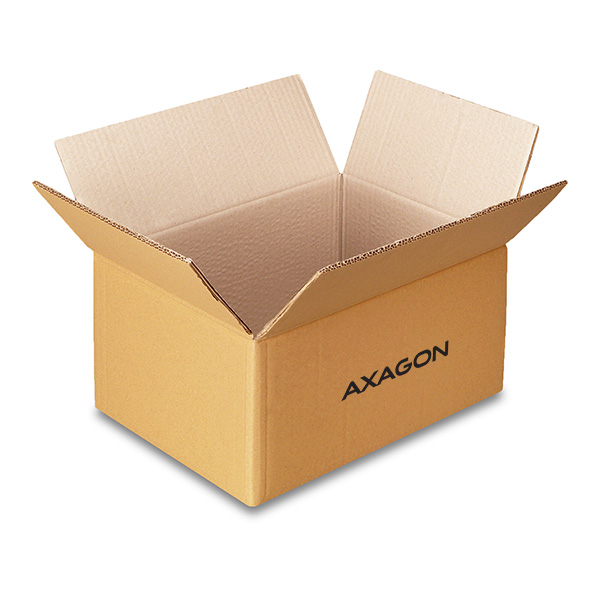
• packed in a cardboard box with a hanging hole.



 English
 Czech
Czech
 Slovak
 German
 Hungarian
 Polish

 + 3 more photos