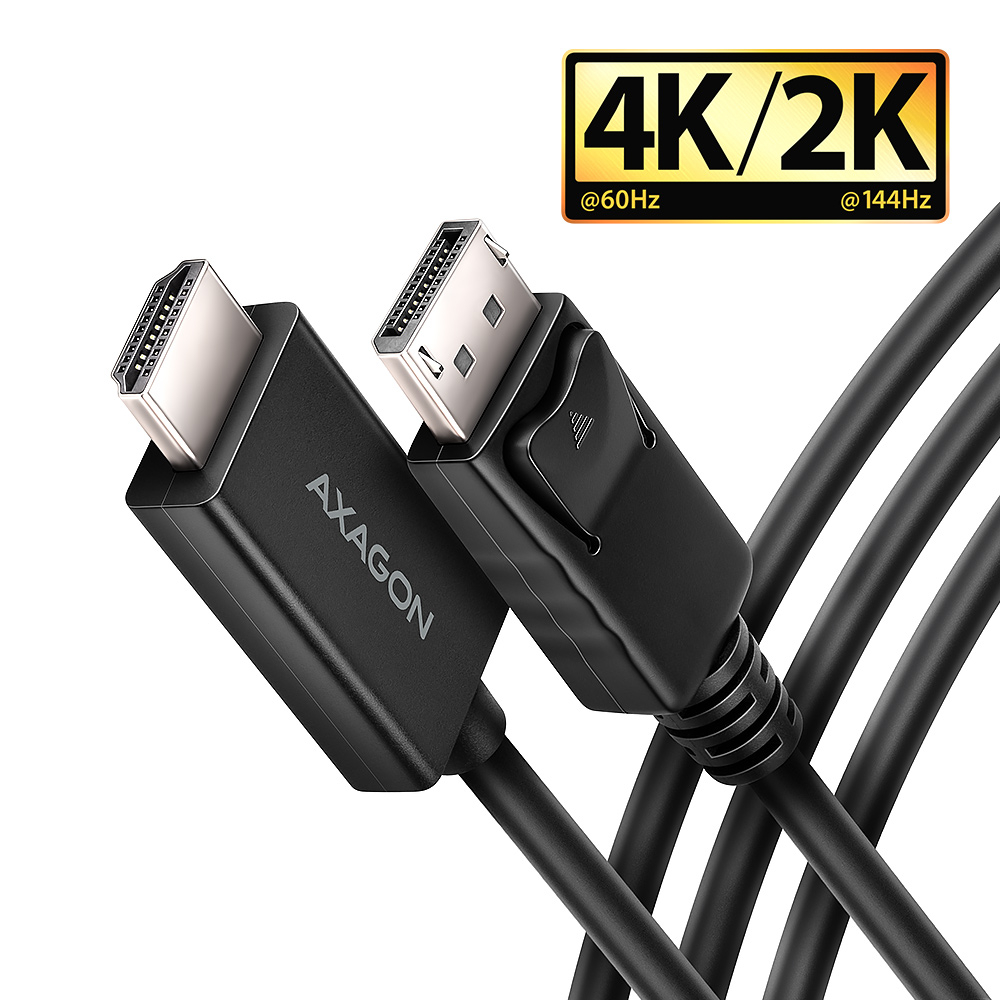
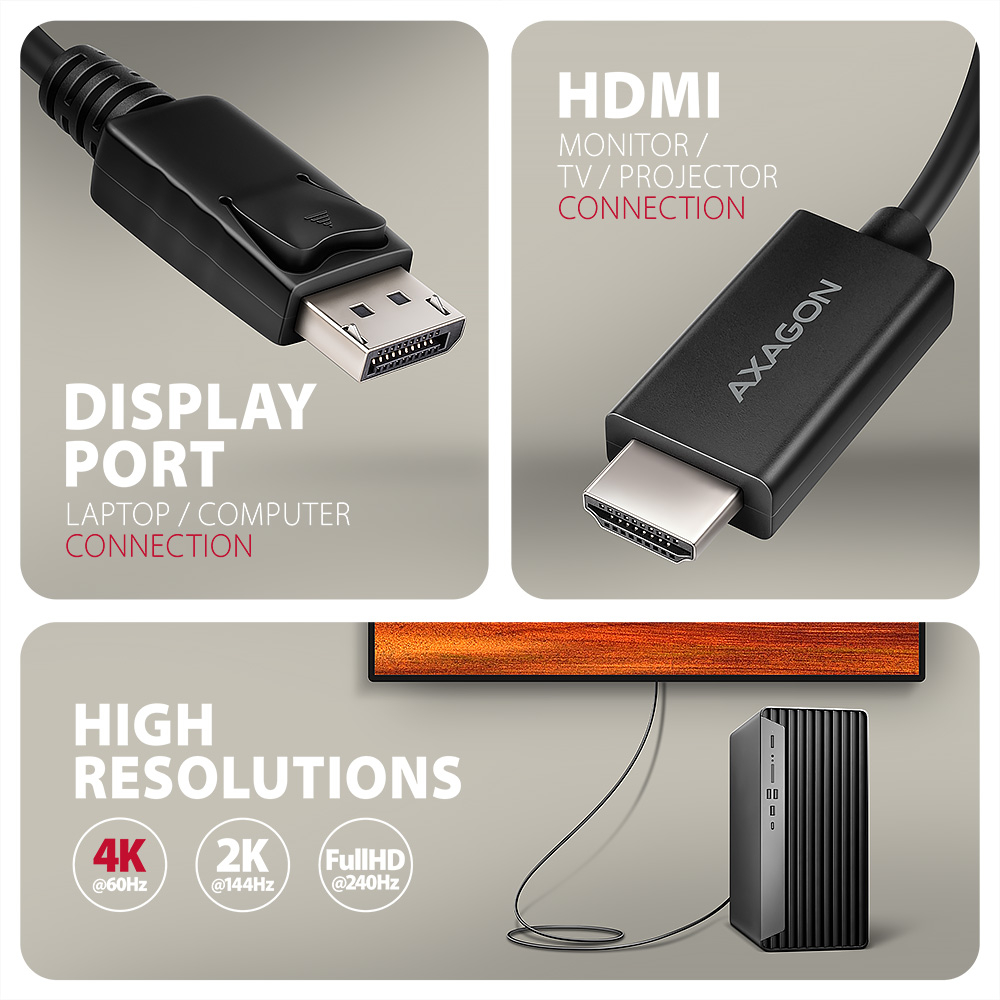
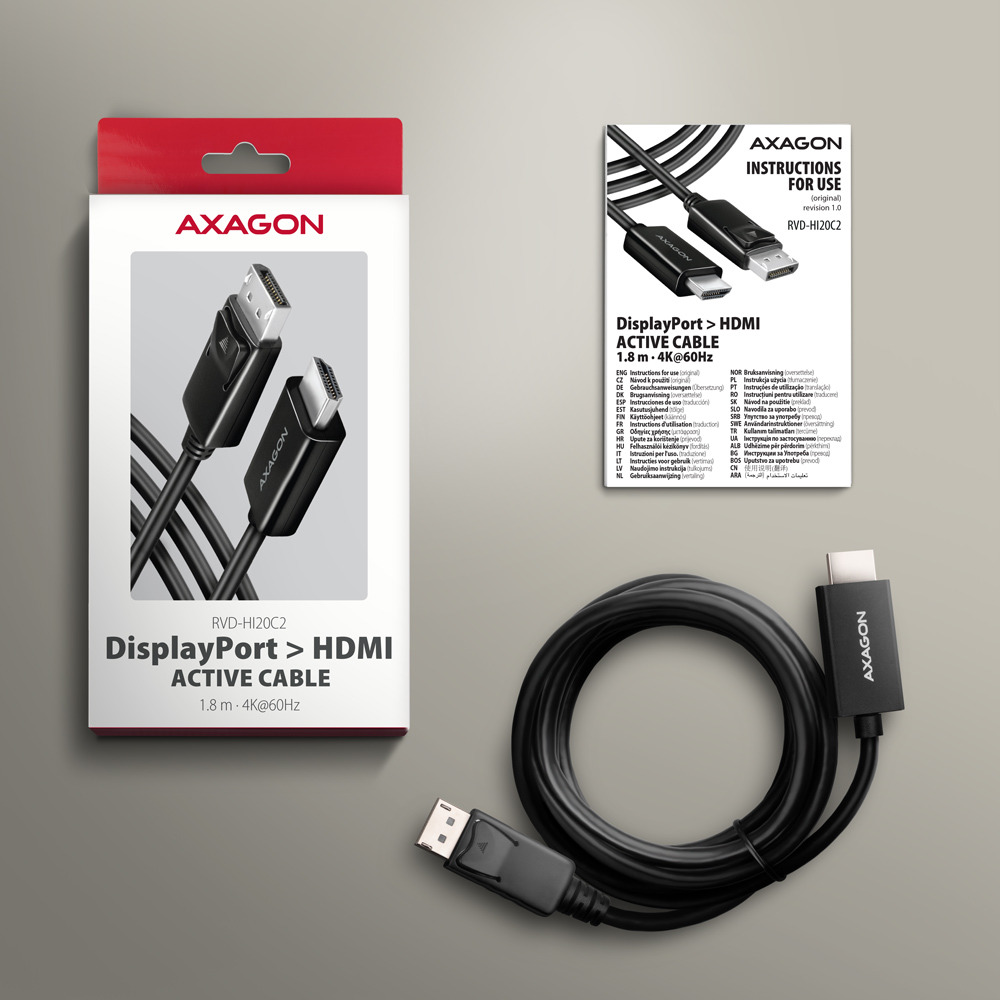
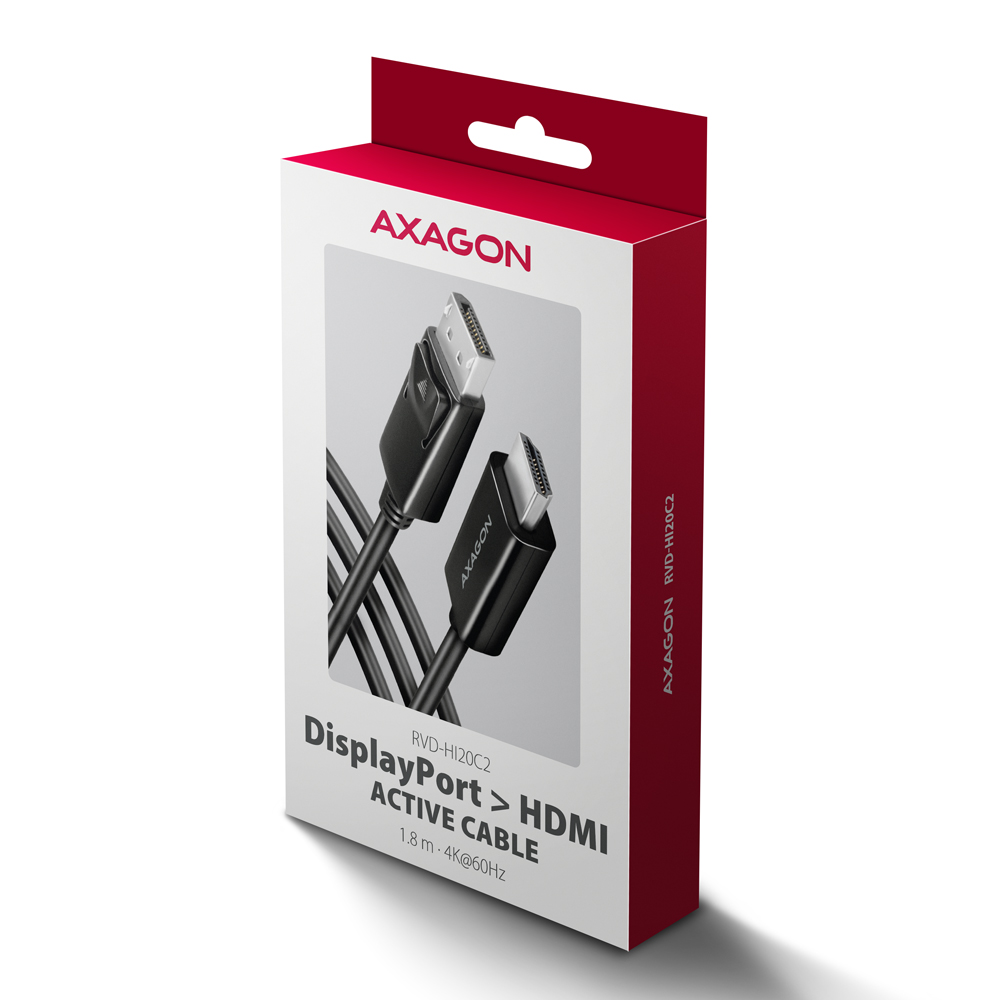
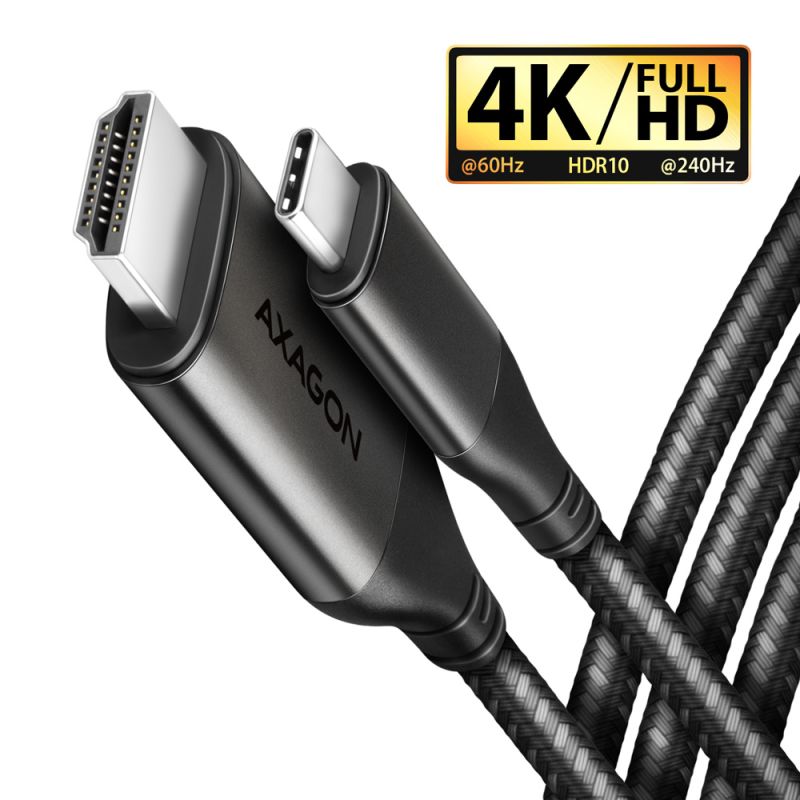
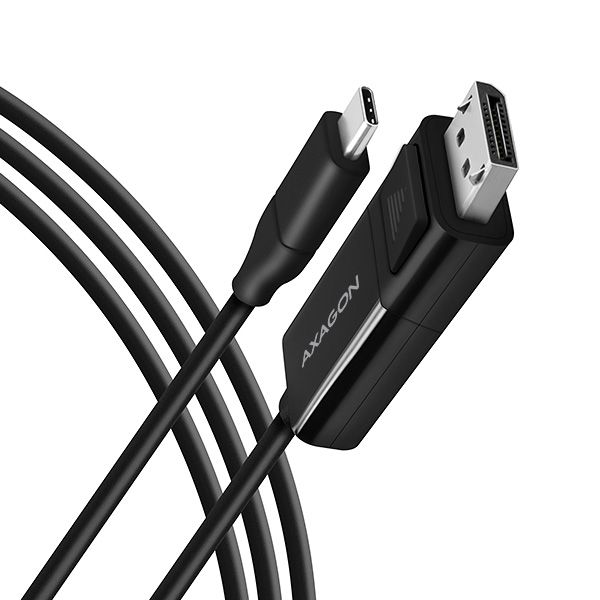
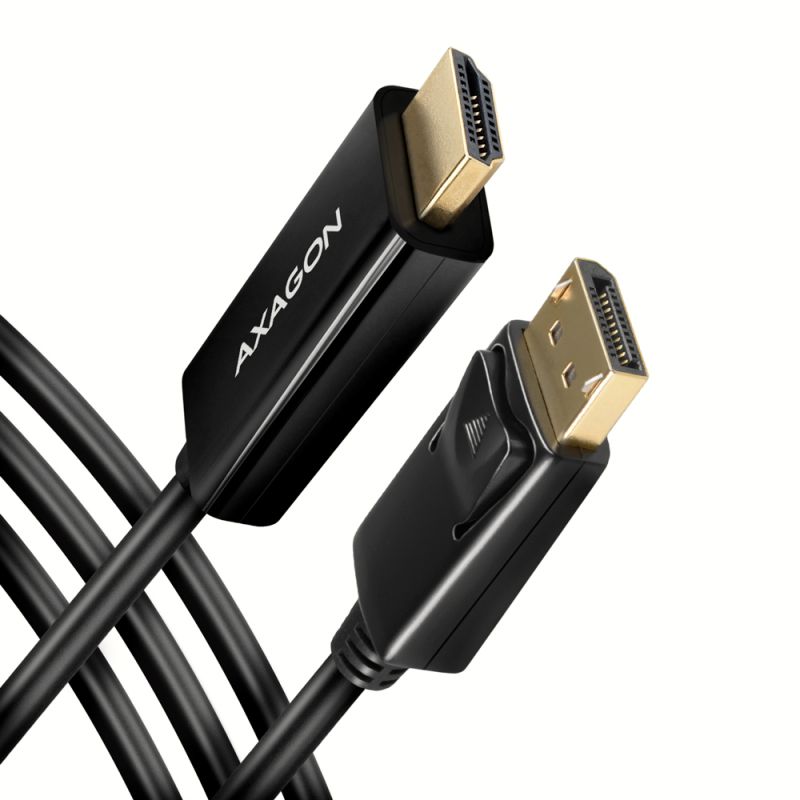
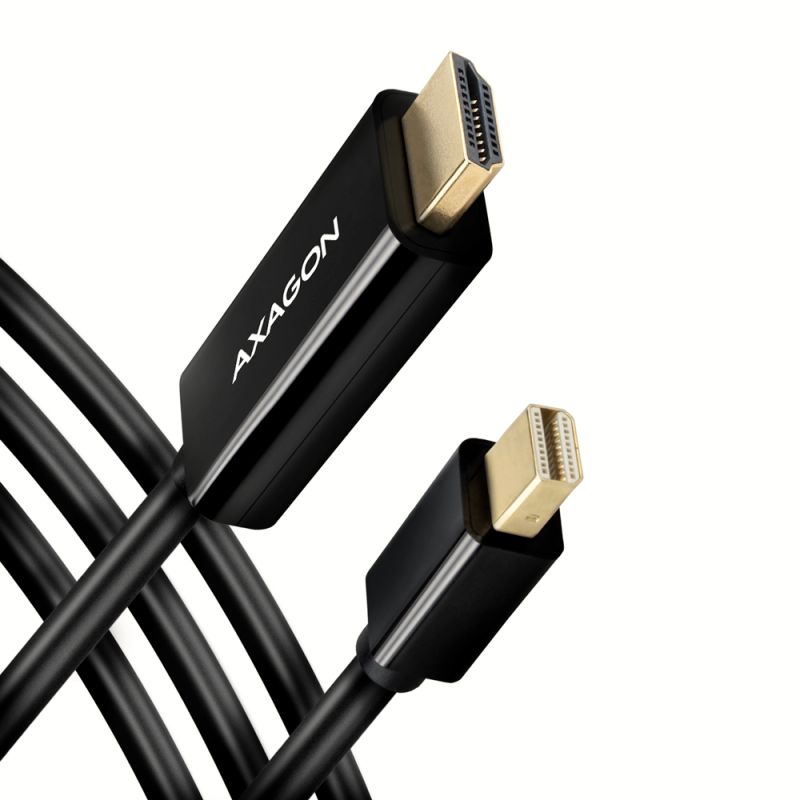
DisplayPort -> HDMI active cable – reduction AXAGON RVD-HI20C2 for connecting an HDMI monitor/TV/projector to a computer with a DisplayPort output.
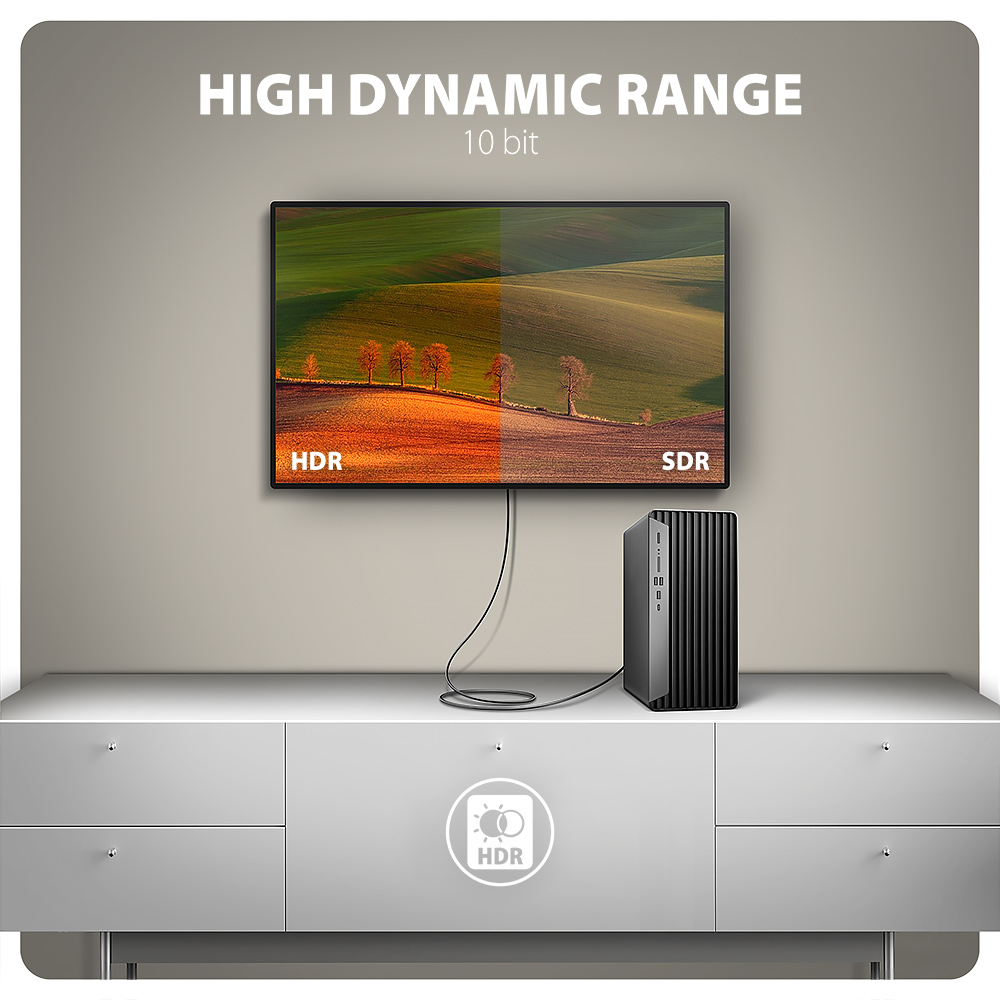
A hardware converter with no installation required provides high-quality video output up to 4K/60 Hz Ultra HD. Popular resolutions such as 2K/144 Hz Quad HD or 1080p/240 Hz Full HD are also supported. Thanks to HDR (high dynamic range) support, you can enjoy a significantly expanded range of colours and contrasts without restrictions.
The Plug and Play technology, makes it ideal not only for professionals but also for home users who want to easily and efficiently expand their multimedia setup.
Enjoy a home cinema experience with stunning 4K visuals, or use the adapter for conferences and presentations. It’s perfect for schools and interactive spaces where computers are frequently connected to HDMI devices. Graphic designers and video creators will appreciate the detailed display. The adapter is compatible with monitors from brands such as Dell, HP, Lenovo, ASUS, Samsung, LG, Sony, MSI, and others, ensuring its versatility and reliability.
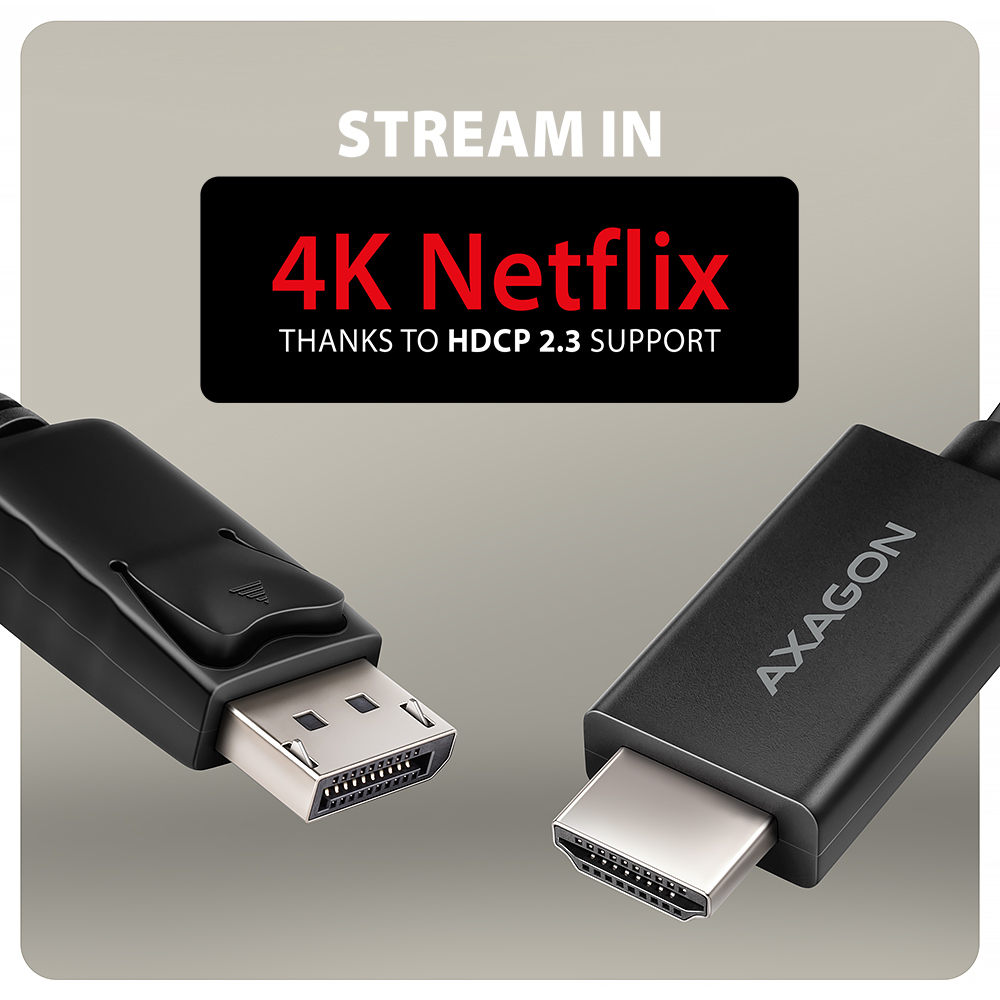
Thanks to HDCP 2.3 support, you can enjoy your favourite streaming services in 4K resolution without restrictions, including Netflix, Disney+, HBO Max, Amazon Prime, and Apple TV+. It also supports lossless audio transmission, best enjoyed on modern TVs. HDCP support must be enabled on all connected devices as well as by the streaming service itself.
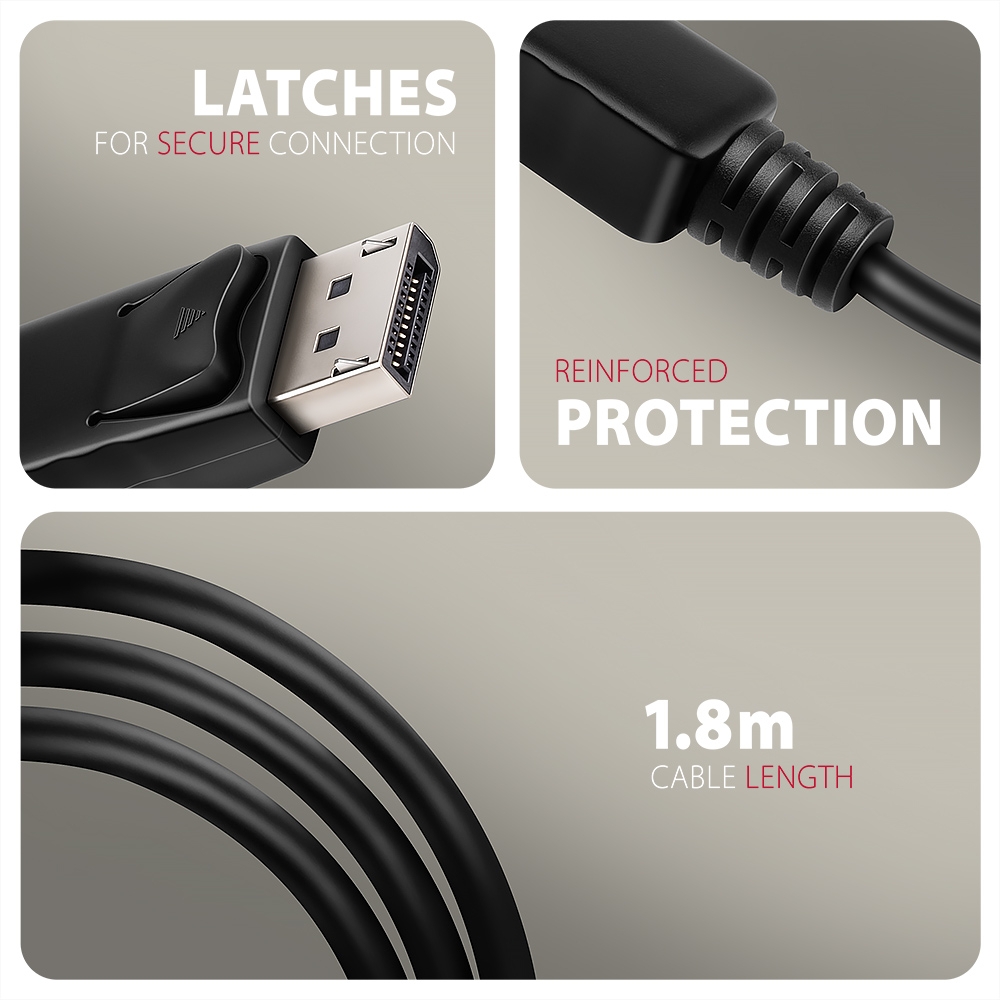
The video cable is made of high-quality materials, ensuring excellent reliability. The DP connector features safety latches that prevent accidental disconnection. The cable and connectors are protected against bending and breakage. With its 1.8 m length, the adapter ensures a reliable connection even to more distant monitors or projectors.
The cable is unidirectional, i.e., it functions as a DisplayPort to HDMI converter, not the other way around.
Input (connection to computer):
• DisplayPort v1.4
• DP connector with latch (M) male
• Connector latch control button
Output (connection to monitor / TV / projector):
• HDMI v2.0b
• HDMI A (M) male connector
The most widely supported resolutions:
• 4K/60, 30 Hz Ultra HD
• 2K/144, 120, 100, 60 Hz Quad HD
• 1080p/240, 144, 120, 100, 75, 60 Hz FullHD
Other supported resolutions:
The resolution and refresh rate depend on the monitor and graphics card used.
• max. 4096 x 2160 (17:9) @60Hz DCI 4K
• 3840 x 2160 (16:9) @60Hz UHD-1 4K (UHDTV)
• 3840 x 1600 (21:9) UW 4K (Ultrawide 1600p)
• 3840 x 1200 (32:10) 4K (Super ultrawide 1200p)
• 3840 x 1080 (32:9) 4K (Super ultrawide 1080p)
• 3440 x 1440 (21:9) UWQHD (Ultrawide 1440p)
• 2560 x 2048 (5:4) QSXGA
• 2560 x 1920 (4:3)
• 2560 x 1600 (16:10) WQXGA
• 2560 x 1440 (16:9) @144Hz QHD
• 2560 x 1080 (21:9) UWFHD (Ultrawide 1080p)
• 2048 x 1536 (4:3) QXGA
• 2048 x 1152 (16:9) QWXGA
• 1920 x 1440 (4:3)
• 1920 x 1200 (16:10) WUXGA
• 1920 x 1080 (16:9) @240Hz FullHD/1080p
• 1856 x 1392 (4:3)
• 1792 x 1344 (4:3)
• 1680 x 1050 (16:10) WSXGA+
• 1600 x 1200 (4:3) UXGA
• 1600 x 900 (16:9) HD+
• 1536 x 864 (16:9)
• 1440 x 900 (16:10) WXGA+
• 1400 x 1050 (4:3) SXGA+
• 1366 x 768 (16:9) HD
• 1360 x 768 (16:9) HD
• 1280 x 1024 (5:4) SXGA
• 1280 x 960 (4:3) SXGA-
• 1280 x 800 (16:10) WXGA
• 1280 x 768 (5:3) WXGA
• 1280 x 720 (16:9) HD/WXGA/720p
• 1280 x 600
• 1152 x 864 (4:3) XGA+
• 1024 x 768 (4:3) XGA
• 800 x 600 (4:3) SVGA
Other features:
• Supports lossless transmission of up to 8-channel audio – 192kHz at 24-bit.
• Supports DDC (Display Data Channel) – intelligent adjustment of resolution, frequency, and other parameters based on the source graphics chip.
• Supported modes: mirroring the desktop (default setting), extension of the primary monitor area.
• HDR support (High Dynamic Range, 10 bit support) - realistic reproduction of light and dark details.
• HPD (Hot-Plug-Detect) support - communication sequence controlling the connection/disconnection of the device while running,
• HDCP 2.3 (8K, 4K, QHD, FullHD) support- backwards compatible with HDCP 2.2 and 1.4.
• Support of power saving modes with spinning down controlled by a source device (PC) and a viewing device (monitor/TV).
• Power supply via bus - no external power is needed.
• Dimensions 9 x 38 x 21 mm (H x B x D).
• Weight 71 g (incl. cable).
• Cable length 1.8 m.
Supported operating systems:
• All versions of Windows, macOS, Linux, Chrome OS and other operating systems.
• It is a pure hardware converter, the transfer is provided only by the cable chip without computer participation, no drivers are installed, so the compatibility is not dependent on the operating system used.
Package contains:
• DisplayPort > HDM video adapter with cable length 1.8 m,
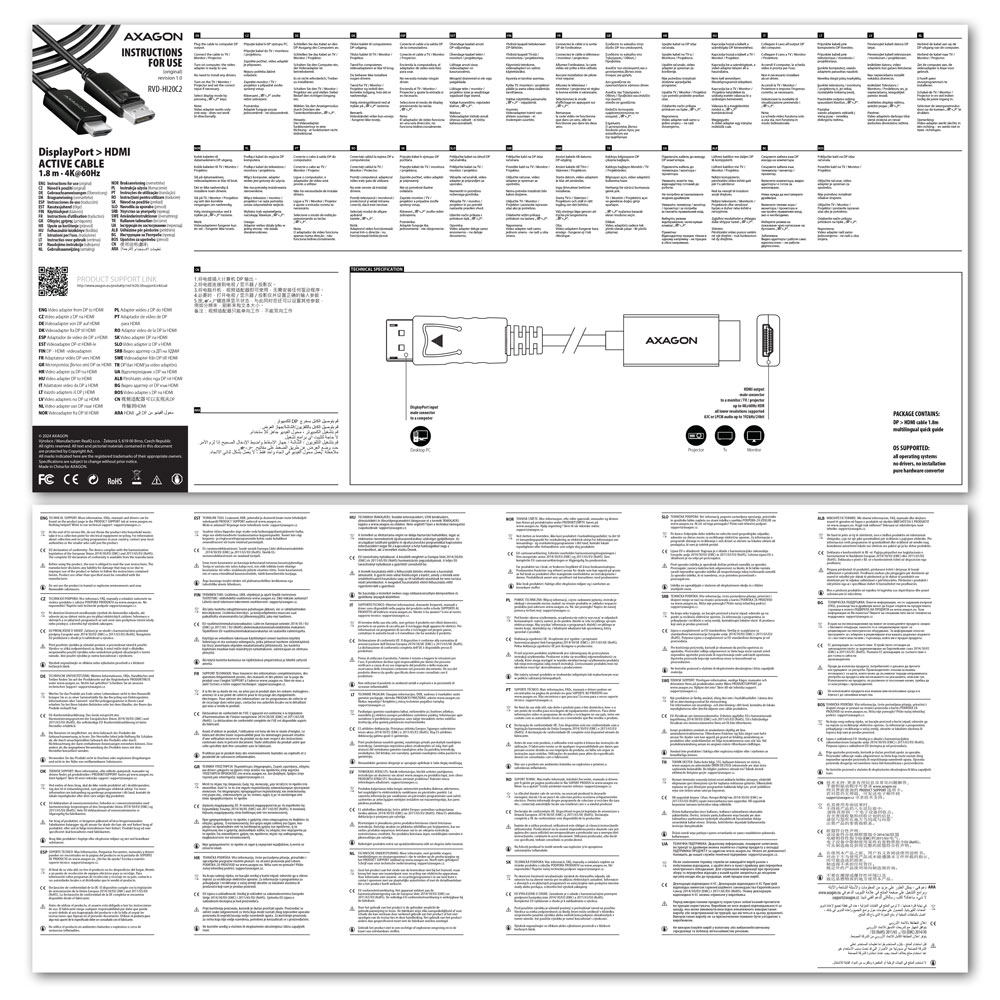
• multilingual manual CZ / DE / DK / ENG / ESP / EST / FIN / FR / GR / HR / HU / IT / LT / LV / NL / NOR / PL / PT / RO / SK / SLO / SRB / SWE / TR / UA / ALB / BG / BOS / CN / ARA,
• packed in a cardboard box with a hanging hole.



 English
 Czech
Czech
 Slovak
 German
 Hungarian
 Polish